
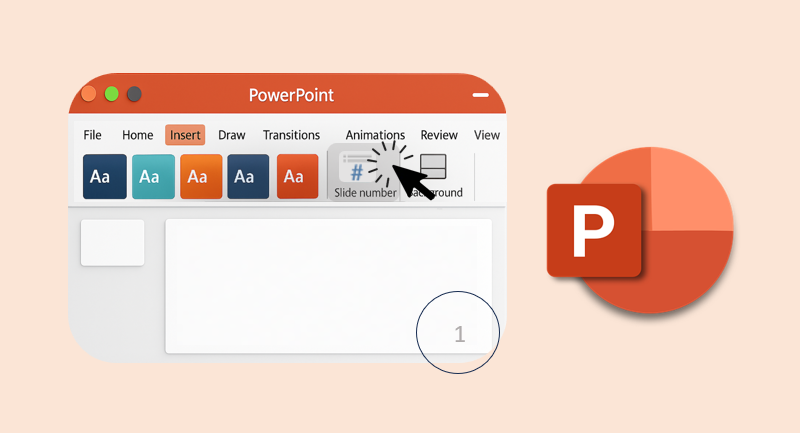

Adding slide numbers to all slides in PowerPoint, here one of ways:
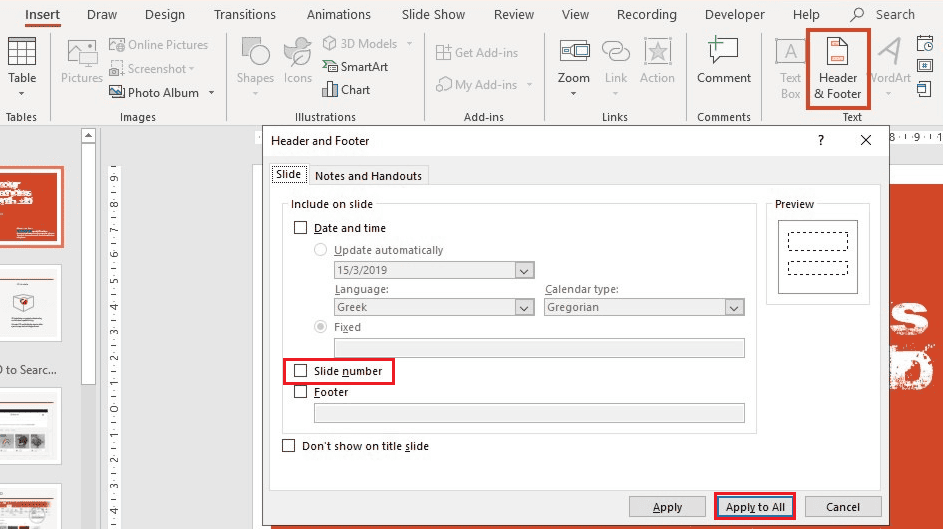
1. At the top of the window, click on the Insert tab in the ribbon menu.
2. In the Text group, click on Header & Footer.
3. In the dialog box that appears, go to the Slide tab. Check the box labeled Slide number. Click Apply to All to add page numbers to all slides. Or click Apply to add to the currently selected slide only.

This is the most direct method:
1. Open your PowerPoint presentation.
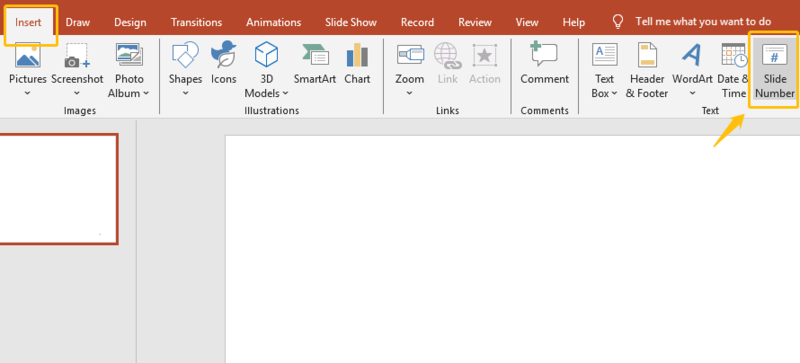
2. Go to the Insert tab on the top menu.
3. Click on Slide Number in the Text group.
4. In the Header and Footer dialog box:
- Check the box labeled Slide number.
- (Optional) Uncheck Don’t show on title slide if you want it on every slide.
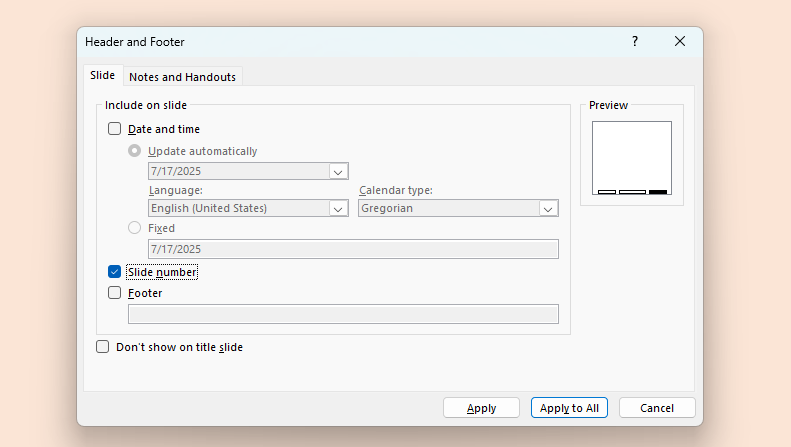
5. Click Apply to All to apply the numbers across your presentation.
This method gives you greater control over the placement and formatting of your slide numbers.
1. Go to View > Slide Master.
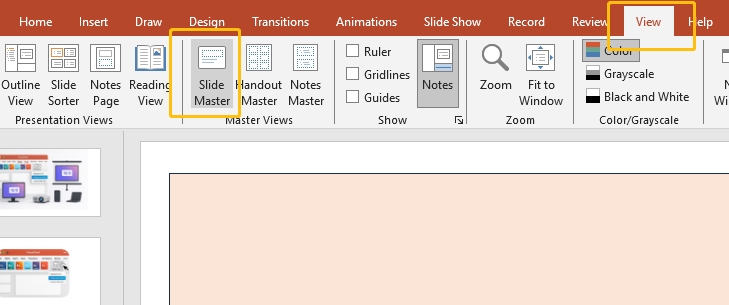
2. Select the top-most (master) layout or any individual layout you want to edit.
3. Click Insert > Text Box, then choose Slide Number.
4. Format and position the text box as needed.
5. Exit Slide Master View. Your changes will now reflect on all slides that use that layout.

By default, PowerPoint starts numbering from 1, but you can change this:
1. Go to the Design tab.
2. Click Slide size> Custom Slide Size.
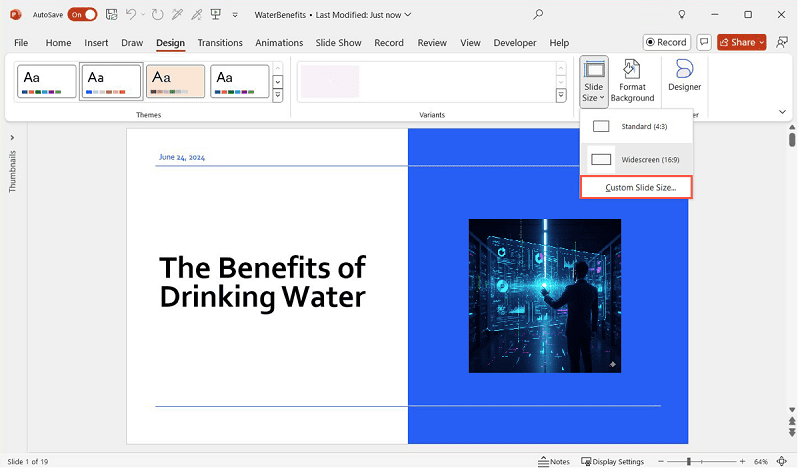
3. In the pop-up dialog, locate Number slides from:
4. Enter your preferred starting number (e.g., 3 or 10).
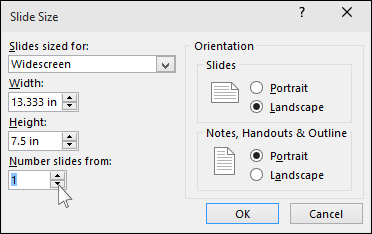
5. Click OK to apply the changes.
This is useful if your presentation is part of a larger deck or if you’re continuing numbering from a previous file.


Hі, I do think this is а great blog. I stumЬledupon it 😉 I am going to
revisit yet again since i have book marked it. Money and fгeedom is the best
waүy to change, may you be rich and continue to help others.
Can I simply say what a comfort to discover someone that really knows what
they’re talking about online. You definitely realize how to bring an issue to light
and make it important. More and more people have to check this out and understand this side of the story.
I was surprised you aren’t more popular since you surely possess
the gift.
Hello there, I found your website by means of Google at the same
time as looking for a comparable matter, your website got here up, it
appears great. I have bookmarked it in my google bookmarks.
Hi there, just was aware of your blog thru Google,
and located that it’s truly informative. I am gonna watch out for brussels.
I will appreciate when you continue this in future. Numerous other people will be benefited out of your writing.
Cheers!
This paragraph is actually a pleasant one it helps new net
visitors, who are wishing in favor of blogging.
Fantastic items from you, man. I have be aware your stuff prior to and you’re simply too magnificent.
I actually like what you’ve received here, really like what you’re saying
and the way in which during which you are saying it.
You make it entertaining and you still take care of
to keep it wise. I cant wait to learn much more from you.
That is actually a wonderful web site.
Thanks for some other fantastic article. Where else could
anyone get that type of information in such a perfect means of writing?
I have a presentation subsequent week, and I’m on the search for such information.
Then you come to the right place, Bowl 😁
Hello to every body, it’s my first pay a visit of this webpage; this website carries amazing and genuinely
good data in favor of readers.
What’s up, its good article on the topic of media print, we all be aware of media is a wonderful source of data.