
How to Attach Hyperlink in PowerPoint in Differernt Forms
If you’ve been wondering how to attach hyperlink in PowerPoint to create a more compelling presentation, you’ve come to the right place. This guide will show you everything you need to know, from the absolute basics to customizing the look of your links.
Creating your first hyperlink is surprisingly easy. You can add a link to almost anything on your slide. Let’s start with the two most common scenarios: adding a link to text and adding one to an object. How to insert text>>
1. Select what you want to be clickable. For text, highlight the word or phrase. If you want to use an image or a shape (like a button), click on the object to select it.
2. Right-click on it. In the menu that appears, you’ll see an option for “Link” or “Hyperlink. Click it.
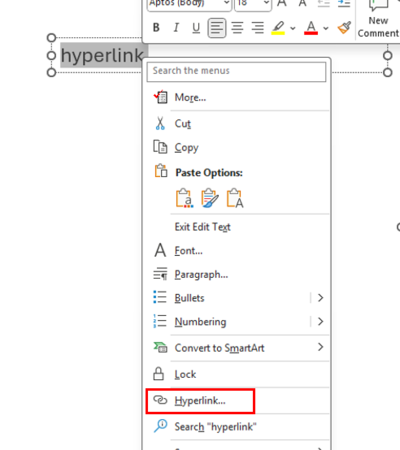
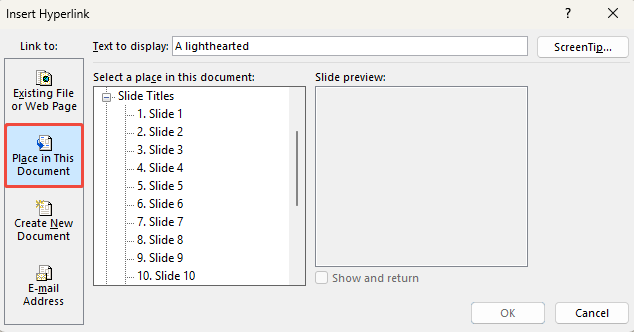
3. You’ll see a panel on the left with 4 options:
Option 1: How to insert a web link
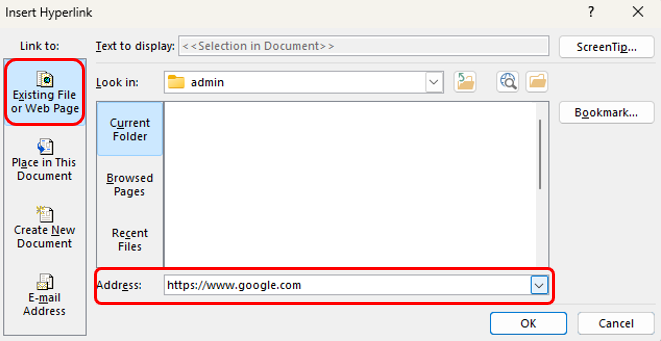
Make sure “Existing File or Web Page” is selected. Then, simply type or paste the full web address (e.g., https://www.google.com) into the “Address” field at the bottom and click “OK.”
Option 2: Add Hyperlink to Another Slide
Select “Place in This Document.” You will see a list of all the slides in your presentation. Simply select the slide you want to link to, and PowerPoint will even show you a preview.
Option 3: Embed Hyperlink to Document
With “Existing File or Web Page” selected, navigate to the file on your computer and select it.
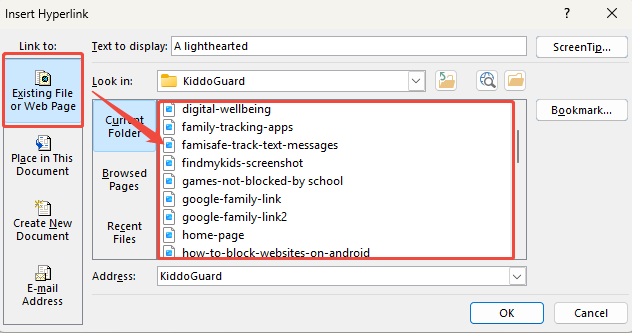
⚠ For this to work, the linked file must be kept in the same location relative to your PowerPoint file, especially if you move the presentation to another computer.
Option 4: Attach Hyperlink to Email Address
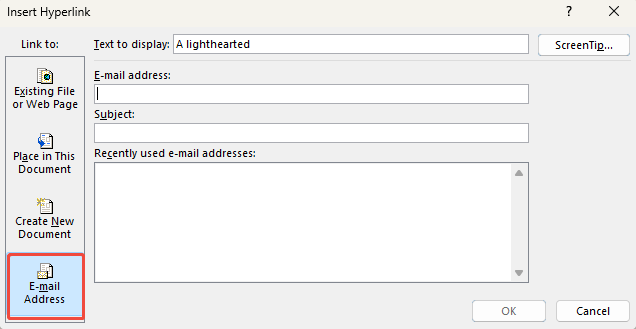
Select “E-mail Address” from the left panel, type the email address into the designated field, and you can even pre-fill the subject line.
Want to make your PowerPoint look professional without spending hours designing? WorkPPT AI Presentation Maker helps you organize content, choose templates, and add visuals automatically.
Once you’ve added links, you need to know how to manage them.
Edit Hyperlink in PowerPoint
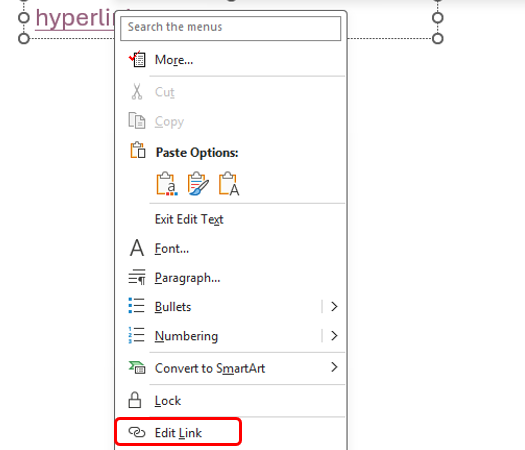
To edit a link, simply right-click the hyperlinked text or object and select “Edit Link.” This will re-open the familiar dialog box where you can change the destination address.
Change the Color of a Hyperlink in PowerPoint
Tired of the default blue and purple links that clash with your design? You can easily customize them. The key to successfully change color of hyperlink in powerpoint is not to change the text color directly, but to edit the presentation’s theme colors.
Here’s how you do it:
1. Navigate to the “Design” tab on the top ribbon.
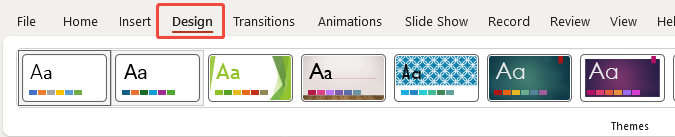
2. Look for the Variants group. Click the small “More” dropdown arrow on the side.

3. From this menu, hover over Colors and then click on Customize Colors… at the bottom.
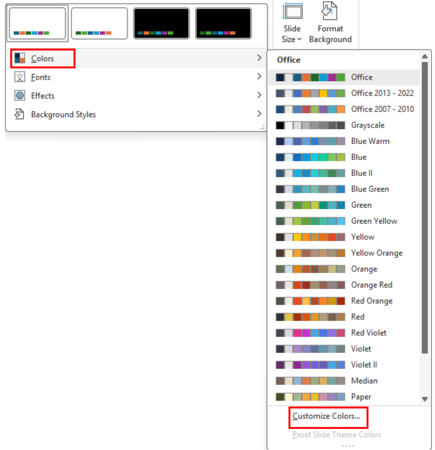
4. A new window will open called “Create New Theme Colors.” Here, you can set the color for Hyperlink (the initial color) and Followed Hyperlink (the color it turns after being clicked).
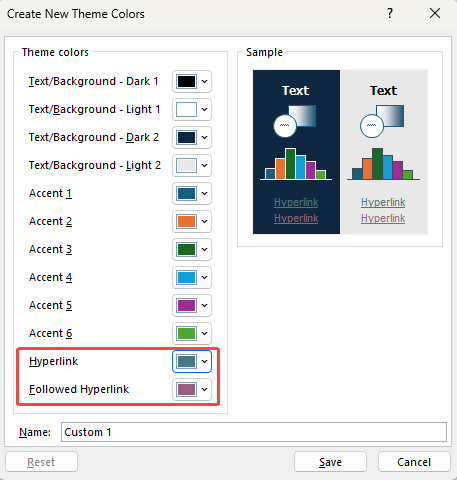
5. Click the color swatches next to each, pick the new colors that match your brand or theme, give your new color scheme a name, and click Save.
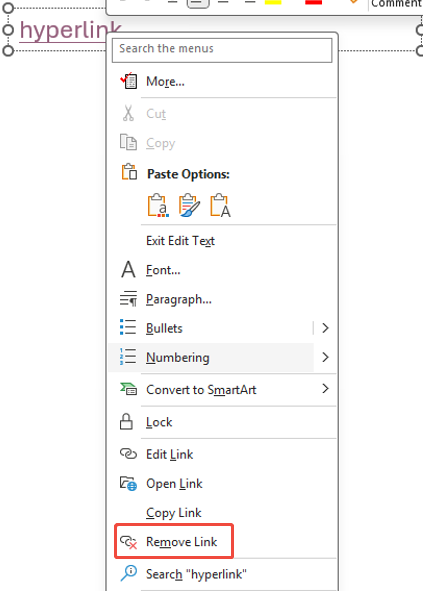
If you need to know how to remove hyperlink in PowerPoint, the process is just as simple. Right-click the link and choose “Remove Link” (or “Remove Hyperlink”). The text or object will remain, but it will no longer be clickable.
Pro Tips for Insert Hyperlinks in PowerPoint
Be Descriptive: Use link text like “View 2024 Report” instead of “Click Here.”
Be Consistent: Use the same style and color for all links.
Be Obvious: Make links look clickable with underlines or colors.
Always Test: Before you present, press F5(slide show) and click every link to ensure it works.
FAQs: How to Add Hyperlink in PowerPoint
Q1: How to create a clickable hyperlink in PowerPoint?
A: To create a clickable hyperlink in PowerPoint, select the text, image, or shape you want to make clickable. Then right click the object > Link (or Hyperlink), paste the web address or choose a slide/file, and click OK.
Q2: How do I make a clickable button in PowerPoint?
A: Go to Insert > Shapes > Action Buttons, choose one, and in the pop-up window, select Hyperlink to → pick a slide, website, or file.
Q3: How to hyperlink a slide in powerpoint?
A: Go to Insert > Link > Place in This Document, then choose the slide you want to connect. This is how to easily hyperlink a slide in PowerPoint for navigation or quizzes.
Q4: How do I open a hyperlink in PowerPoint while presenting?
A: When you’re in Slide Show mode, click the linked text, image, or button.
Q5: What is the shortcut for hyperlink in PPT?
A: The keyboard shortcut to insert a hyperlink in PowerPoint is Ctrl + K (Windows) or Command + K (Mac). This opens the Insert Hyperlink dialog instantly, making it faster to add links without using menus.
💬 Conclusion:
Adding hyperlinks is one of the easiest ways to make your PowerPoint more interactive and professional. Now you know how to attach hyperlinks in PowerPoint — from linking slides to websites, files, or emails.
If you want to save time creating engaging presentations, try WorkPPT AI Presentation Maker. It helps you design and organize slides instantly, so you can focus more on your ideas and delivery.
As the AI Tools Laboratory Director and an expert in deep customization techniques for PowerPoint and Google Slides, I leverage my experience testing 87 AI tools to enhance creative processes. A Stanford dropout in Human-Computer Interaction, I am passionate about transforming repetitive tasks into opportunities for inspiration, believing that 'tools are servants, not masters'. At WorkPPT, I advocate for the creative freedom that comes from human-machine symbiosis.
Secure Your Slides: 2 Ways to Password Protect PowerPoint