
author image

If you want your text in Google Slides to stand out, outlining text is a great trick. This guide walks you through how to outline text in Google Slides without design skills. You’ll also get a few tips to make your outlined text, and your slides overall look clean and polished.

Yes. Although Google Slides doesn’t have a built-in option for adding text outlines. Unlike PowerPoint or Photoshop, you can’t just select a text box and apply an outline color or adjust the border around each letter.

But the good news is, you can still get a similar effect with a few smart workarounds. And create a perfect Google Slides.

How to Outline Letters in Google Slides

Method 1: Using Word Art (Easiest Way)

Word Art is a special feature in Google Slides that lets you add stylized text. Unlike regular text boxes, Word Art allows you to add a border color and a fill color to your text. This is the closest you can get to true outlined text in Google Slides.

Here’s how to use Word Art to outline text:

  • 1. Insert Word Art:
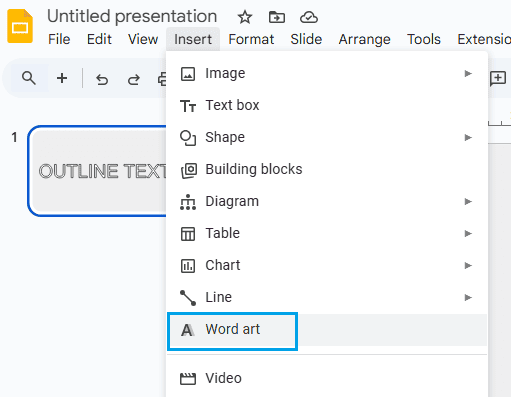
    • Go to the menu and click on Insert > Word Art.
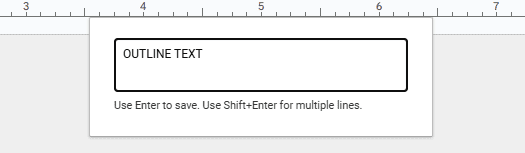
    • A text box will appear. Type your desired text and press Enter.

    insert word art in google slides

    enter outline text

  • 2. Customize Border and Fill:
    • Click on your Word Art text to select it.
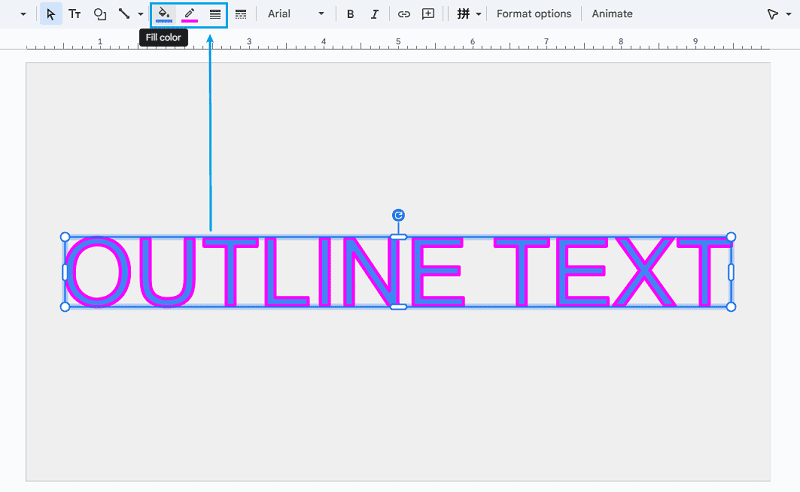
    • In the toolbar, you’ll see options for Fill color (paint bucket icon) and Border color (pencil icon).
    • Click on the Fill color to choose the inside color of your letters.
    • Click on the Border color to choose the outline color for your letters.
    • You can also click the Border weight icon to make the outline thicker or thinner.

    customize word art

  • Resize and Position:
    • Drag the corners to resize your Word Art.
    • Move it to where you want it on your slide.
workppt banner 2
Want to Save Time for Design PPT?

With WorkPPT AI maker, you can create slides with ready-made transitions, motion effects, and perfect formatting — no manual adjustments needed.

Method 2: Creating Outlined Text with Drop Shadows

If you want the outline effect on regular text (not Word Art), you can use the drop shadow feature to mimic an outline. Here’s how:

  • 1. Add a Text Box:
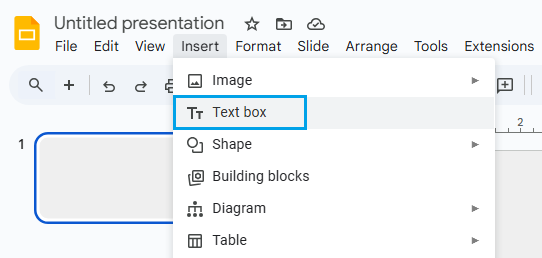
      • Click on Insert > Text box.

    insert text box in google slides

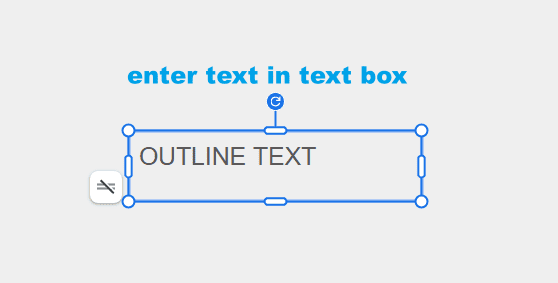
      • Type your text as usual.

    enter text in text box

  • 2. Apply Drop Shadow:
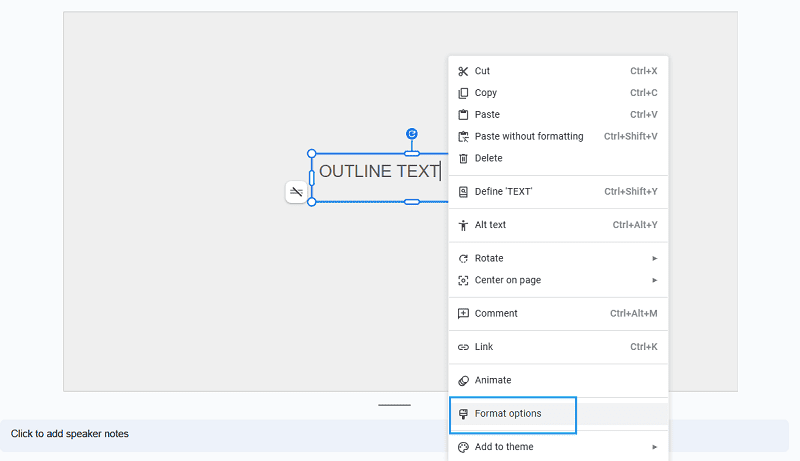
      • Right-click the text box and select Format options.

    choose format options of text box

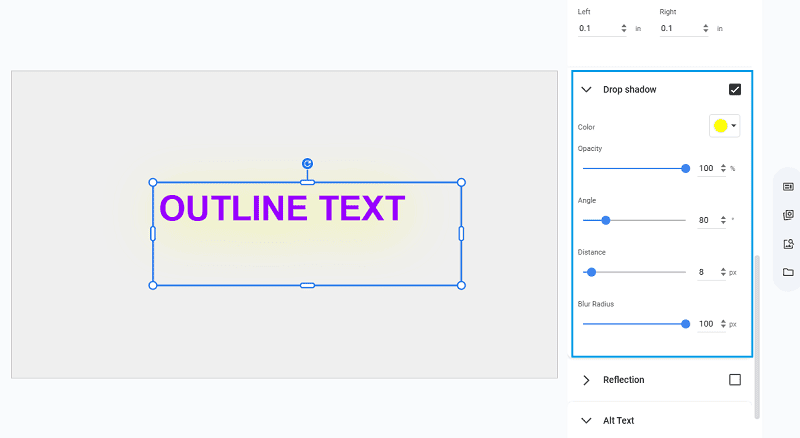
      • In the sidebar, find and expand the “Drop shadow” section.
      • Turn on the drop shadow.
      • Set the color to the outline color you want.
      • Set the Transparency to 0% (fully visible).
      • Set the Blur radius to 0 (sharp edge).
      • Adjust the Distance and Angle so the shadow appears evenly around your letters, creating an outline effect.
    drop shadow settings of outline text

Method 3: Using Image Editors

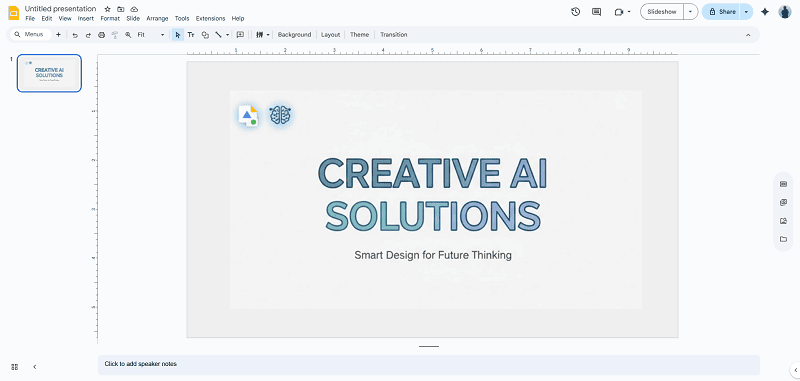
For the most control, you can create outlined text using a graphic editor (like Canva, Photoshop, or even free tools like Pixlr or Photopea), then import the image into Google Slides.

Here’s how:

  1. Design Outlined Text in an Image Editor:
  2. Insert the Image into Google Slides:
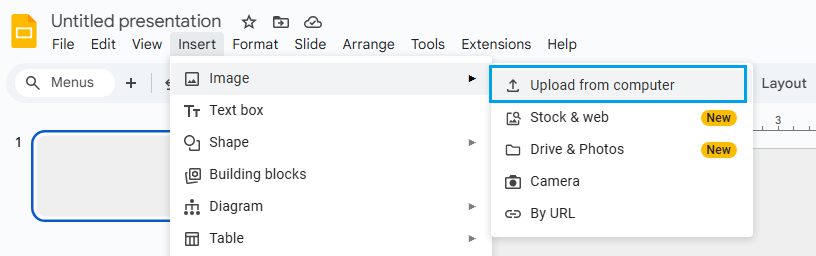
      • Go to your slide and click Insert > Image > Upload from computer.

    insert image on google slides

      • Select your outlined text image.
      • Resize and position as needed.

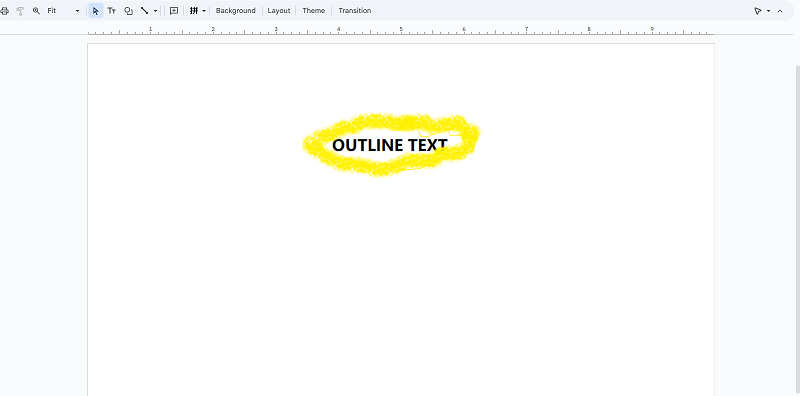
    import outline text image

This method allows you to use any font, color, and outline thickness. It is also perfect for unique styles, logos, or effects not possible in Google Slides alone.

Tips for Stylish Outlined Text

No matter which method you use, here are some tips to make your outlined text look great:

1. Font Choices

  • Use bold, thick fonts for the best outline effect.
  • Sans-serif fonts (like Arial Black, Impact, or Montserrat) look clean and modern.
  • Avoid very thin or script fonts, as the outline may not be visible.

2. Color Combinations

  • Choose high-contrast colors between the fill and the outline.
  • For example, white text with a black outline is easy to read on almost any background.
  • Try using your brand’s primary color as the fill and a darker shade as the outline.
  • You can even use a transparent fill with a colored outline for a “hollow” text effect.

3. Maintaining Readability

  • The outline should add emphasis—not make the text harder to read.
  • Don’t use too many colors at once; stick to two or three for a professional look.
  • Make sure the text is large enough to see from the back of the room.

4. Consistency

  • Use the same outline style for all your headings to create a cohesive design.
  • If you use outlined text for titles, consider using plain text for body content to keep slides balanced.

FAQs about How to Outline Text in Google Slides

Q: Can I outline text in Google Slides like in PowerPoint?
A: Not directly, but you can use Word Art, drop shadows, or import images for a similar effect.

Q: What is the easiest way to outline text in Google Slides?
A: Use the Insert > Word Art feature, then customize the border and fill colors.

Q: How do I make outlined text hollow (no fill)?
A: In Word Art, set the fill color to transparent.

Q: Can I add an outline to normal text (not Word Art)?
A: You can use the drop shadow trick in Format options, but it works best on large, bold fonts.

💬 Conclusion:

While Google Slides does not offer a simple “text outline” button, you can still achieve beautiful, outlined text using clever workarounds.

And suppose you’re looking for smarter, faster ways to create stunning presentations with advanced effects. In that case, WorkPPT AI Presentation Maker is an AI presentation generator that can help you design professional slides in just a few clicks.

⭐⭐⭐⭐⭐ Rated 4.8 by 1.3M Users