


author image

Insert Excel into PowerPoint is a common task for anyone presenting data, but choosing the right method can affect formatting, editing, and how your information appears on the slide. This guide walks you through every practical way to add Excel content into PowerPoint.

MethodBest ForAuto-UpdatesFormatting StabilityDifficulty
Copy & Paste (Table or Picture)Editable tables or stable picture formattingNoMedium–Very HighEasy
Embed WorksheetFull Excel access inside PPTNoHighMedium
Link Excel FileLive data & dashboardsYesLow–MediumMedium

Method 1: Inserting Excel into PowerPoint as Table or Image

Copying from Excel and pasting into PowerPoint is the fastest way to insert data. You can paste it as an editable table or as an image.

Option A: Paste as an Editable Table

You copy a range from Excel and paste it into PowerPoint as a normal table that you can edit directly:
1. Select your data in Excel.
2. Press Ctrl + C.
3. In PowerPoint, choose Paste → Keep Source Formatting or Use Destination Styles.
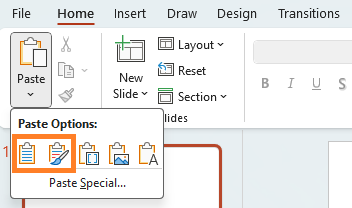
insert excel into powerpoint as table

4. Adjust columns or apply a table design.

😊Pros

😑Cons

Option B: Paste as Picture / Enhanced Metafile

This method treats the Excel data as a static image, preventing any edits or updates.
1. Copy the range or chart in Excel (Ctrl + C).
2. In PowerPoint, go to Home > Paste dropdown > Paste Special…
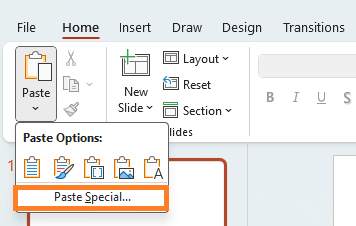
paste excel in powerpoint through paste special option


3. Select “Paste” and choose “Picture (Enhanced Metafile)”.
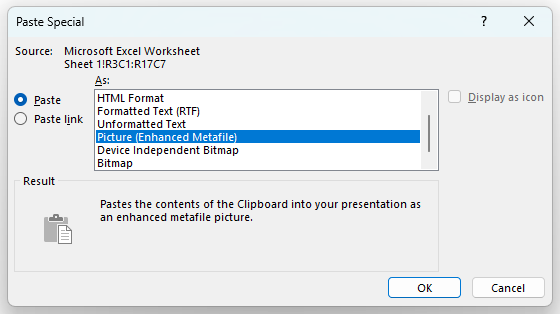
insert excel in powerpoint as picture

😊Pros

😑Cons

Method 2:How to Embed an Excel File in PowerPoint

Embedding inserts an exact, editable copy of the Excel sheet into the presentation file. The presentation becomes standalone.
1. Copy the range in Excel (Ctrl + C).
2. In PowerPoint, go to Home > Paste dropdown > Paste Special…

paste excel in powerpoint through paste special option


3. Select “Paste” and choose “Microsoft Excel Worksheet Object”.
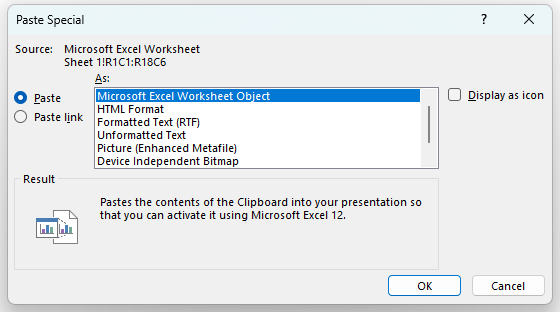
embed excel in ppt

😊Pros

😑Cons

Method 3:How to Link a Chart in Excel to PowerPoint

This is the preferred method for maintaining data accuracy, as the PowerPoint object remains dynamically linked to the original Excel file.
1. Crucial Step in Excel: Save your Excel workbook before linking.
2. Copy the range or chart in Excel (Ctrl + C).
3. In PowerPoint, go to Home > Paste dropdown > Paste Special…

paste excel in powerpoint through paste special option

4. Select “Paste Link” and choose “Microsoft Excel Worksheet Object”.
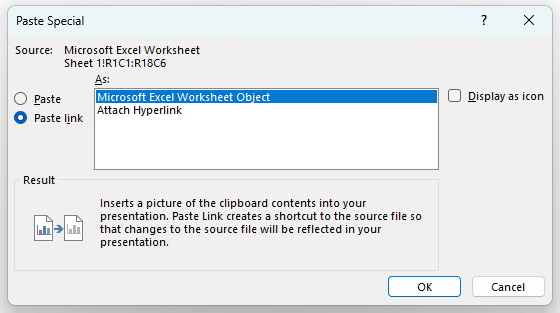
link excel table in powerpoint

😊Pros

😑Cons

A Faster Alternative: Create Data-Ready Slides with WorkPPT

Manually inserting Excel tables or charts can still take time. WorkPPT AI PPT is an AI presentation tool designed to simplify data-heavy slides. Instead of manually inserting Excel tables, charts, or updating spreadsheets inside PowerPoint.

You can upload your Excel file directly to WorkPPT. The AI automatically organizes the data, generates clear tables and charts, and builds polished slides without formatting issues.

screenshot of workppt

⭐⭐⭐⭐⭐ Rated 4.8 by 1.3M Users

FAQs about Inserting Excel into PowerPoint

Q: What is the best way to insert Excel into PowerPoint?

A: It depends on your needs.

  • Use Copy & Paste for quick, simple tables.
  • Use Paste as Picture for stable formatting.
  • Use Embed if you need full Excel editing inside PowerPoint.
  • Use Link if you want the data to auto-update.

Q: Why does my Excel table look different in PowerPoint?

A: PowerPoint may apply its theme. To avoid style changes, paste as a picture or use Keep Source Formatting when pasting as a table.

Q: Can I use AI to make comparison slides?

A: The solution to automatically update Excel data in PowerPoint is to use the Linking feature when pasting.

1. In Excel: Copy the desired range or chart (Ctrl + C).

2. In PowerPoint: Go to Home > Paste dropdown > Paste Special…

3. In the dialog box, you must select “Paste Link” and choose the appropriate object type, such as “Microsoft Excel Worksheet Object”.
This establishes a dynamic connection, allowing the data in PowerPoint to refresh automatically.

Q: Can I edit an embedded Excel file directly inside PowerPoint?

A: Yes. Double-click the embedded worksheet to open the Excel editor within PowerPoint.

💬 Conclusion:

Inserting Excel into PowerPoint can be done in several ways—copying, embedding, or linking—each suited to different needs.

If you want to skip manual formatting entirely, WorkPPT helps you generate clean, data-driven slides instantly from Excel files, documents, or text—saving time and giving you professional results in seconds.

Save time on formatting with WorkPPT

Upload your Excel file and let WorkPPT automatically create clean tables, charts, and data-ready slides.