
author image

Converting video to PowerPoint slides has become a common need for educators, marketers, consultants, and business teams.

Whether you want to summarize a recorded meeting, repurpose a YouTube video for a presentation, or turn video insights into structured slides, knowing the right workflow matters. Let’s begin!

Tool Input Type Supported Formats / Sources Output Style Best For Limitations
MagicSlides Video upload All MP4 formats Text + images Converting recorded MP4 videos into PPT Limited design control; quality depends on video clarity
Plus AI YouTube link YouTube URL only Text-focused slides Turning public YouTube videos into presentations No video upload support; not suitable for private videos
Video2PPT Video / Screen recording Video files & screen recordings Image-based slides Product demos and tutorial recordings Image-heavy output; requires manual refinement

Method 1: Convert YouTube to PPT Download (MP4 to PPT)

Steps:

  1. Upload or select your video file
  2. Generate a transcript (manually or via AI video to PPT converter like MagicSlides or Video2PPT)
  3. Extract key sections, chapters, or timestamps
  4. Convert those points into structured slides

Best for:

  • Training videos
  • Webinars
  • Product demos
  • Internal knowledge sharing

This approach creates fully editable PPT slides, not just static video embeds.

Method 2: Convert Youtube to PowerPoint Online (Link to PPT)

Steps:
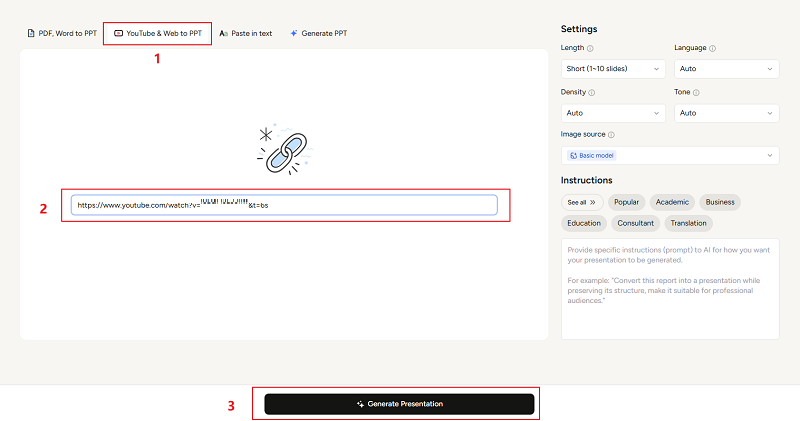
    1. Copy the YouTube video URL
    2. Choose a Youtube video link to PPT converter
    3. Paste the URL on the bar

how to convert youtube to-ppt

  1. Click generate PPT, download and make modification.
This is the preferred approach for:
  • Educational presentations
  • Corporate training
  • Research summaries

Method 3: Create Video from PPT (PowerPoint to Video)

Many users converting video to PPT eventually ask the opposite question: how to create video from PPT. PowerPoint supports this natively:

Steps:

  1. Finalize your slides
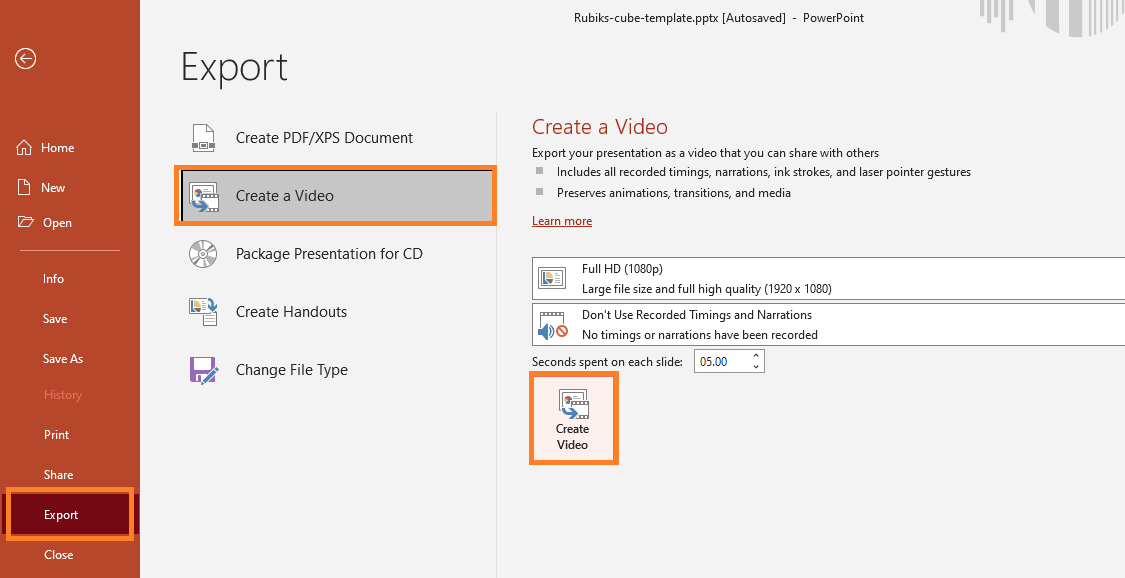
  2. Go to File → Export → Create a Video

    export ppt to video

  3. Choose resolution and timings
  4. Export as MP4

This is useful for:

  • Training content
  • Social media clips
  • Asynchronous presentations

You can also record narration and animations before exporting.

💬 Conclusion:

This article introduced three practical ways to create a PowerPoint from video, covering different scenarios such as uploaded videos, YouTube links. When converting video content into slides, always be mindful of copyright and usage rights. Make sure you have permission to reuse and redistribute the content.

If your goal is not to convert an existing video but to create a presentation directly from a topic or idea, WorkPPT AI Maker is a recommended option. It helps you generate structured, presentation-ready slides quickly—without starting from a video at all.

workppt banner
WorkPPT AI Slide Maker

From Idea to Slides in Seconds
With WorkPPT, you can turn any topic into a complete, polished presentation instantly.

Check out the video tutorial about how to use AI PPT maker here: