

author image

Most people think of PowerPoint as a tool for long, boring presentations. But with simple tricks, turn slides into fun, interactive games that engage everyone. This guide covers key types of PPT games, where to use them, design tips, and steps to build your first one.

What Exactly Is a PPT Game: PPT games are games that live inside your slide deck. Players interact by choosing options, clicking buttons, and watching what happens next on the screen.

You can use a PowerPoint game almost anywhere: to warm up a class, to break the ice with colleagues, or to add some energy to a family gathering or video call.

Game TypeDescriptionBest Scenarios
Jeopardy GameCategory board with point values; players pick questions and answer in question formClass reviews, team meetings, training sessions
Word & GuessingHangman, Wheel of Fortune-style phrase reveals, or crossword gridsLanguage practice, vocabulary building, casual parties
Memory MatchFlip cards to find pairs of images or words using animationsBrain teasers, kids’ activities, icebreakers
Team BattlesFamily Feud surveys or competitive buzzers with team scoreboardsWorkshops, corporate events, group game nights
Story Choices“Choose your adventure” paths where clicks lead to different outcomesStorytelling, decision-making workshops, fun webinars
Picture GuessingZoomed-in images or Pictionary-style drawings to identify objectsVisual quizzes, travel trivia, logo challenges
Quick Polls“This or that,” two truths and a lie, or rapid voting slidesOnline calls, warm-ups, audience engagement
workppt banner 2

Create game-ready slides in minutes.

Use WorkPPT to generate structured, consistent PPTs, then customize them into interactive games.

How to Build Your First PPT Game: Jeopardy Edition

Let’s build a simple Jeopardy game step-by-step. No coding required—just slides, tables, and hyperlinks.
Step 1: Create the Game Board Slide
Start a new PowerPoint presentation.

  • Insert a table to cover most of the slide.
  • Label columns with categories like “History,” “Sports,” “Movies,” “Science,” “Misc.”
  • Fill rows with point values.(200, 400, 600, etc.)
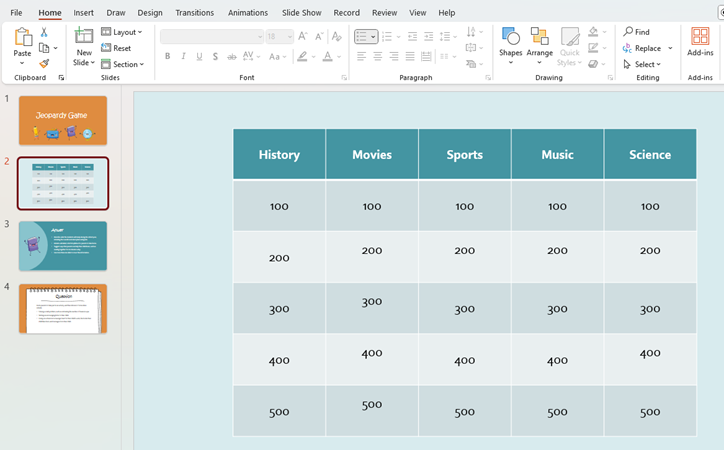
create game board slide

Pro Tip: Format the table so the cells are large and the text is bold. This makes it easier for “contestants” to see.

Step 2: Design Question and Answer Layouts
Use the Slide Master for consistency. For every single question, you need two slides:

  • The Question Slide: Large text with the clue.
  • The Answer Slide: Answer + a “Back to Board” button.

question and answer slides of jeopardy gameDuplicate these layouts for all questions.

Step 3: Link Everything Together
Now, connect the point values on the Board to the Question slides.

  • Board to the Question slides.
  • Go to your Game Board.
  • Highlight the text “$200” in the first column.
  • Add hyperlink to related question slide(Press Ctrl + K).
  • Select Place in This Document and pick the corresponding Question slide.
  • Repeat this for every point value on the board.
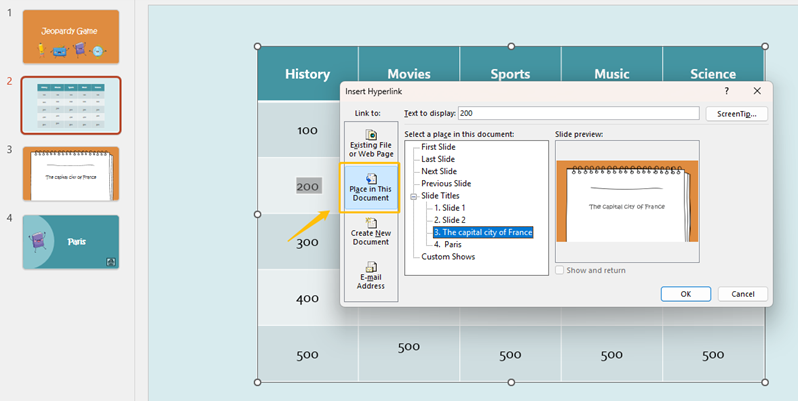
heyperlink slide

Step 4: Preview and Test
Run full playthrough: Click every path, fix broken links, time a round.

Tips for Creating Games in PowerPoint

These practical tips will make your PPT games smooth, engaging, and professional:

  • Dedicate the first slide to “How to Play” in bullet points.
  • Avoid overcrowding slides with text or visuals. Use large fonts and enough spacing.
  • Consistency improves the overall experience. Use the same colors, fonts, and layout style across all slides
  • Use animations and transitions sparingly to enhance interaction without distracting players.
  • Before presenting, check that all links work correctly, animations trigger as expected, and scoring rules are clear.

Boost Your PPT Game Creation Speed

Save hours on design and get straight to the fun part. Here are three proven ways to work faster.

1. Start with Game PPT Templates

Download ready-made Jeopardy boards, quiz layouts, or game decks from sites like SlideModel, SlideCarnival and Slidesgo.

2. Leverage PPT Game Generators

Some tools and generators are designed specifically to help create quiz-style or interactive presentations.
Mentimeter – for live audience voting and quiz interactions
Kahoot! – for gamified quizzes in classrooms and training sessions
Slides With Friends – for interactive games and engagement during live presentations
Factile – Online Jeopardy game maker

3. Use WorkPPT AI PPT Generator to Design Slide

For the fastest workflow, you can use WorkPPT AI Presentation Maker to create a complete slide structure before turning it into a game.

With WorkPPT, you enter a topic, short prompt, or upload a document, and the AI will:

  • Automatically generate a clear slide outline
  • Design visually consistent slides
  • Apply professional templates and layouts

This is especially useful when creating PPT games like quizzes or Jeopardy games, which often require many slides with similar layouts. Built-in AI chat is also useful for brainstorming more interactive ideas for your games.

⭐728323 presentations made

💬 Conclusion:

PowerPoint games transform dull slides into engaging experiences for classrooms, meetings and parties without coding skills. Ready to make your funny presentation? Welcome to share youppt games ideas in the comments.