

author image

Have you ever struggled to present a web page in PowerPoint? There are some ways to convert HTML to PPT efficiently. In this guide, we’ll cover the best techniques and tools so you can transform any HTML page into a polished, editable presentation in minutes.

The simplest way is to copy text and images directly from your web page and paste them into PowerPoint slides. Break content into logical sections before pasting. And use “Paste Special” in PowerPoint to keep formatting.

Pro: Full control, no tools needed.
Con: Time-consuming for larger pages

workppt banner

WorkPPT AI PPT Maker

WorkPPT helps you build professional presentations from Word, Excel, PDF, or images.

Method 2: Using Screenshots

Another quick method is to take screenshots of your web page and insert them as images in slides.

Pro: Fast and keep orginal vusial effect
Con: Slides are not editable, and the file will be large
*This method is best for presentations where the web page is only for display, not for editing

Method 3: Using Online HTML to PPT Converter

Several online tools like Convertio or Aspose can convert HTML content directly into slides. These tools often preserve text formatting, images, and layout, and some even automatically generate professional designs.
Here are steps:
1. Go to a converter tool website
2. Upload your HTML file.
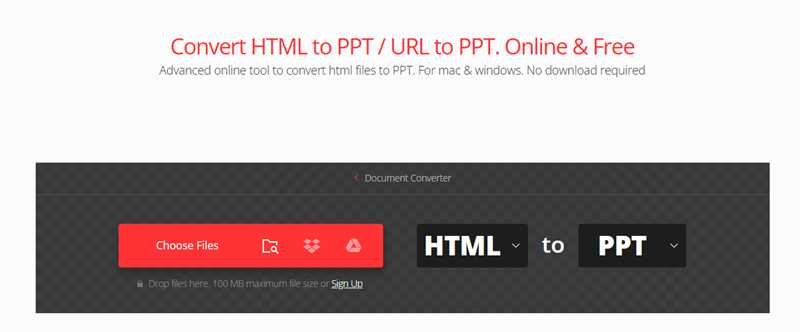
upload html file for converting to ppt

3. Choose PPT or PPTX as the output format.
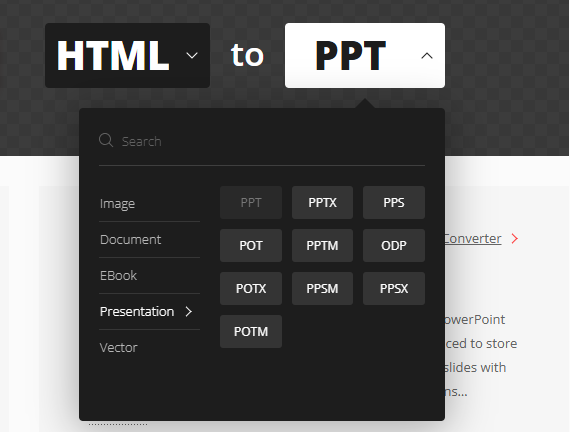
choose converted file format

4. Click the “Convert” button and wait for the conversion to finish.
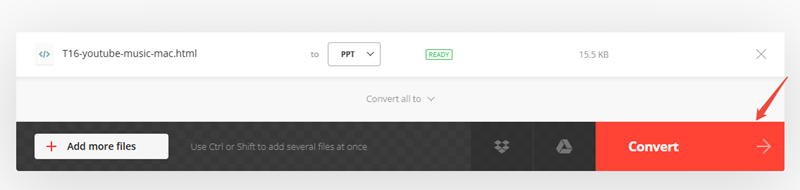
convert html to ppt

5. Download your newly created PowerPoint slides.

download converted ppt file


6. Open in PowerPoint to review and make any final adjustments.

Tips for Better Conversion

1. Clean up your HTML
Remove unused tags, inline styles, and scripts to avoid formatting glitches in the slides. Use clear headings, lists, and paragraphs so tools can map sections correctly

2. Optimize images and media
Compress large images and resize them to standard formats before converting.

3.Focus on slide-ready content
Shorten long paragraphs into bullet-like sentences in the HTML so the result is more readable on slides.

4. Always review and refine
After conversion, walk through every slide to fix line breaks, adjust image positions, and unify fonts.

FAQs About Converting HTML to PPT

Q: What is the easiest way to convert a web page to PPT?

A: The easiest way is to use an online HTML to PPT converter. Simply upload your HTML file or webpage content, choose PPT or PPTX as the output format, and download the converted slides.

Q: What types of HTML content work best for conversion?

A: Clean and well-structured HTML pages work best. Content with clear headings, paragraphs, and images converts more accurately

Q: Can I edit the slides after converting HTML to PPT?

A: Yes. Most HTML to PPT tools generate fully editable PowerPoint files, allowing you to customize text, images, layout, and design after conversion.

Q: Will the formatting be preserved when converting HTML to PPT?

A: Basic formatting such as text, images, and headings is usually preserved. However, complex layouts, animations, or interactive elements may require manual adjustments after conversion.

💬 Conclusion:

Converting HTML to PowerPoint is easier than it seems. Whether you choose manual methods, screenshots, or AI-powered tools, understanding your options helps you create professional slides efficiently.

If you’re working with other file types such as Word documents, Excel sheets, PDFs, or even images, WorkPPT AI Presentation Maker can help you convert to presentations even faster.

Check out the video tutorial about how to use AI PPT maker here: