


author image

A PowerPoint picture slideshow transforms your photos into a captivating visual story, perfect for presentations, events, or sharing memories. Whether you want to create a PowerPoint picture slideshow from scratch or even insert a picture slideshow into PowerPoint, this guide covers every step with easy methods.

Inserting pictures one by one is straightforward for creating a picture slideshow in PowerPoint. This method works well if you want full control over image order, layout, and design.
1. Open PowerPoint and create a new blank presentation
2. Go to Insert → Pictures and choose images from your device or online sources.
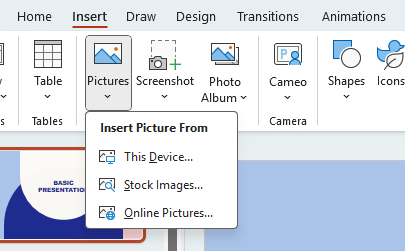
insert picutures in powerpoint

3. Add one picture per slide, or use layouts with multiple images
4. Resize and align images for a clean layout
5. Apply slide transitions from the Transitions tab

How to Create a PowerPoint Picture Slideshow Using Photo Album

If you want to create a slideshow quickly, PowerPoint’s built-in Photo Album feature is a faster option.
1. Go to Insert → Photo Album → New Photo Album
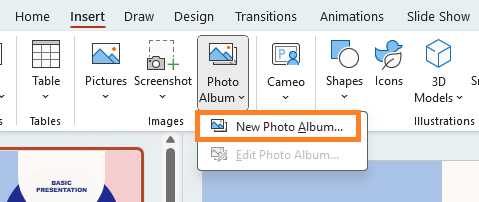
insert album in ppt for creating picture slideshow

2. Click File/Disk to add multiple pictures at once
3. Choose a picture layout (one picture per slide, two pictures, captions, etc.)
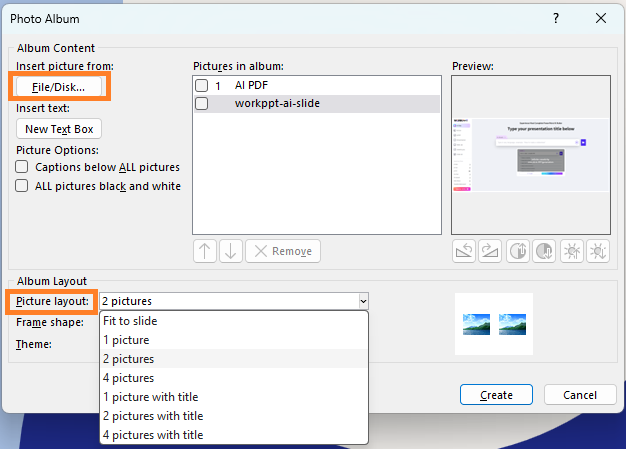
create picture slideshow using album feature in ppt

4. Click Create

workppt banner

Turn Pictures into Slides Instantly

Upload your images and let WorkPPT automatically create a professional PowerPoint slideshow in minutes.

Make a Picture Slideshow on PowerPoint with Music

Adding background music can make your picture slideshow more engaging, especially for events or storytelling presentations. After finishing creating the picture slideshow, follow these steps to add audio:
1. Go to Insert → Audio → Audio on My PC
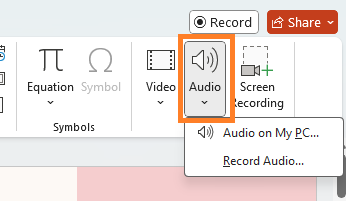
add music for picture slideshow on ppt

2. Select your music file
3. Click the audio icon, then open Playback settings
4. Choose Play Across Slides
5. Enable Loop until Stopped if needed

setting music for picture slideshow on ppt

*You can also adjust slide timings to sync image transitions with the music.

How to Insert a Picture Slideshow into an Existing PowerPoint

Sometimes you may want to reuse a picture slideshow inside another presentation.
Method 1: Copy and Paste Slides
1. Open both presentations
2. Copy slideshow slides
3. Paste them into the target PowerPoint

Method 2: Reuse Slides
1. Open the main presentation
2. Go to Home → Reuse Slides
3. Browse and select the slideshow file

Design Tips for a Better PowerPoint Picture Slideshow

Even a simple picture slideshow can look professional with a few design best practices:

  • Use consistent image sizes and ratios
  • Limit text on picture slides
  • Choose simple transitions like Fade or Morph
  • Avoid overusing animations
  • Maintain a logical image sequence for storytelling

FAQs about PowerPoint Picture Slideshow

Q: What are common use cases for a PowerPoint picture slideshow?

A: Common use cases for a PowerPoint picture slideshow include product showcases, event photo recaps, travel albums, weddings, or memory collections.

Q: Can I make a picture slideshow on powerpoint with music?

A: Yes, you can add music by inserting an audio file and setting it to play across slides. You can also loop the music and adjust playback settings to match the slideshow length.

Q: How many pictures should a PowerPoint slideshow include?

A: There is no fixed limit, but it’s best to avoid overcrowding slides. Including too many high-resolution images can increase the PowerPoint file size.

💬 Conclusion:

Creating a PowerPoint picture slideshow is simple once you understand the available options. You can manually design slides for full control, use the Photo Album feature for speed, add music for impact, or insert slideshows into existing presentations.

If you need to convert your pictures into a PowerPoint slideshow, tools like WorkPPT AI PPT generator can help you quickly turn your images into ready-to-use slides, saving time while keeping your presentation professional and visually appealing. Learn how WorkPPT works: