

author image

Inserting YouTube videos in Canva presentations is a simple yet powerful way to make your slides more engaging. In this guide, you’ll learn how to insert YouTube video into Canva presentation, including different methods, best practices, and common issues to avoid.

Method 1: Insert a YouTube Video on Canva Using YouTube App

Canva’s built-in YouTube app is the most reliable and recommended way to add videos. It allows you to search for videos directly or paste a YouTube link.
1. Open your Canva presentation
Log in to Canva and open an existing presentation or create a new one.

2. Click “Apps” in the left sidebar
In the editor, locate and click Apps (sometimes labeled “More”).
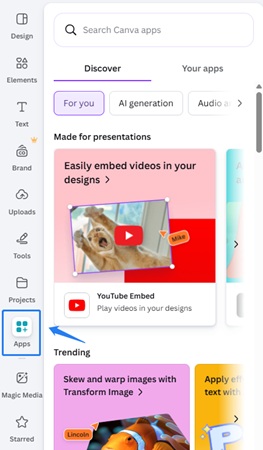
apps of canva

3. Select the YouTube app
Search for “YouTube Embed” and click on it to open Canva’s built-in YouTube integration.
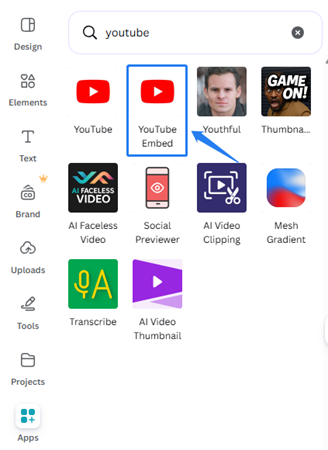
youtube app in canva

4. Search or paste a YouTube link
You can either:

    • Paste a specific YouTube video URL, or
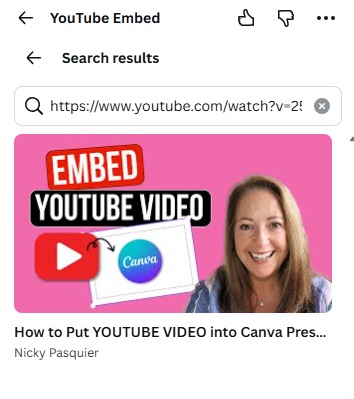
search youtube video in canva by pasting url

    • Search for videos directly using keywords
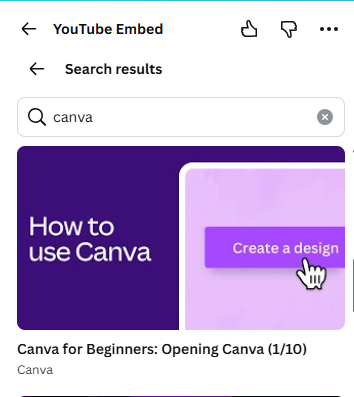
search youtube video in canva by keyword

5. Insert the video into your slide
Click on the video thumbnail, and Canva will add it to the current slide.

workppt banner 2
Want Create Presentations in Seconds?

Use WorkPPT to generate structured, consistent PPTs in seconds, then insert videos easily.

Method 2: Add a YouTube Video on Canva by Pasting Link

If you already have a YouTube link copied, Canva also supports direct link pasting.

  • 1. Copy the YouTube video URL
  • 2. Open your Canva presentation
  • 3. Paste the link directly onto the slide (Ctrl + V or Cmd + V)

How to Upload Other Videos to Canva Presentation

Option 1: Upload a Video from Your Computer

This is the easiest and most reliable way to add non-YouTube videos:
1. Open your Canva presentation
Log in to Canva and open an existing presentation or start a new one.

2. Click “Uploads” in the left sidebar
Select Uploads, then click Upload files. Select the video you want to upload from your computer.
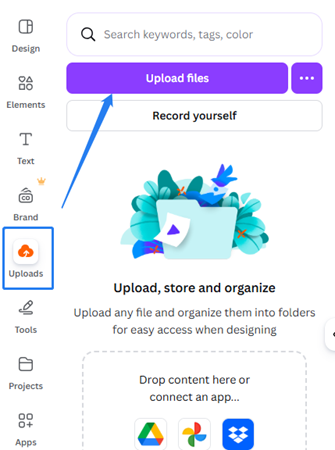
upload video file to canva

3. Wait for the upload to finish
Larger videos may take a few moments to process.

4. Add the video to your slide
Click or drag the uploaded video onto the slide.

Option 2: Put Videos from Cloud Storage

Canva supports direct uploads from popular cloud services.
Supported Sources

  • Google Drive
  • Dropbox
  • OneDrive

How to Upload from the Cloud:
1. Go to Uploads in the left panel
2. Select the cloud storage option
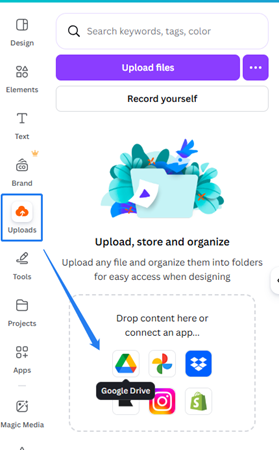
cloud storage options in canva

3. Sign in and grant access
4. Choose the video file and upload it

What to Do After Embedding Videos in Canva

1️⃣ Resize the video proportionally so it fits the slide without stretching.

2️⃣ Place the video where it supports the message and avoids clutter.

3️⃣ Play the video in Present mode to confirm smooth playback.

4️⃣ Check the audio volume and mute it if sound is not needed.

5️⃣ Trim unnecessary parts to keep the video short and focused.

6️⃣ Test your internet connection if the video is embedded from YouTube.

Need easier collaboration after finalizing your slides? You may want to convert your Canva presentation to Google Slides for real-time editing and team feedback.

FAQs about Adding a YouTube video to Canva

For a deeper look at Canva’s features beyond video embedding, you can also check this Canva review and guide.

Q: What video formats are supported in Canva presentations?

A: Canva supports common video formats such as MP4, MOV, WEBM, and MPEG, with MP4 recommended for the best compatibility and performance.

Q: Can YouTube videos autoplay in Canva?

A: No, videos must be played manually during the presentation.

Q: Do embedded videos increase Canva presentation loading time?

A: Yes, especially for large uploaded videos or slow internet connections, so keeping videos optimized is recommended.

Q: Is there a video length limit in Canva presentations?

A: Canva does not enforce a strict length limit, but shorter videos perform better in presentations.

Q: How to overlay a video in a Canva presentation?

A: Select the top video, right-click it, choose Layer, then use “Bring to front” to place it above other elements.
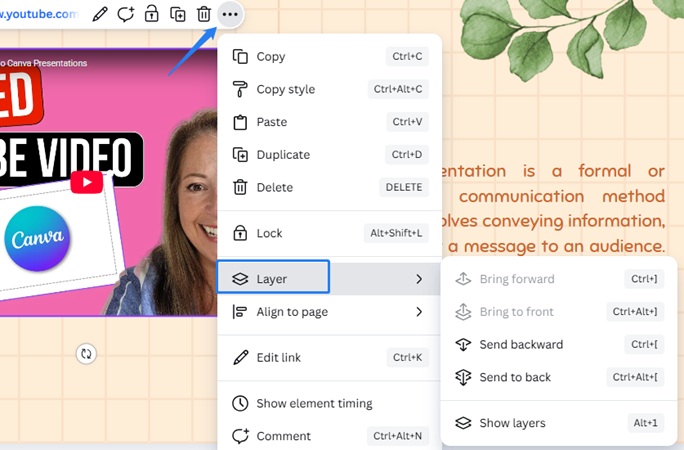
overlay youtube video in canva

💬 Conclusion:

Adding videos to a Canva presentation is a simple way to make your slides more engaging and effective. Whether you’re embedding a YouTube video or uploading your own video files, Canva gives you flexible options to enhance your message with multimedia content.

If you often need to create presentations from scratch, starting with well-structured content can make the entire process even easier. Tools like WorkPPT AI Presentation Maker can help generate presentation drafts from a topic or existing materials.

⭐⭐⭐⭐⭐ Rated 4.8 by 1.3M Users