
author image

Many presentations are designed in Canva but ultimately need to be delivered in PowerPoint. This raises a common question: Can you convert Canva to PowerPoint? This guide explains how to convert Canva to PowerPoint, covering export options, workarounds, and what to expect from each method.

Before diving into the steps, it’s important to understand what happens when you convert Canva to PowerPoint.

Can you export Canva to PowerPoint without issues?
Yes, you can export Canva to PowerPoint.But as we tested Canva before, there are some limitations to keep in mind:

  • Fonts may change if they’re not available in PowerPoint
  • Animations and transitions may not transfer perfectly
  • Layered elements can become grouped or flattened

To get better results, consider these tips before exporting:

  • Use standard fonts whenever possible
  • Keep layouts clean and avoid excessive layering
  • Preview your design carefully before downloading
workppt banner
AI PPT 100% Compatible with PowerPoint

WorkPPT creates presentation files that are highly compatible with PowerPoint. The exported slides are easier to edit and maintain consistent layouts.

How to Convert Canva to PowerPoint

Method 1: Convert Canva to PowerPoint Using Canva Export

Using Canva’s built-in export feature allows you to download your design as a PowerPoint file.
1. Open your presentation in Canva
2. Click “Share” in the top-right corner
3. Select “Download.”
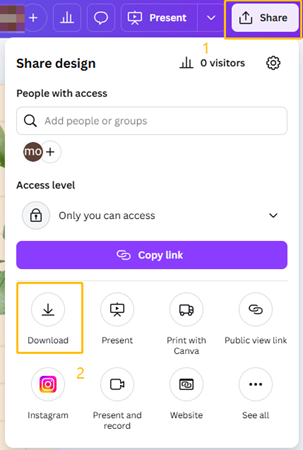
download canva presentation

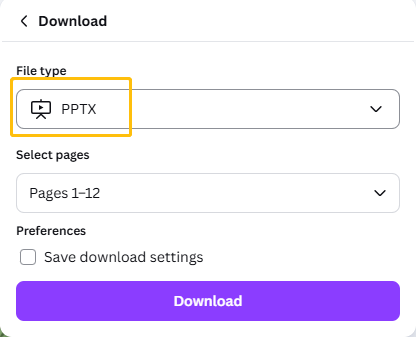
4. Choose the “PPTX” file type

download canva slides as pptx file

5. Click Download and open the file in PowerPoint.

Method 2: Export Canva to PowerPoint by Taking Screenshots (Manual but Reliable)

If formatting accuracy matters more than editability, taking screenshots can be a surprisingly effective workaround. This method doesn’t technically export Canva to PowerPoint as editable slides, but it preserves the visual design almost perfectly.
1. Open your Canva presentation in full-screen mode
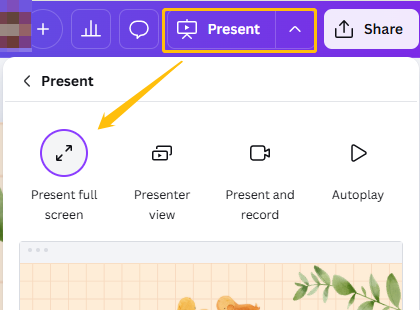
present slides in canva

2. Take high-resolution screenshots of each slide
3. Insert the images into PowerPoint as slide backgrounds
4. Add or edit text directly in PowerPoint if needed
5. Save the final presentation as a PowerPoint file

[You May Also Like]: How to Transfer Canva to Google Slides

FAQs about Exporting Canva to PowerPoint

Q1: Can you export Canva to PowerPoint for free?

A: Yes, Canva allows you to export presentations as PowerPoint (.pptx) files for free. However, if your design uses Pro fonts, graphics, or templates, those elements may be replaced or restricted in the exported file.

Q2: Can you export Canva to PowerPoint for editing?

A: You can export Canva to PowerPoint as a .pptx file, which allows basic editing. However, some elements, such as fonts or animations, may require manual adjustments in PowerPoint.

Q3: How to export Canva to PowerPoint without losing animation?

A: Most Canva animations do not fully carry over when you export Canva to PowerPoint. Basic slide transitions may remain, but element-level animations are often removed or flattened.

💬 Conclusion:

There are two practical ways to convert Canva designs to PowerPoint: exporting directly from Canva or using screenshots to preserve the visual layout. The right choice depends on whether editability or design accuracy matters more.

If you need slides that work more smoothly in PowerPoint and require fewer fixes after export, WorkPPT AI PPT Maker offers a more compatible option for PowerPoint delivery.

⭐895642 presentations made

See how WorkPPT AI PowerPoint Maker works in the video below: