


How to Add Audio to Google Slides? 3 Effective Ways
How to Add Audio to Google Slides is a must-know skill if you want to create engaging, dynamic presentations. Whether you’re adding narration, background music, or sound effects, this guide walks you through every step—plus tips and troubleshooting—to help you enhance your slides with sound effortlessly.
Before you add audio, make sure your file meets these requirements:
Supported formats: MP3 and WAV
Max file size: Google Drive supports large files, but smaller audio files (under 100MB) load faster.
Storage: The audio file must be uploaded to your Google Drive before you can insert it into Google Slides.
Want to create presentations faster?
WorkPPT helps you generate complete presentations with AI in minutes. You can then export or open the slides in Google Slides and add audio where needed.
How to Add Audio to Google Slides with 4 Easy Ways
Method 1: Add Audio From Google Drive
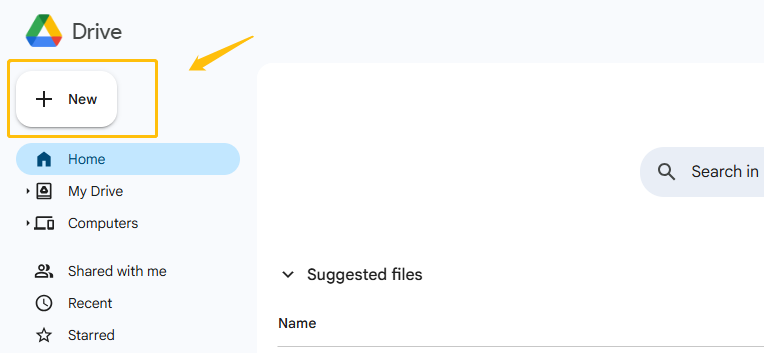
1. To begin, you’ll need to upload your audio file to Google Drive. Open Google Drive, click the New button in the top left corner, and select File upload. Choose your MP3 or WAV file, and wait for it to finish uploading.
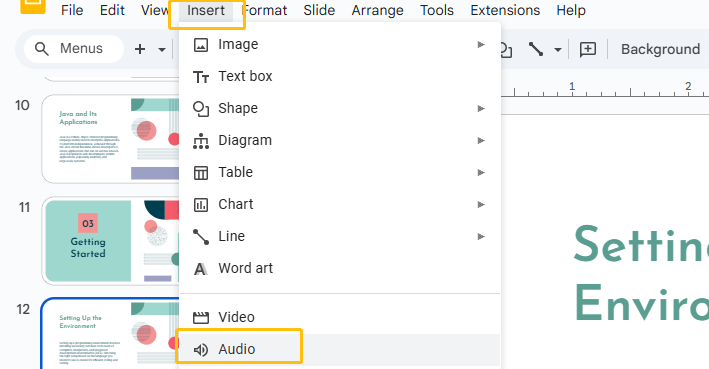
2. Next, open your presentation in Google Slides and navigate to the slide where you want the audio to play. From the top menu, click Insert, then select Audio. A window will appear showing available audio files from your Drive.
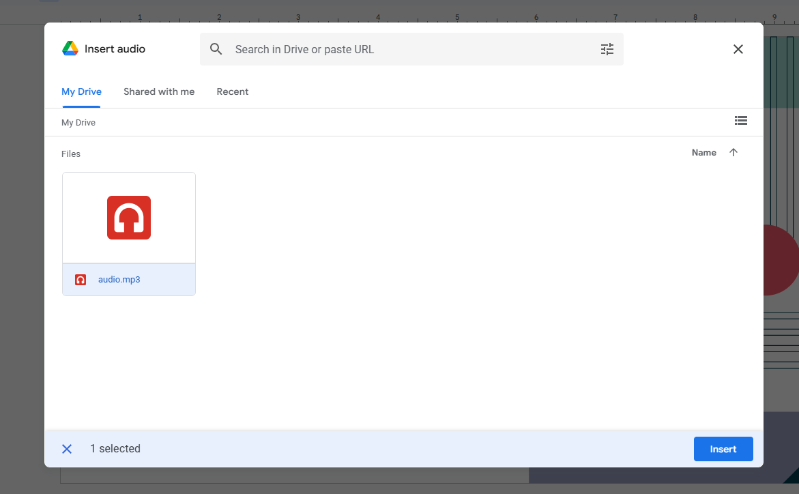
3. Locate the file you just uploaded or search through the URL, select it, and click Insert. A speaker icon will now appear on your slide, indicating the audio has been successfully added.
Method 2:Insert Audio to Google Slides via "Hidden Video"
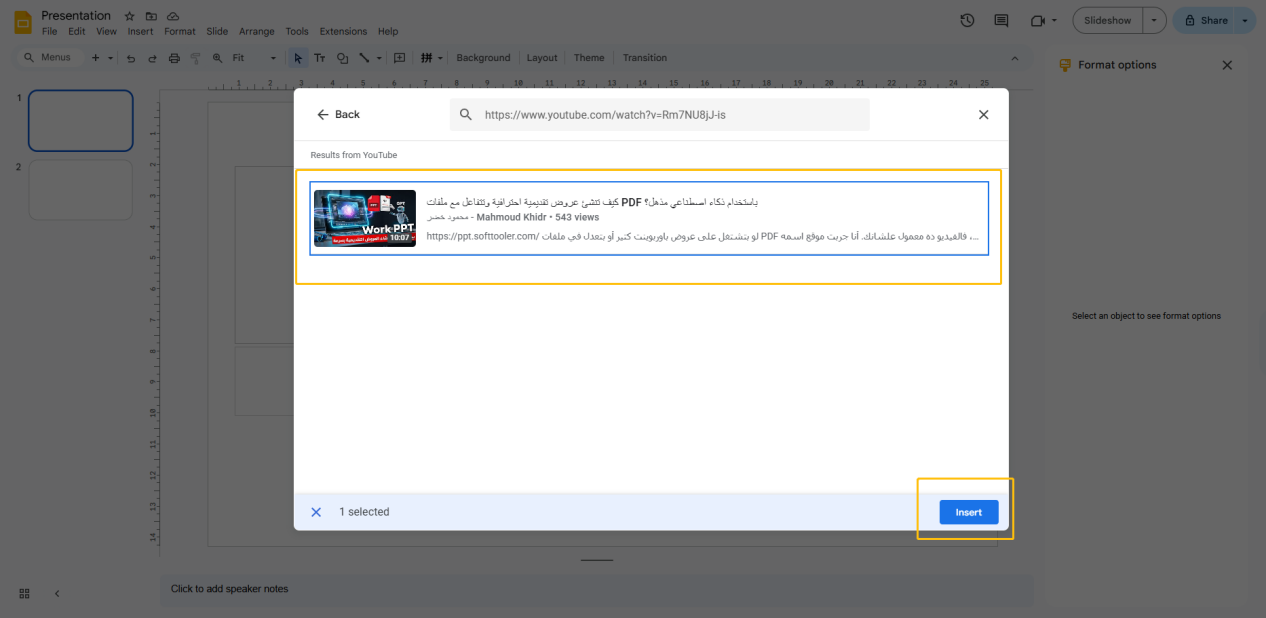
If you want to put background music in Google Slides, you can embed a video from Youtube and treat it like audio. 1. Go to Insert > Video and search for your YouTube link.
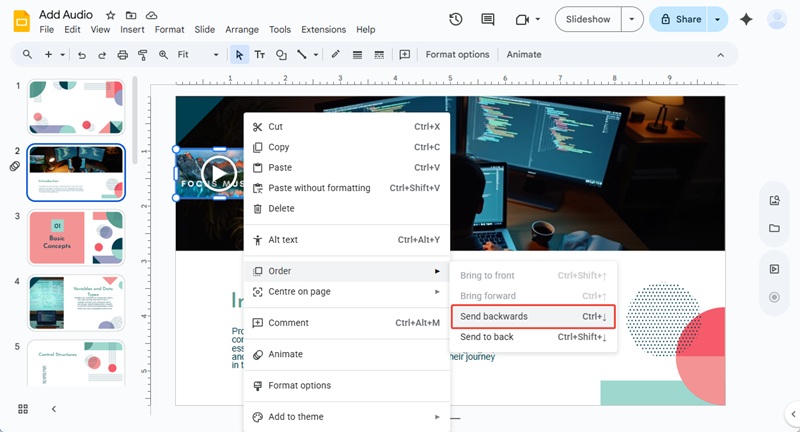
2. Hide the video: Either resize the video to be tiny and move it off the slide canvas, or place it behind another image or shape so it’s invisible to the audience.
Method 3:Record Voiceover and Upload to Drive
Google Slides doesn’t have a “Record” button built-in yet. To add a voiceover, follow these steps to add sound to Google Slides:
Record: Use a tool like Audacity, QuickTime, or even a voice memo app on your phone.
Save & Upload: Save the recording as an MP3 and upload it to Google Drive.
Embed: Use the Insert > Audio method mentioned above. For a seamless experience, set the voiceover to start Automatically on each slide.
Customize Audio Playback Settings
Once your audio is inserted into a slide, you can tailor its behavior during the presentation by adjusting playback settings. In the Format options panel, expand the section titled Audio playback. Here, you’ll see several useful settings:
🔘 Start playing
On click – the audio will only play when you manually click the speaker icon during your presentation.
Automatically – the audio will begin playing as soon as the slide appears.(Usually used for background music or voice narration)
🔁 Loop audio
Enable this option if you want the audio to repeat continuously while you’re on the same slide. This is helpful for ambient music or loops for kiosk-style presentations.
🔇 Stop on slide change
By default, audio stops when you move to the next slide. If you uncheck this option, the audio will continue to play across multiple slides (ideal for background music spanning an entire section).
🙈 Hide icon when presenting
If your audio plays automatically and you don’t need users to click the icon, you can check this box to hide the speaker icon during the actual presentation. This makes your slide cleaner.
🔉 Volume settings
Currently, Google Slides doesn’t let you control volume directly in the slide. You’ll need to adjust the volume before uploading your file or use your computer’s audio controls during playback.
💡Tips for Using Audio Effectively
Keep it clear: Use high-quality recordings to avoid background noise.
Be intentional: Only add audio when it enhances your message.
Balance audio levels: Avoid distracting or overpowering sound.
Use voiceovers to guide viewers through complex slides.
Troubleshooting Adding Audio on Google Slides
1. Audio file not visible?
Check that it’s in MP3 or WAV format and uploaded to Google Drive.
2. Can't select the file
Make sure it’s not in a shared folder with restricted permissions.
3. No sound during slideshow?
Check your playback device volume and test in Present mode.
4. Icon not hiding?
Double-check the “Hide icon when presenting” option is enabled.
💬 Conclusion:
Now you’ve learned how to add audio to Google Slides to enhance your presentations with narration or music. While effective, the process can be time-consuming, especially with uploading to Drive.
🚀For a faster solution, try WorkPPT. This AI tool helps you create complete slide decks in minutes and even lets you insert videos without uploading to Google Drive. It’s simple, smart, and efficient.
As the AI Tools Laboratory Director and an expert in deep customization techniques for PowerPoint and Google Slides, I leverage my experience testing 87 AI tools to enhance creative processes. A Stanford dropout in Human-Computer Interaction, I am passionate about transforming repetitive tasks into opportunities for inspiration, believing that 'tools are servants, not masters'. At WorkPPT, I advocate for the creative freedom that comes from human-machine symbiosis.
How to Export Google Slides to Canva with 4 Easy Ways