
author image

Google Slides and Canva are two of the most popular tools for creating presentations. Google Slides is known for its real-time collaboration, while Canva stands out with powerful design features and rich templates.

If you want to enhance your existing Google Slides presentation with Canva’s design tools, how can you do so? In this article, we’ll walk you through four easy ways to fix the problem of how to export Google Slides to Canva.

When you want to enhance your presentation’s visuals or add more content, importing your Google Slides into Canva is a great idea. Here are four simple ways to do it.

Way 1: Export Google Slides as PPTX and Upload to Canva

The first method is the most recommended and safest way to export your slides. It preserves your layout, fonts, and images as much as possible.

Step 1: Open your file in Google Slides and click on “File” in the menu bar.

Step 2: Select “Download” and choose the “Microsoft PowerPoint(.pptx)” format. Save the file to your computer.
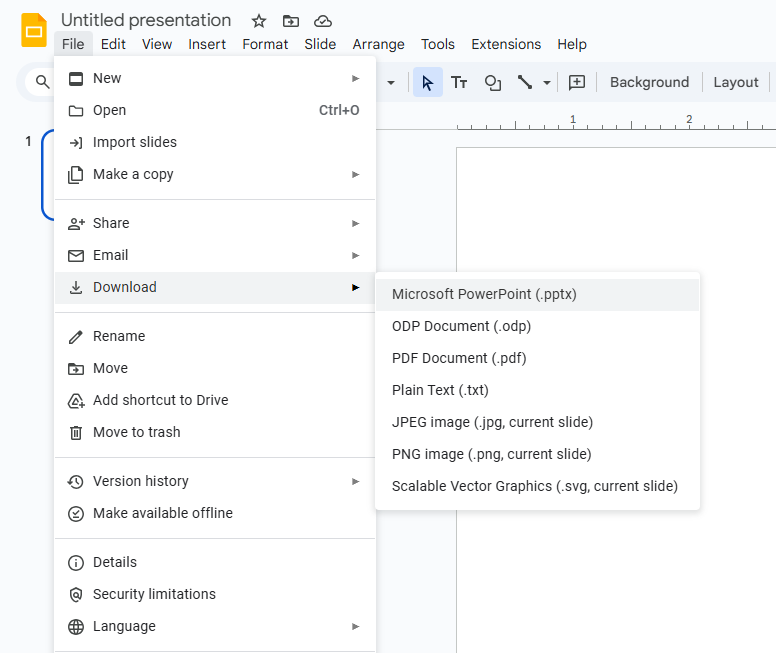
download google slides as pptx

Step 3: Open Canva, either the web or desktop version works.

Step 4: Go to your project, or click “Uploads” on the homepage, and upload the .PPTX file from your computer.
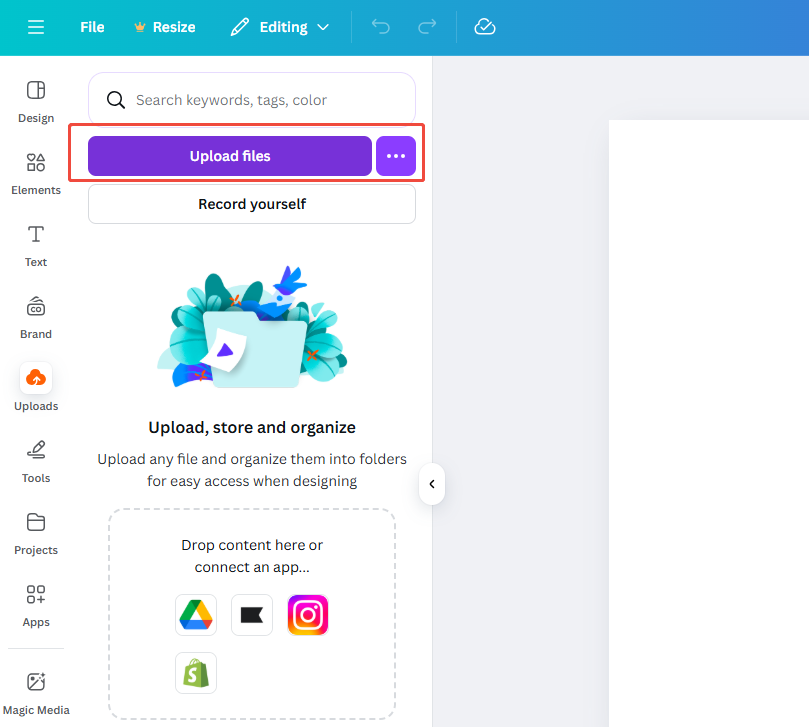
click uploads in canva

That’s it! With these four simple steps, your Google Slides file is now in Canva. Make sure to check that all formatting, text, and images look right. After that, you can freely add more content and design elements.

This method usually preserves over 90% of your original layout and content in Canva, making it the best approach.

workppt banner

Design Smarter with WorkPPT AI

Tired of spending hours designing your Google Slides? Try WorkPPT for free today and transform plain slides into eye-catching presentations!

Way 2: Import Directly from Google Drive to Canva

If you don’t want to keep downloading and uploading files, and your Google Slides are stored in Google Drive, you can connect Google Drive directly in Canva for a quick import.

Step 1: Go to Canva’s homepage, click “Uploads”, select “Google Drive”, and sign in to authorize your Google account.

Step 2: Canva will show a list of your Drive files. Select the slides you want to import and click Import.

Step 3: Canva will automatically copy your slides into a presentation template.

Step 4: Make sure to check that all slides and content are imported correctly.

If you don’t see the right Google account or files, reauthorize the app and make sure you’ve granted file access.

Way 3: Export Google Slides as PDF and Import to Canva

PDF is a very stable file format that keeps your slides and layout intact. However, editing in Canva is limited, so it’s better for displaying rather than making major changes.

Step 1: In Google Slides, go to “File > Download”, and choose “PDF Document(.pdf)”.
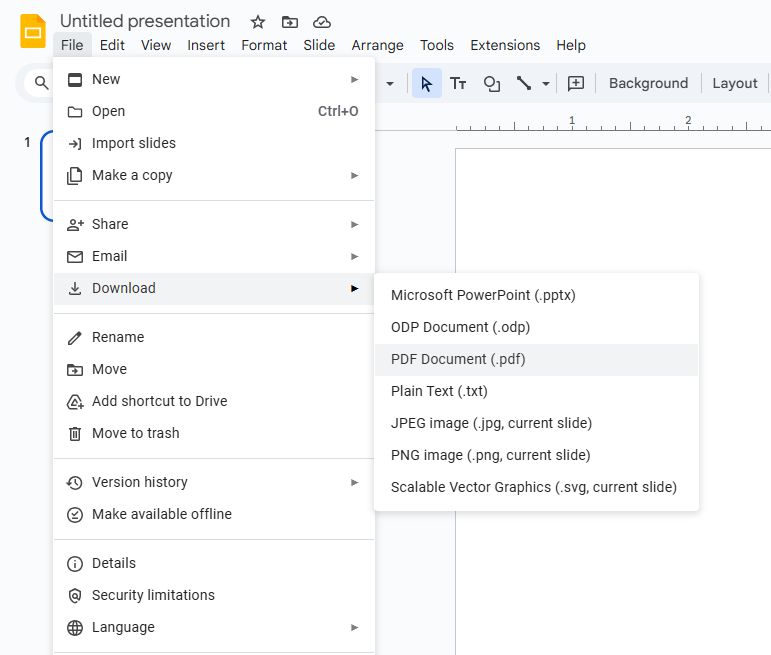
download google slides as pdf

Step 2: Open Canva, click “Uploads”, and select your PDF file to upload it.

click uploads in canva

Step 3: Canva will automatically split the PDF into separate slides, one page per slide, which you can then edit and adjust.

Way 4: Export Each Slide as an Image

If you just want to use the visuals from your Google Slides in Canva without editing the text, you can export each slide as an image.

Step 1: Open your Google Slides, go to “File > Download”, and choose either “PNG or JPEG image”.

download googles slides as image

Step 2: Open Canva, click “Uploads”, and upload all your slide images.

click uploads in canva

Step 3: In Canva, you can freely arrange, crop, or layer these slide images as you like.

Comparison Table of 4 Methods

Import Method Format Retention Editability Operation Difficulty Recommended Scenario
PPTX File ⭐⭐⭐⭐ ⭐⭐⭐⭐ ⭐⭐ Balanced structure & design
Google Drive Import ⭐⭐⭐ ⭐⭐⭐ Cloud collaboration import
PDF File ⭐⭐⭐⭐ ⭐⭐ ⭐⭐ Format display type
Image Import ⭐⭐ Visual materials type

When Should You Move from Google Slides to Canva

Google Slides and Canva each shine in different situations. If you’re unsure when to export, check out the table below:

ScenarioRecommended ToolReason
Internal corporate reports, educational presentationsGoogle SlidesReal-time collaboration, easy editing
Marketing, brand proposalsCanvaRich templates, strong visual impact
Social media content, video presentationsCanvaCan export directly to social media sizes and video formats
Team design with unified templatesCanvaSupports brand colors and modular logo management

Overall, if you want more creative designs and stronger visual impact, you can transfer Google Slides to Canva. It’s best to finalize the structure and content in Google Slides first, then bring it into Canva to enhance the visuals. This way, you get both efficiency and style.

FAQs about How to Export Google Slides to Canva

Q: What should I do if the formatting gets messed up after importing into Canva?

A: You can tweak the fonts or reapply a Canva template. Importing PPTX files usually works most smoothly.

Q: Can Canva edit imported PDF or PPTX files?

A: Yes, but some elements like animations or special fonts might need to be reset.

Q: Will Google Slides fonts be lost when importing into Canva?

A: If Canva doesn’t support a font, it will automatically replace it with the closest match.

Q: Is there a faster way to import Google Slides into Canva?

A: Yes, use Canva’s “Import Project” feature on the homepage—it lets you import multiple files at once.

💬 Conclusion:

These four methods are the most practical ways to fix how to export Google Slides to Canva. If you want to edit the slides after transferring, choose the PPTX format. If you just want a quick, flawless display, PDF is your best bet. Give it a try now! You can also try to convert Canva to Google Slides.

⭐⭐⭐⭐⭐ Rated 4.8 by 1.3M Users