

author image

Grouping objects in Google Slides is a simple yet powerful feature that allows you to move, resize, and format multiple elements as a single unit.

In this guide, we’ll show you how to group and ungroup on Google Slides across different devices, including Chromebooks, and provide tips for common use cases.

Grouping is particularly useful when designing presentations with complex layouts, ensuring that all elements stay aligned and move together. Google Slides lets you group a variety of objects, including:

  • Text Boxes – Keep multiple text elements together for consistent formatting and alignment.
  • Shapes – Combine shapes to create diagrams or complex visuals.
  • Images – Organize multiple pictures as one unit for easier movement and resizing.
  • Slides – Create slide sections to rearrange multiple slides efficiently.
  • Mixed Objects – Group text, images, and shapes together for complete design elements.

How to Group Things on Google Slides

Follow these steps to group objects in Google Slides:

Step 1: Select the Objects

  • Click on the first object.
  • Hold down Shift and click on additional objects to select multiple items.
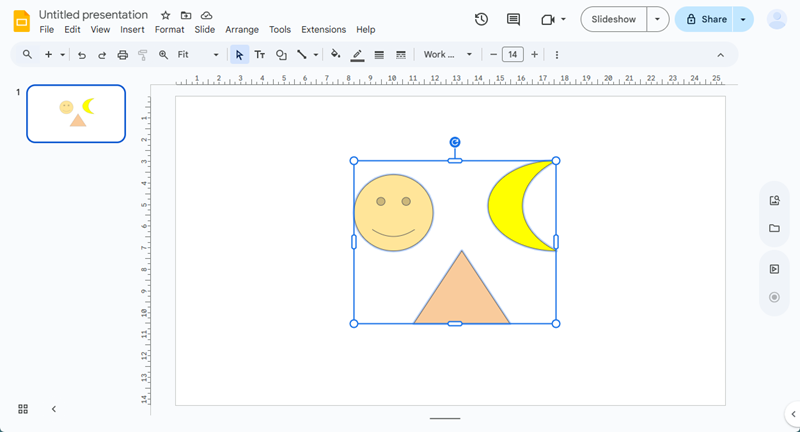
select objects for group in google slides


Step 2: Group the Objects

  • Right-click on one of the selected objects and choose Group.
  • Or, go to the top menu: Format → Group.
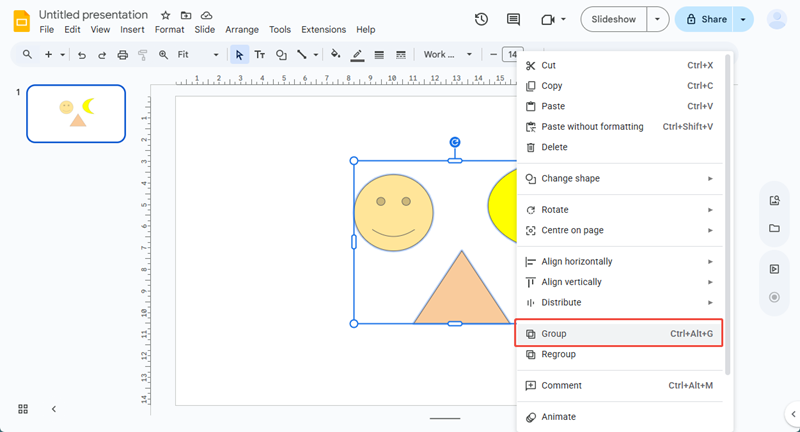
group objects group on google slides

Shortcut:
Windows: Ctrl + G
Mac: Cmd + G
Chromebook: Ctrl + Alt + G

Step 3: Adjust the Grouped Object

  • Once grouped, you can move, resize, or rotate all objects at once.
  • The individual objects maintain their relative positions inside the group.
workppt banner
Create Stunning Slides in Seconds!

On WorkPPT, just turn your text into slides and export to Google Slides or PPT format instantly.

How to Ungroup Objects in Google Slides

If you want to ungroup elements, it’s just as simple:
Step 1: Select the Grouped Object
Click on the grouped object to select it.

select objects for group in google slides

Step 2: Ungroup

  • Right-click and select Ungroup.
  • Or, go to Format → Ungroup in the top menu.
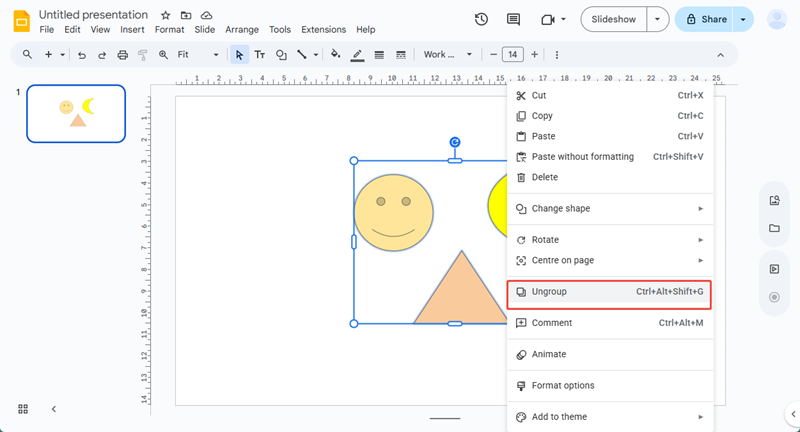
ungroup objects group on google slides

Shortcut
Windows: Ctrl + Shift + G
Mac: Cmd + Shift + G
Chromebook: Ctrl + Alt + Shift + G

Step 3: Edit Individual Items
Now you can modify, move, or resize objects independently.

Grouping Tips for Specific Objects

  • Grouping Images: Perfect for collages or multiple photos in a slide.
  • Grouping Shapes: Useful when building flowcharts or diagrams.
  • Grouping Text Boxes: Keeps headings, bullet points, or labels aligned.
  • Grouping Slides: In Slide Sorter View, select multiple slides and drag them to reorganize sections efficiently.

FAQs about How to Group on Google Slides

Q1: Why can't I group items in Google Slides?

A: Some objects cannot be grouped, such as tables or charts. Make sure you are selecting compatible items like images, shapes, or text boxes. Also, ensure multiple objects are selected before trying to group.

Q2: How do I group slides in Google Slides?

A: In Slide Sorter View, select multiple slides, then drag to rearrange them together.

Q3: How do I group images on Google Slides?

A: Select the images you want to group, then right-click → Group, or go to Format → Group. You can also use the shortcut Ctrl/Cmd + G.

Q: How to group text boxes in google slides

A: Select the text boxes, right-click → Group, or use Format → Group. This keeps the text boxes together for easier moving and resizing.

Q: Can I copy and paste the group?

A: Yes! Once objects are grouped, you can copy (Ctrl/Cmd + C) and paste (Ctrl/Cmd + V) the entire group to another slide or presentation.

Q: Can I group objects across different slides?

A: No. Google Slides only allows grouping objects within the same slide.

💬 Conclusion:

Grouping and ungrouping objects in Google Slides is an essential skill for creating clean, organized, and professional presentations.

For an even faster and smarter presentation workflow, consider using WorkPPT AI Presentation Maker. This AI-powered tool helps you instantly turn your ideas, images, and text into polished Google Slides.

⭐⭐⭐⭐⭐ Rated 4.8 by 1.3M Users