

How to make an image transparent in Google Slides is one of the most common design tricks presenters use to make a perfect slides. Learning this quick skill in this guide improves your presentation design — and it only takes a few seconds.
- How to Make a Picture Transparent in Google Slides
- How to Make Shapes Transparent in Google Slides
- How to Make an Image Background Transparent in Google Slides
- How to Apply Gradients to an Image in Google Slides
- FAQs About Google Slides Transparency
- Q1: How to make a background faded in Google Slides?
- Q2: Can I make text transparent in Google Slides?
- Q3: How to make part of an image transparent in Google Slides?
- Q4: How to make a shape completely transparent in Google Slides?
- Q5: How to reset images in Google Slides?
- Q6: Can you apply image transparency in Google Slides for any file format?
- Q7: Does making an image transparent affect its quality?
- Q8: How do I remove Google Slides image border?
How to Make a Picture Transparent in Google Slides
If you want to make a photo or picture transparent in Google Slides, here’s the process:
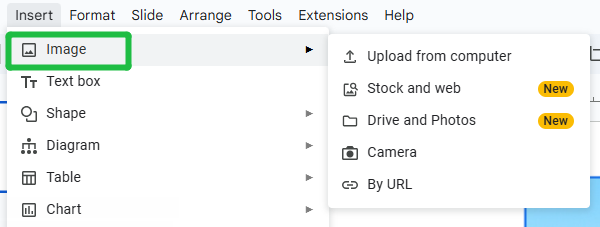
1. Go to Insert → Image and upload or search for your picture.
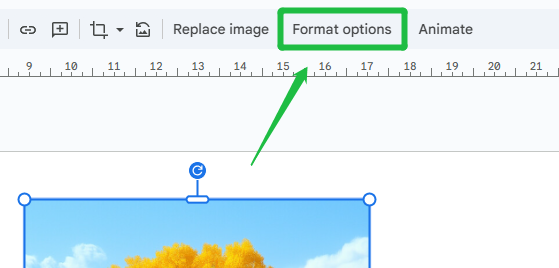
2. Right-click → Format options or use the toolbar → Format → Format options
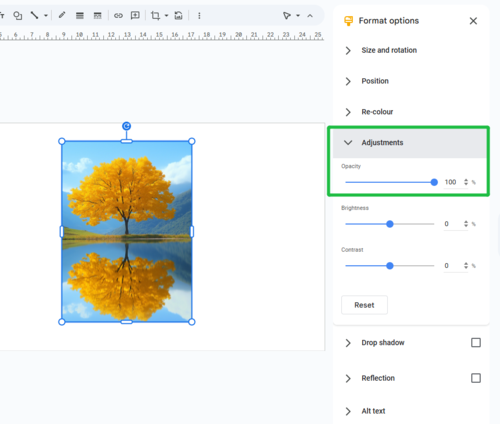
3. Under Adjustments, you’ll find a Transparency slider. Drag it left or right to adjust the transparency of your image.
Go beyond manual edits — let WorkPPT AI Presentation Maker instantly build polished slides for you.
How to Make Shapes Transparent in Google Slides
Shapes are widely used in Google Slides. Making a shape transparent allows your slide to look more good:
1. Go to Insert → Shape and choose your shape (rectangle, circle, etc.).
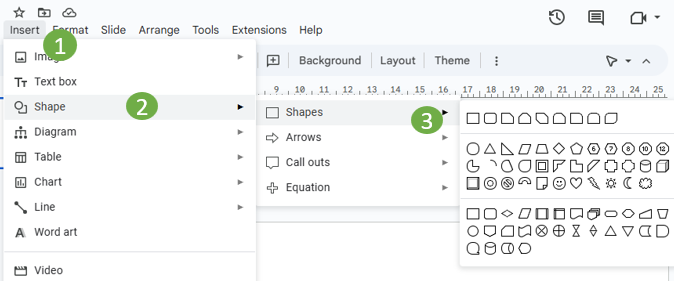
2. Select the shape → Click Fill color → Choose Custom.

3. Here you’ll find a transparency slider. Adjust the opacity until you achieve the desired level. And then click OK.
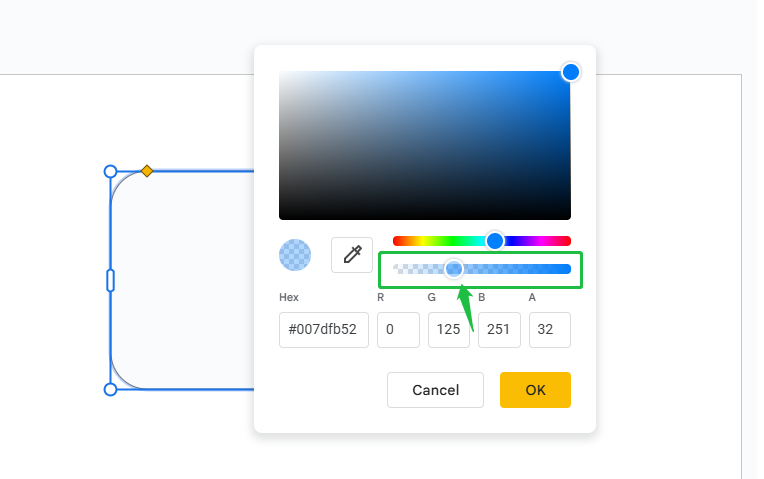
⚠️ Tips: Adjust Border Transparency (Optional). If your shape has a border, you can also make it more transparent or remove it entirely.
✍ [You May Also Like]: How to Put an Image in a Shape in Google Slides
How to Make an Image Background Transparent in Google Slides
Method 1:Using the Built-in "Remove Background" Feature
This feature is new and typically requires a specific subscription (like Google Workspace or Google One AI Premium).
1. Open your Google Slides presentation and click on the image you want to edit.
2. Look for the “Remove background” icon in the toolbar above the slide.
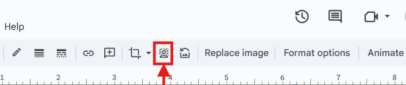
3. It will automatically detect and remove the background, making it transparent.
Method 2:Using Other Desktop Software (PowerPoint / Paint)
If you use desktop software like Microsoft PowerPoint or the updated version of MS Paint, you can make an image background transparent there and then insert the finished image into Google Slides. The steps are similar:
1. Open PowerPoint or Microsoft Paint (Windows 11 Version), insert your image, and click on it.
2. Click the “Remove background” icon on the toolbar.
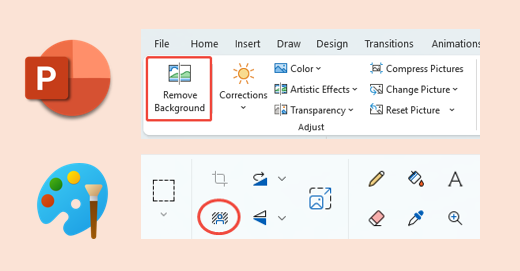
3. Waiting for removing the background, then copy the image and paste it into your Google Slides.
⚠️ Tips: Built-in features in software like PowerPoint and Paint may not perfectly handle complex images. For highly detailed or challenging photos, you might get better results using professional editing softwares.
Method 3:Using an External Online Tool
This method works for everyone. Select a specialized website to remove the background, and then insert the image into Google Slides.
1. Go to a Background Removal Website.(e.g., Remove.bg)
2. Upload Your Image from your computer.
3. Download the Transparent Image.
4. Insert into Google Slides:
- Go back to your Google Slides presentation.
- Click Insert → Image → Upload from computer.
- Select the new PNG file you just downloaded.
✍ [You May Also Like]: How to Make an Image a Circle in Google Slides
How to Apply Gradients to an Image in Google Slides
Gradient effects can bring a distinctive visual impact to your slides. While Google Slides does not allow direct gradient opacity adjustments on images, you can still create a gradient effect with these steps:
1. Insert a rectangle shape and make it the same size as your image.
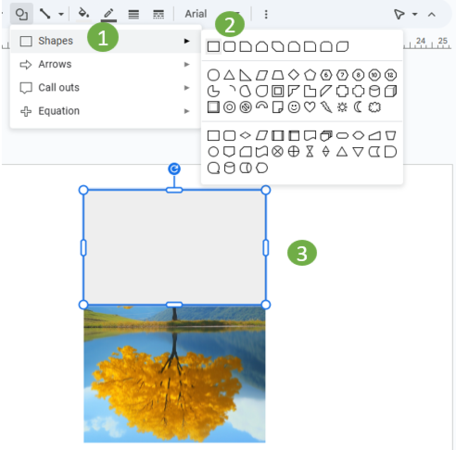
2. Click Border color from menu and change the border to transparent first.

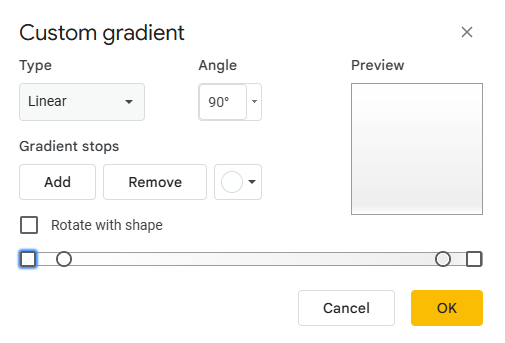
3. Select the shape → Fill color → Gradient. Choose from preset gradients or customize your own.
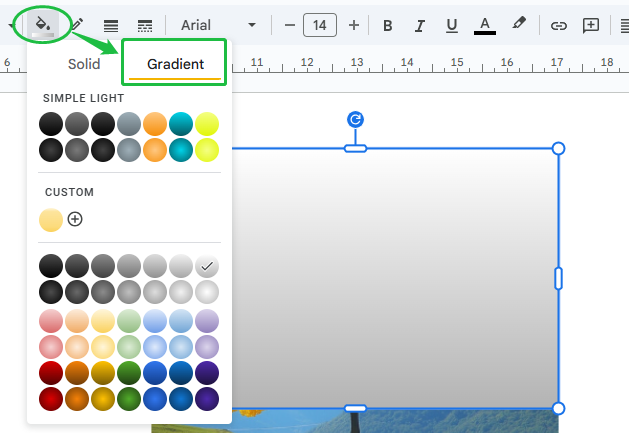
3. Select Fill Color > Gradient and start creating a custom gradient. Lower the shape’s opacity so the image underneath is visible.
FAQs About Google Slides Transparency
Q1: How to make a background faded in Google Slides?
A: To fade an image, first select the image on your slide. Then, click on “Format Options” in the toolbar. In the right-hand panel, go to “Adjustments.” Finally, drag the “Transparency” slider to the right to make the entire image look faded or translucent.
Q2: Can I make text transparent in Google Slides?
A: Not directly. However, you can place text inside a transparent shape or adjust the background to achieve a similar effect.
Q3: How to make part of an image transparent in Google Slides?
A: Google Slides doesn’t support partial transparency editing natively. To achieve this effect, you’ll need to edit your image in an external editor.
Q4: How to make a shape completely transparent in Google Slides?
A:
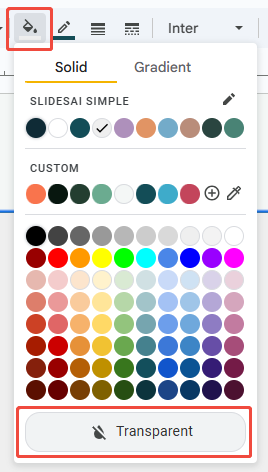
1. Select the shape you want to make transparent.
2. Go to the top menu and click Fill color (paint bucket icon).
3. In the color panel, click Transparent (usually the first option with a diagonal line).
Q5: How to reset images in Google Slides?
A: Select the image → Right-click → Reset image. This removes formatting changes, including transparency and color adjustments.
Q6: Can you apply image transparency in Google Slides for any file format?
A: Transparency adjustments work for most formats (PNG, JPG, GIF). However, only PNG files can retain transparent backgrounds. JPGs will always show a solid background.
Q7: Does making an image transparent affect its quality?
A: No, changing transparency does not reduce resolution.
Q8: How do I remove Google Slides image border?
A: First, select the image that has the border. Then, look for the Border tools in the toolbar at the top. Click the Border color icon (usually a pen or line icon) and select “Transparent” from the color options to make the border invisible.
💬 Conclusion:
Learning how to make an image transparent in Google Slides is a quick way to enhance slide design and highlight key content. For an even faster workflow, try WorkPPT AI PPT— it builds professional slides in seconds and exports directly to Google Slides or PowerPoint.
WorkPPT- AI Powered Slides
Take your slides beyond basic transparency tricks. Try WorkPPT AI Presentation Maker and let AI design beautiful presentations for you.
