
author image

Creating clear and professional slides starts with choosing the right layout. Knowing how to change the layout in PowerPoint can instantly improve the structure and readability of your presentation.

In this guide, you’ll learn what slide layouts are, how do you change the layout of a slide, and how to choose the best layout for different types of content.

PowerPoint offers several built-in layouts. Understanding them helps you choose the right one.

  • Title Slide – Best for the opening slide.
  • Title and Content – The most commonly used layout.
  • Section Header – Ideal for dividing topics.
  • Two Content – Useful when you want to compare ideas.
  • Comparison – Similar to Two Content but with headings.
  • Title Only – Best for slides with large visuals or minimal text.
  • Blank – Best for custom designs and full creative control.
  • Content with Caption – Best for explaining charts, images, or data with supporting text.
  • Picture with Caption – Best for image-focused slides with short explanations.
  • Title and Vertical Text – Best for creative layouts or side notes.
  • Vertical Title and Text – Best for design-driven slides with vertical structure.

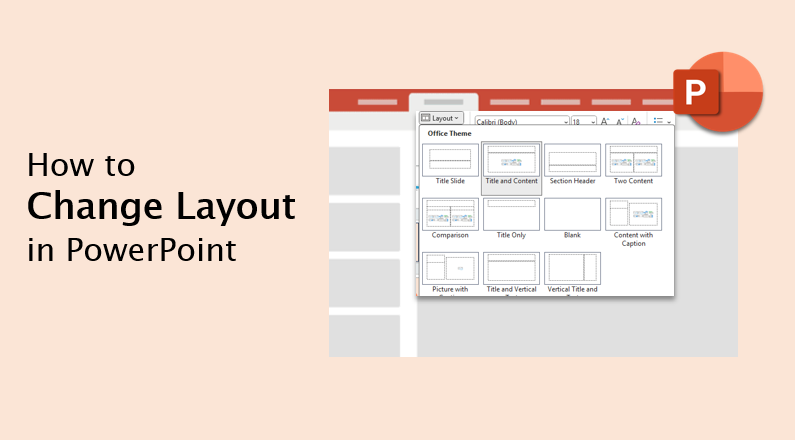
layout in powerpoint

How to Change Layout in PowerPoint (Basic Steps)

Method 1: Using the Home Tab

If you are wondering how do you change the layout of a slide, follow these simple steps:
1. Select the slide you want to edit.
2. Go to the Home tab in the top menu.
3. Click the Layout button.
4. Choose a new layout from the dropdown list.
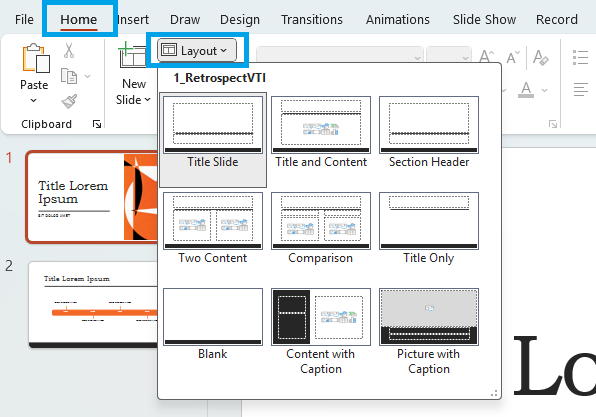
change layout in powerpoint

workppt banner 2

Design PowerPoint Automatically in Seconds

WorkPPT organizes titles, text, and visuals into clear slide layouts, reducing the need to manually change slide formats.

Method 2: Right-Click to Change Layout

1. Right-click the slide in the slide thumbnail panel
2. Click Layout
3. Select a new layout

right click to change layout in powerpoint

How to Change Layout for Multiple Slides

Sometimes you need to update many slides at once. To do this:
1. Hold Ctrl (or Cmd on Mac) and select multiple slides in the slide panel.

select multiple slides for changing layout

2. Go to HomeLayout.
3. Then choose the layout you want.

How to Change Slide Format in PowerPoint Using Slide Master

If you want more control, you can customize layouts using Slide Master. This is helpful when you want all slides to follow the same structure.
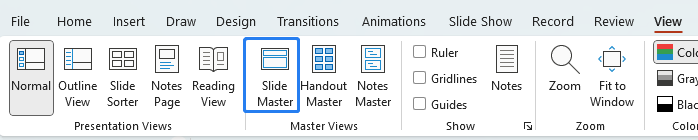
1. Go to ViewSlide Master.

powerpoint slide master

2. Select an existing layout or create a new one.
3. Adjust placeholders, fonts, or spacing.
4. Close Slide Master to apply changes.

This method is ideal for branding and long-term templates. It also helps if you need to repeatedly change slide format in PowerPoint across many presentations.

Automatically Design Slide Layouts with WorkPPT AI

Manually changing slide layouts in PowerPoint works well for small edits, but it can become time-consuming when you’re dealing with long presentations or messy content.

WorkPPT AI PPT maker is designed to structure automatically and design slides based on your content. Instead of manually deciding how to change the layout in PowerPoint for every slide, WorkPPT analyzes your text or files and applies clean, well-balanced layouts for you.
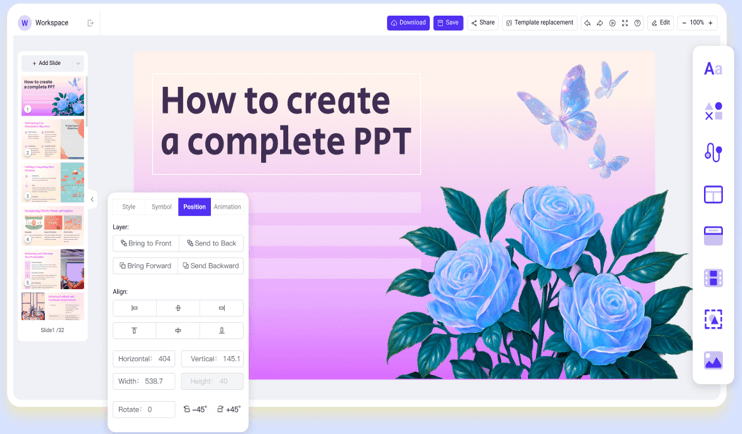
screenshot of workppt ai ppt

⭐⭐⭐⭐⭐ Rated 4.8 by 1.3M Users

FAQs About Changing Layout in PowerPoint

Q1: How do you change the layout of a slide quickly?

A: The fastest way is to right-click the slide thumbnail, select Layout, and choose a new layout. This method is ideal for quick edits without switching tabs.

Q2: Can I change the layout in PowerPoint without losing content?

A: Yes. When you change layout in PowerPoint, existing text and images are usually kept and repositioned into new placeholders. However, very long text or unsupported elements may need minor adjustments.

Q3: When should I use the PowerPoint Two Content layout?

A: Use the PowerPoint Two Content layout when you want to compare two ideas or place text and visuals side by side. It works well for pros and cons, comparisons, or explanations with images.

Q4: Can I apply the same layout to multiple slides?

A: Yes. Select multiple slides in the slide panel, then go to HomeLayout and choose a layout. This helps keep your presentation consistent.

Q5: Why does my slide look messy after I change the layout?

A: This usually happens when:

  • The slide has too much text
  • Images don’t match the new placeholders

Try switching to a simpler layout, shortening text, or clicking Reset to clean up alignment.

💬 Conclusion:

Mastering how to change layout in PowerPoint is one of the easiest ways to make your presentation message clearer and more professional. With the help of tools like WorkPPT AI slide generators, you can focus less on formatting and more on delivering a great presentation.