
Copilot in PowerPoint is Microsoft’s AI tool that helps you create slides quickly with simple prompts. It can write content, design layouts, and build presentations for you. This guide provides a brief overview of what Copilot does, how to use it, and alternative options if you need more design options.
What is a Comparison PowerPoint Slide?
Microsoft Copilot is an AI assistant designed to help users work faster across Word, Excel, PowerPoint, and other Microsoft 365 apps. It can understand simple prompts, create content, summarize information, and support daily tasks.
When you use Copilot in PowerPoint, it can help you create and improve slides with ease. It can turn ideas, text, or documents into clear and organized presentations.
What can Copilot do in PowerPoint
- Create a full presentation from a short prompt
- Generate outlines and slide structures
- Rewrite or expand text for better clarity
- Summarize long documents into key points
- Suggest speaker notes for each slide
- Add images and visuals that match your topic
- Translate your PowerPoint into any language
How to Enable Microsoft Copilot in PowerPoint
1.Check Your License
Copilot is not included in the standard Microsoft 365 subscription by default. You must have one of these specific add-on subscriptions:
- For Personal/Home: You need the Copilot Pro subscription (approx. $20/month) added to your Microsoft 365 Personal or Family plan.
- For Work/Business: You need a Microsoft 365 Copilot commercial license assigned to your work account by your IT admin.
2. Update Your PowerPoint
If you have the license but do not see the button, your app is likely outdated.
1. Open PowerPoint.
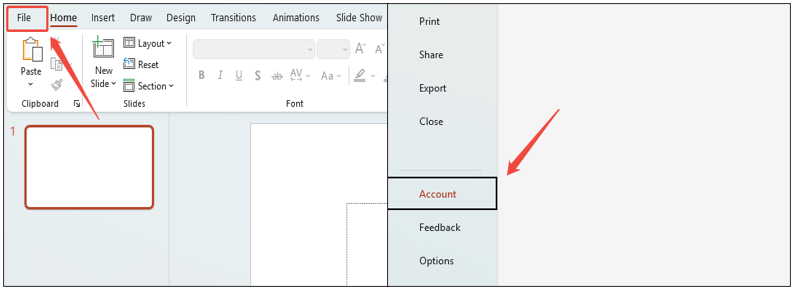
2. Go to File > Account (bottom left).
3. Click Update Options > Update Now.
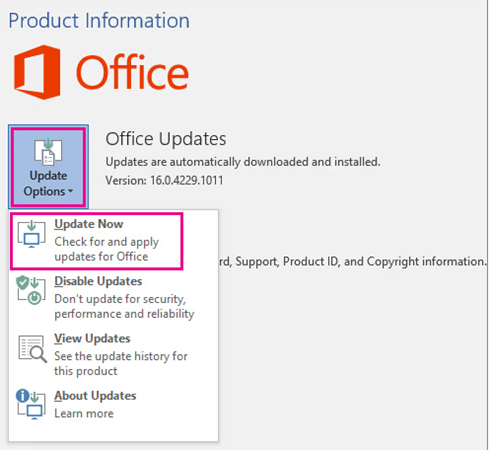
Wait for the update to finish and restart PowerPoint.
3. Refresh Your License
If you just bought Copilot and it is still not showing up, force the app to recognize the new purchase:
1. Go to File > Account.

2. Look for a button that says Update License (sometimes under the “Product Information” section).
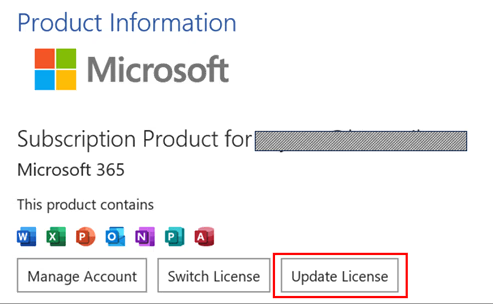
3. Click it and follow the prompts to sign in again. Close and restart PowerPoint.
Once enabled, you will see the Copilot icon on the Home tab ribbon (usually on the far right).

Make Your Slide Instantly
- No Download, easy to access
- 5000+ professional templates
- Export as PPTX without format issue
How to Use Copilot to Create PowerPoint Presentation
1. Go to the file menu and select Create with Copilot.
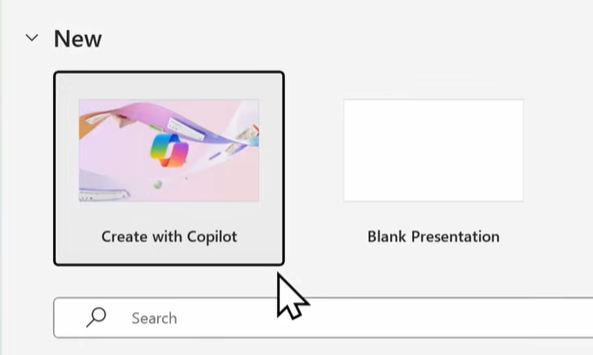
2. A window will pop up here. Type a prompt describing your topic, for example: “Create a presentation about sustainable urban farming.”
You can also to reference a file and set the desired presentation length.

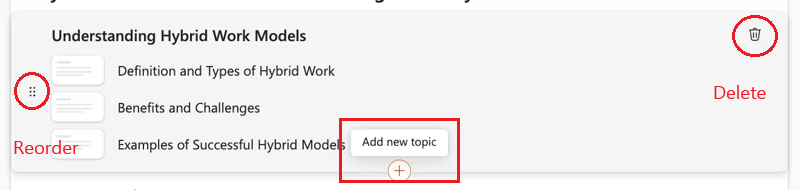
4. Copilot will then generate a draft outline of topics. You can delete, reorder, or add new topics as you see fit.
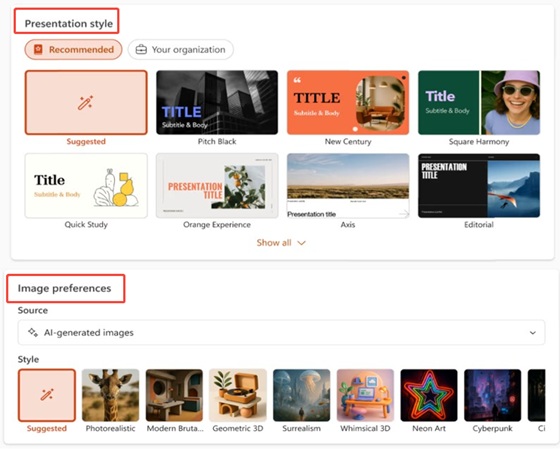
5. Select a presentation style source for images. If you select AI-generated images, you can also pick the image style.
6. When you are satisfied with the topics and all settings, click “Generate slides”.
How to Improve Your PowerPoint with Copilot
1. Rewrite or Improve Text
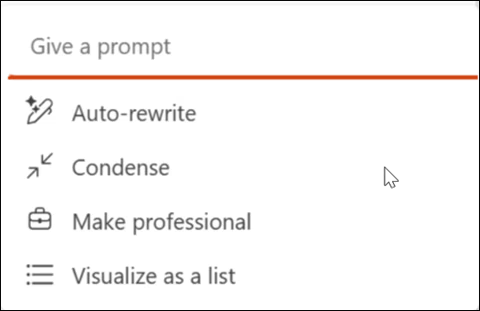
Select the text box or slide you want to improve. Click the “magic pencil”, and there will be three options listed:
- Auto-rewrite
- Condense
- Make preofessional
- Visualize as a list
2.Design Suggestions
If you are unsatisfied with the current layout, go to the Design menu and click Design Suggestions to refresh it.

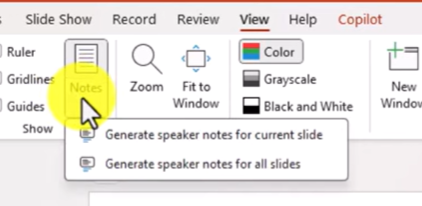
3. Add Speaker Notes
Go to View > Notes > Drop options:
- Generate speaker notes for current slide
- Generate speaker notes for all slides

Limitations of Copilot for PowerPoint
While Microsoft Copilot in PowerPoint is very helpful, it is not perfect. It has some limitations you should know about:
- Requires Paid Subscription: You must have a Microsoft 365 Copilot or Copilot Pro paid license to use Copilot in PowerPoint. It does not work with a basic Microsoft 365 plan.
- Accuracy: The AI sometimes makes mistakes. Always read the text it writes to check for errors and ensure the facts are correct.
- Generic Images: The pictures it chooses are good, but they might not always be specific to your unique needs or brand.
- Complexity: It is great for simple structures, but it might struggle with very complex data or detailed charts.Accuracy: The AI sometimes makes mistakes. Always read the text it writes to check for errors and ensure the facts are correct.
Best Alternative to Copilot in PowerPoint
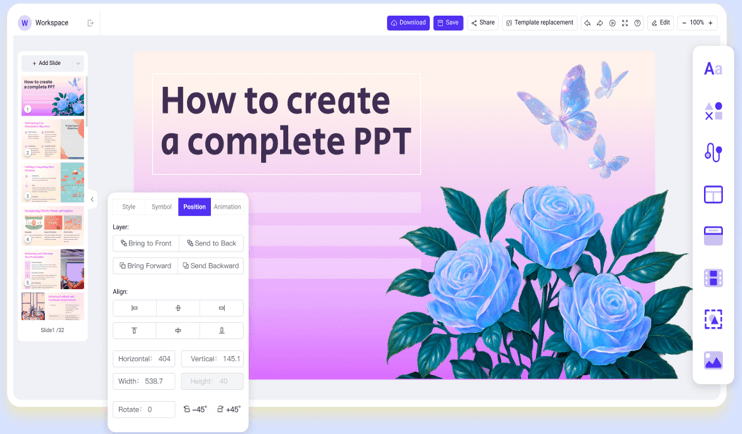
If you want more design options or a faster way to build visual slides, WorkPPT AI PPT is the best alternative to Copilot in PowerPoint. It can turn your ideas or files into awesome presentations in seconds.

Why is a Strong Alternative
- No software download is needed; you can present it online
- It offers 5000+ Templates with different themes and styles
- The design quality is more creative and polished
- It is easy to use with a clean and simple interface
- It is beginner-friendly and does not require Microsoft 365
Easier Steps to Create PowerPoint
1. Input Topic or Upload File
2. Generated and edit Outline
3. Choose a Template
4. Customize & Export as PowerPoint
⭐⭐⭐⭐⭐ Rated 4.8 by 1.3M Users
✍ [You May Also Like]: 10 PowerPoint Alternatives: A Comprehensive Review Guide
FAQs about Microsoft Copilot in PowerPoint
Q: Why I can't find copilot in powerpoint
A: Possible reasons include:
- Your Microsoft 365 plan does not include Copilot
- Your app is not updated
- Your admin has not enabled access
- You are using an older version of PowerPoint
Q: How to turn off Copilot in PowerPoint?
A: Here are some ways to turn it off:
1. Stop Cloud Access (For All Users): Go to File > Account > Account Privacy > Manage Settings. Clear the box that says “Turn on experiences that analyze your content.” This will turn off Copilot and other AI-powered features across all your Microsoft 365 apps.
2. Use the App Option (For Some Users): In newer updates, you might find a dedicated setting. Go to File > Options > Copilot. If the option “Enable Copilot” is there, you can simply uncheck it.
3. For Work Computers: If you cannot turn it off yourself, you must ask your IT administrator. They control the licenses and can remove Copilot access for specific users or groups.
Q: Is Copilot in PowerPoint free?
A: No. Copilot in PowerPoint is not free. You need a Microsoft 365 plan that includes Copilot, and some plans require an extra paid add-on.
Q: Can I use Copilot offline?
A: No. Copilot requires an internet connection because it is an AI-powered cloud feature.
💬 Conclusion:
Copilot in PowerPoint is a useful AI tool for creating slides quickly. It can write text, organize ideas, and build full presentations from short prompts. This helps users who want a fast and simple way to start their work.
However, if you want more visual designs, more templates, and a tool that focuses on beautiful layouts, WorkPPT is the stronger choice. WorkPPT creates clean and creative slides in seconds and is very easy for beginners.