author image

Adding images to your PowerPoint presentations can instantly make them more engaging and visually appealing.This guide will walk you through 9 smart ways to put images in PowerPoint. From inserting a basic picture to creating animated or scrollable images, we’ve got you covered.

1.1 How to Add an Image in PowerPoint on Windows/Mac

The simplest way to insert an image is through the Insert tab:

  • 1. Go to the Insert tab on the PowerPoint ribbon.
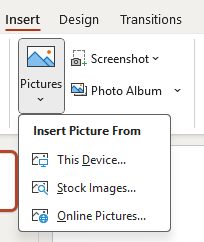
  • 2. Click Pictures and select This Device to upload an image from your computer.

insert image in powerpoint

  • 3. Resize and reposition the image as needed by dragging the corners or edges.

For more advanced options like cropping, rotating, or applying effects, you can use the Picture Format tab that appears after selecting the image.
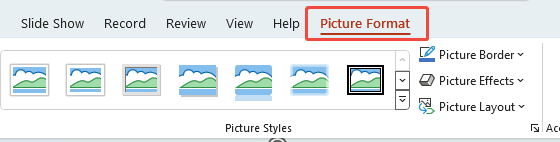
powerpoint change format

workppt banner 2
Want to make a PowerPoint with picture automatically?

With WorkPPT AI maker, you can turn any idea into a ready-to-use PPT with images in minutes.

1.2 Add a Picture to PPT Background

To make an image the background of your slide:

  • 1. Go to the Design tab and select Format Background.
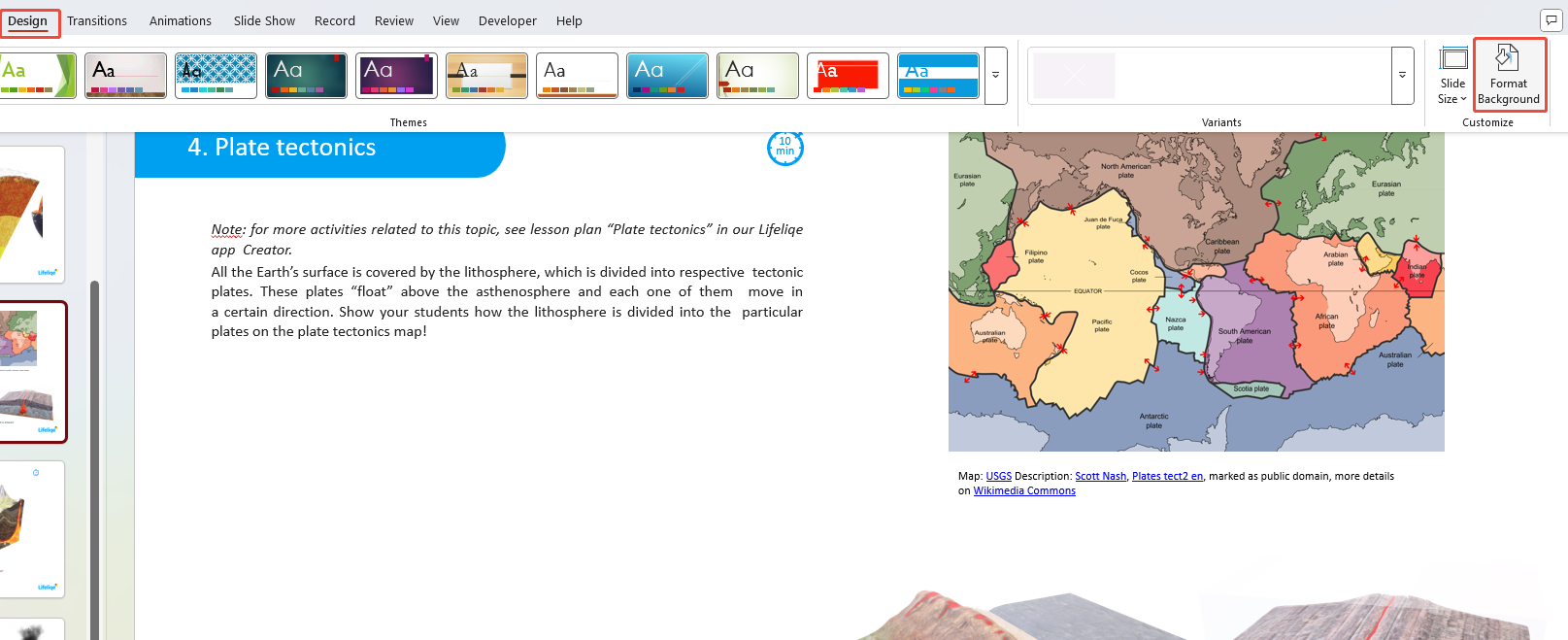
tab format background

  • 2. Choose Picture or Texture Fill and upload your desired image.
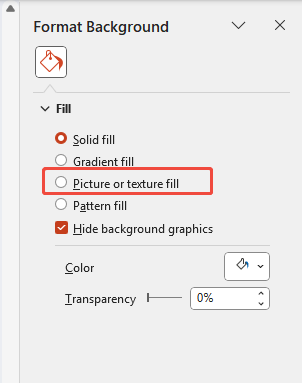
set picture as background in ppt

  • 3. Adjust transparency for better text readability.

👉 For a detailed guide on setting background images, check out our article: How to Add Images as Backgrounds in PowerPoint.

1.3 Add Picture to PowerPoint as Watermark

Watermarks are great for branding or protecting your slides. Here’s how to add them:

1. Go to the Slide Master under the View tab.
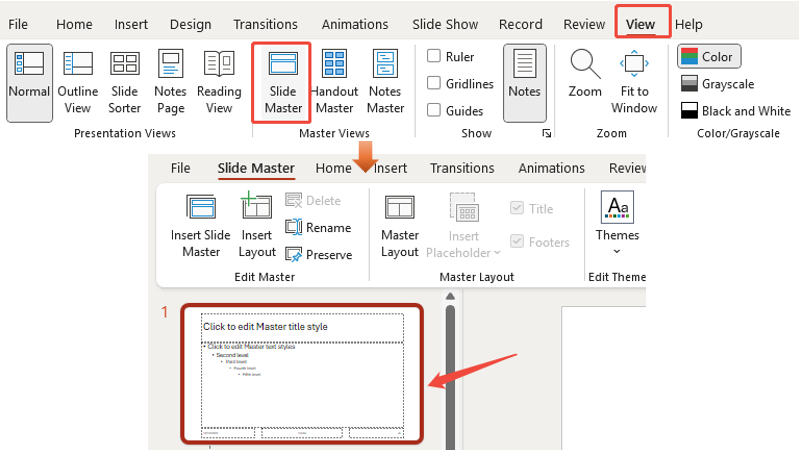
edit slide master in ppt

2. Insert the image you want as a watermark using the InsertPictures option.

insert picture watermark in slide master

3. Adjust the transparency in the Picture Format tab to make the watermark subtle.

👉 Want to konw how to add text watermark in PowerPoint? Check this guide this guide.

1.4 Adding Image Placeholders

Image placeholders are especially helpful for templates or presentations that require consistency.

  • Go to ViewSlide Master.
  • Select the layout you want to add the placeholder to.
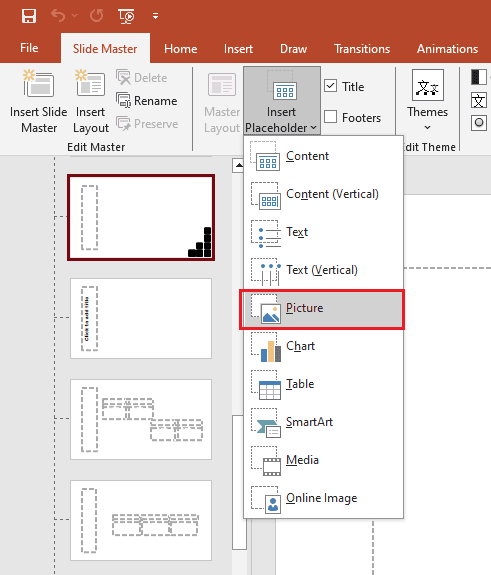
  • Click Insert PlaceholderPicture and position it on the slide.

insert picture placeholder in powerpoint

  • Save the layout and return to the normal view.

close slide master

Now, you can simply click the placeholder to insert an image on any slide using that layout.

1.5 Put a Image in a Shape in PowerPoint

Make your presentation more creative by filling shapes with images:

  • Insert a shape from the InsertShapes menu.
  • Right-click the shape and choose Format Shape.

insert shape in powerpoint

  • Under Fill, select Picture or Texture Fill and upload your image.
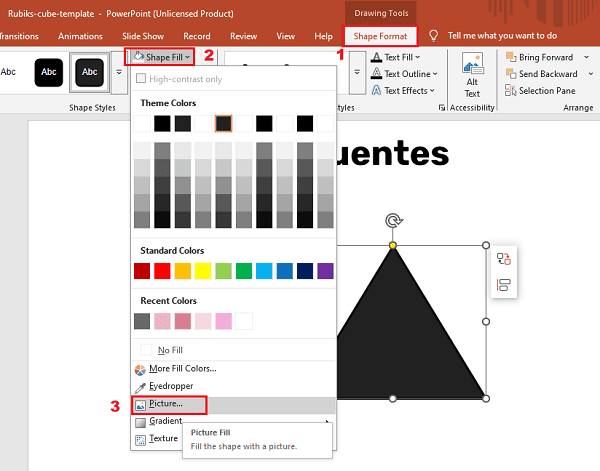
edit shape format

This technique is perfect for creating custom icons or stylish visuals.

image in shape effect

1.6 Insert Multiple Images in PowerPoint

If you need to add many pictures at once, the Photo Album feature is one of the fastest methods. This is perfect for creating image-heavy decks such as event recaps, product catalogs, travel slideshows, or photography portfolios—without manually inserting images one by one.

1. Go to InsertPhoto AlbumNew Photo Album. Choose multiple pictures from your computer.
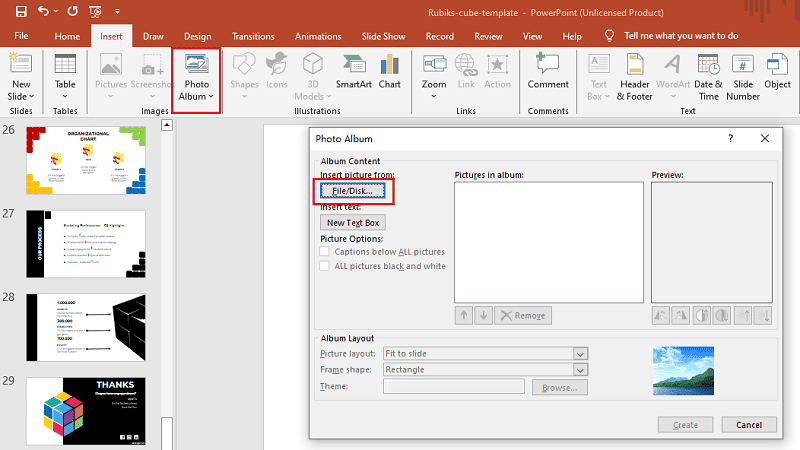
insert photo album

2. It will automatically create a new PPT file with individual slides for each image.
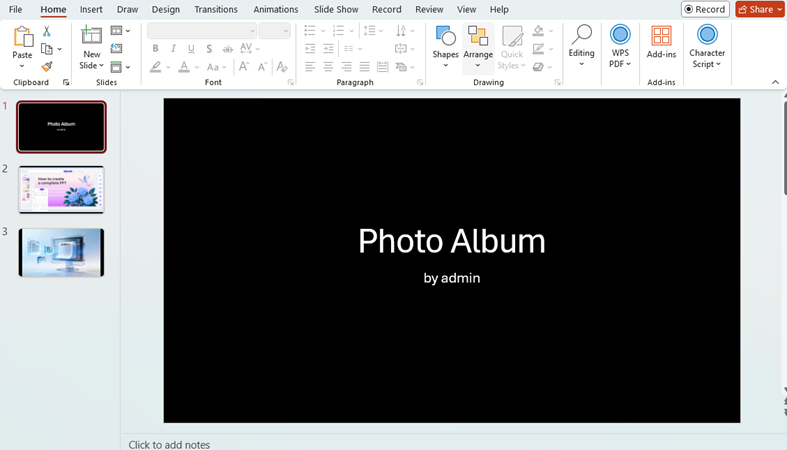
photo album in ppt

💡 Tips:For Mac users, drag-and-drop images directly onto the slide sorter for faster results.

1.7 Insert a Moving Image into PowerPoint

Moving images, like GIFs, can make your presentation more dynamic:

  1. Go to the Insert tab and click PicturesThis Device to upload a GIF.
  2. Resize and position the GIF as needed.
  3. Play the slideshow to see the animation in action.

1.8 Insert a Scrollable Image in PowerPoint

Scrollable images are great for showcasing large visuals like infographics:

  1. Insert the image and resize it so it’s larger than the slide.
  2. Use Animation Path to create a scrolling effect.
  3. Adjust the animation duration to control the scroll speed.

This technique works well for storytelling slides or showcasing step-by-step processes.

1.9 Inserting Images from Google or Online Sources

💡 Tips:You can’t insert online pictures from Google but Bing in PowerPoint. If you need to apply image from Google, you can save it on your device first.

To add images directly from online sources:

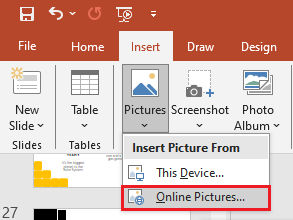
    1. Go to InsertPicturesOnline Pictures.

insert online picture

  1. Search for an image using Bing or upload directly from your OneDrive.
  2. Select the image and click Insert.

👉 Pro Tip: Always use royalty-free images and check licensing to avoid copyright issues.

3. Best Practices for Presenting Images in PowerPoint

  • Keep It Simple: Avoid cluttering your slides with too many images.
  • Use High-Quality Images: Low-resolution images look unprofessional—stick to HD visuals.
  • Align Consistently: Use PowerPoint’s alignment tools to keep your images organized.
  • Add Alt Text: For accessibility, always include alt text for your images.
  • Balance Text and Images: Ensure images complement your content instead of overwhelming it.

4. FAQs & Troubleshooting about Image in PPT

Q1: Why is my image blurry in PowerPoint?

  • Use high-resolution images and avoid stretching them too much.

Q2: How do I replace an image without losing formatting?

  • Right-click the image → Change Picture → Select a new image.

Q3: Can I keep the same background image across all slides?

  • Yes, use the Slide Master to apply the background image to all slides at once.

Q4: Why is my GIF not playing during the slideshow?

  • Ensure the GIF is inserted correctly and test it in slideshow mode.

💬 Conclusion:

Putting pictures on PowerPoint is a simple yet effective way to make your presentations more engaging. Whether you’re inserting a basic photo, creating a dynamic GIF, or designing a scrollable image, these techniques will elevate your slides to the next level.

Don’t forget to explore the linked guides for more in-depth steps and keep experimenting with new ways to showcase your visuals. Ready to make your next PowerPoint unforgettable? Start adding those images now!

If you don’t want to waste hours, use WorkPPT AI PowerPoint to save time on PowerPoint making.

Here is a video about WorkPPT AI PowerPoint generator: