
author image

Sometimes you don’t want to edit your original PowerPoint file. You may need a new version or to reuse slides. In these cases, knowing how to make a copy of a PowerPoint is essential. Below, we’ll walk you through the simple steps to duplicate presentations and copy slides.

If you want to duplicate the whole file, here are three methods:

Method 1: Use “Save As” to Copy PPT Slides

This method works on Windows, Mac, and PowerPoint Online.
1. Open your PowerPoint presentation
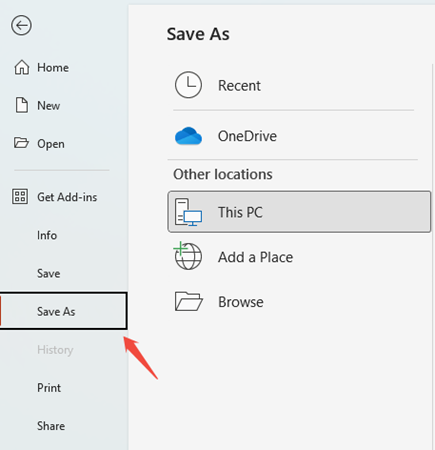
2. Click FileSave As

use save as to copy powerpoint


3. Choose a new name and location
4. Click Save
This creates a new copy of the PowerPoint presentation while keeping the original file unchanged.

Method 2: Copying via File Explorer (Windows) or Finder (Mac)

You can also copy the file directly without opening PowerPoint.
On Windows:
1. Right-click the PowerPoint file
2. Select Copy
3. Right-click in the folder and choose Paste
(Shortcut: Ctrl + C then Ctrl + V)

On Mac:
1. Select the file in Finder
2. Press Command + C, then Command + V
This is a quick way to duplicate a PowerPoint presentation for backup or sharing.

Method 3: Duplicating in PowerPoint Online

If you are using PowerPoint Online:
1. Open the presentation
2. Click File → Create a copy
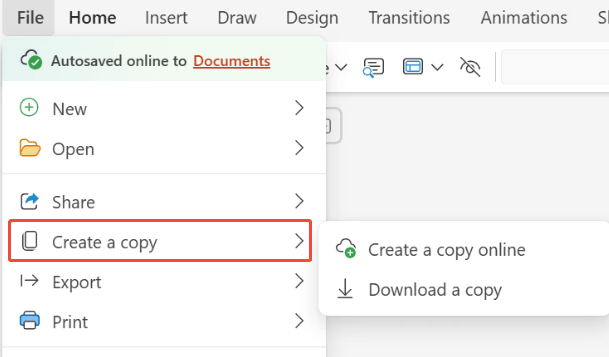
copy ppt slides online

3. Choose where to save it.

workppt banner

WorkPPT– Create PowerPoint in 1-Click

How to Copy PPT Slides Within the Same Presentation

Sometimes you don’t need the whole file. You only want to reuse certain slides.

Copying a slide in PowerPoint

This is the fastest way to copy a slide in PowerPoint:
1. Open your presentation
2. Right-click the slide thumbnail
3. Select Duplicate Slide
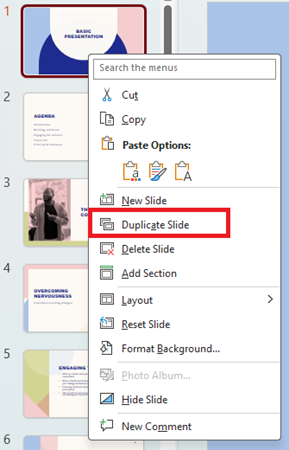
duplicate a slide in powerpoint

Copying Multiple Slides in PowerPoint

1. Hold Ctrl (Windows) or Command (Mac)
2. Click multiple slides you want to copy, then right-click and choose Copy
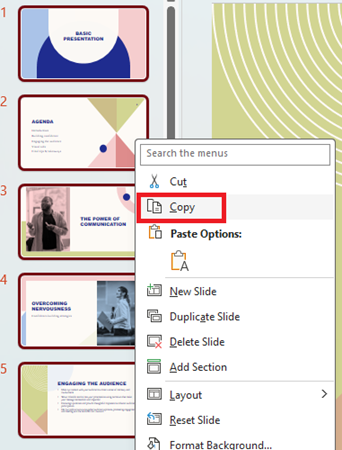
duplicate multiple slides in powerpoint

3. Right-click again where you want them and select Paste.
Use “Keep Source Formatting” when pasting to avoid losing format.
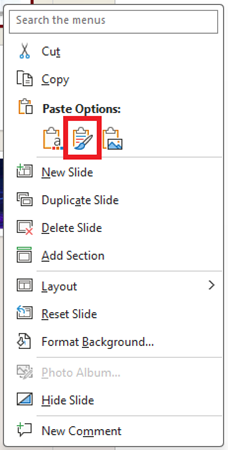
paste powerpoint slide with source format

How to Copy Slides Between Different Presentations

While you can certainly use the Copy and Paste methods mentioned in the previous section to move slides from one file to another, there is a much faster way to do it.
1. Open your main presentation where you want to add the slides.
2. Go to the Home tab on the top ribbon.
3. Click the small arrow next to the New Slide button and select Reuse Slides at the bottom of the menu.
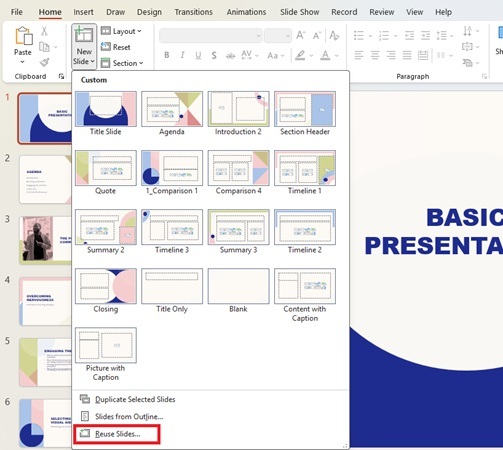
reuse powerpoint

FAQs About Copying a PowerPoint Presentation

Q1: How to create a copy of a PowerPoint?

A: Use File → Save As or copy the file from your computer. This creates a new version while keeping the original presentation unchanged.

Q2: Can I copy multiple slides at the same time in PowerPoint?

A: Yes. Hold Ctrl (Windows) or Command (Mac), select multiple slides, then copy and paste them together.

Q3: When should I use the PowerPoint Two Content layout?

A: Use the PowerPoint Two Content layout when you want to compare two ideas or place text and visuals side by side. It works well for pros and cons, comparisons, or explanations with images.

Q4: Does copying a PowerPoint presentation keep animations and transitions?

A: Yes, when you duplicate a PowerPoint presentation or copy slides using built-in features, animations and transitions are usually preserved.

Q5: What’s the difference between copying slides and duplicating slides?

A: Copying slides lets you move slides to a different location or another presentation. Duplicating slides creates an exact copy of a slide in the same presentation.

💬 Conclusion:

Making a copy of a PowerPoint presentation is easy once you know the right method. You can duplicate the entire file to keep your original safe, or copy individual slides to reuse content when needed.

If you frequently create multiple versions of presentations or rebuild slides from the same material, tools like WorkPPT AI PPT Maker can help speed up the process by automatically generating new presentations. So you spend less time copying and more time refining your message.

⭐⭐⭐⭐⭐ Rated 4.8 by 1.3M Users