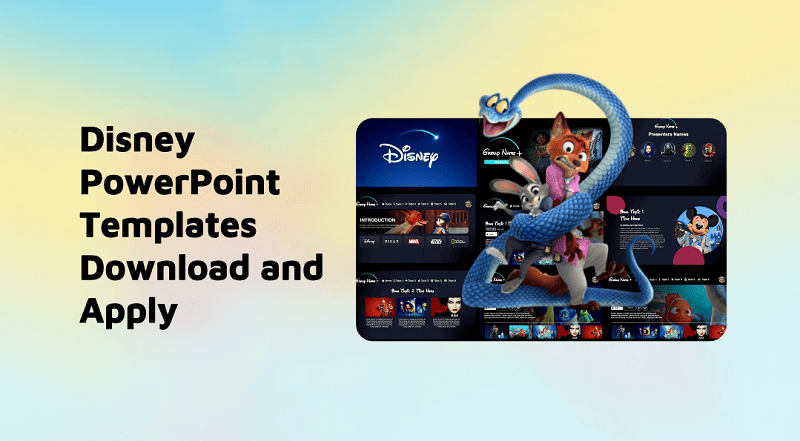

Creating engaging presentations using Disney PowerPoint templates can add a fun and professional touch to your slides. Whether you’re presenting at a school event, a business meeting, or a special Disney-related project, using themed slides can help captivate your audience.
This guide will walk you through everything you need to know about Disney slide templates, including how to create them and popular designs.
Easy Steps to Create Your Own Disney PPT Template
Creating a Disney-themed PowerPoint template is all about capturing “magic” through specific colors, iconic typography, and whimsical layouts. Here are the simple steps to build your own from scratch:
1. Set Your "Magical" Color Palette
Disney often uses specific color schemes based on its branding or specific movies.
- Classic Mickey: Red (
#E02725), Yellow (#FFD700), Black (#000000), and White. - Disney Princess/Castle: Sky Blue (
#71C5E8), Soft Pink (#FADADD), and Gold (#D4AF37). - The “Magic” Look: Deep Purples and Dark Blues with “sparkle” white accents.
- How to apply: Go to Design > Variants > Colors > Customize Colors to set these as your default theme colors.
2. Install Disney-Inspired Fonts
Standard fonts like Arial won’t feel like Disney. Download and install free “personal use” fonts from sites like DaFont. Learn how to add fonts to PowerPont >>
3. Design the Master Slide
To make it a true template where every new slide automatically looks Disney-themed:
- Go to the View tab and select Slide Master.
- Add a Background: Use a soft gradient (e.g., light blue to white) or a high-quality image of a castle silhouette with low opacity (transparency at 80-90%).
- Add a “Corner Charm”: Place a small Mickey icon or a “pixie dust” trail in the bottom corner of the Master Slide.
- Close Master View when finished.
4. Use Iconic Shapes and Icons
Instead of standard bullet points, use Disney shapes.
- Bullet Points: Change your bullet points to small Mickey silhouettes (search for “Mickey silhouette PNG” or use the “Icons” tool in PowerPoint to find a circle and add two smaller circles as ears).
- Frames: Use “scrolled” or “ornate” frame shapes around your images to give them a storybook feel.
5. Add Subtle "Pixie Dust" Animations
Don’t overdo it, but small touches make it feel alive:
- Transitions: Use the “Fade” or “Morph” transition for a smooth, magical flow.
- Sparkles: Add a few small star shapes and give them the “Pulse” or “Spin” animation so they glimmer quietly in the background.
6. Save as a Template
To use this again in the future:
- Go to File > Save As.
- Change the file type to PowerPoint Template (.potx).
- Now, whenever you open PowerPoint, you can select this under “Custom” templates.
Top 8 Disney PPT Templates for Slideshow
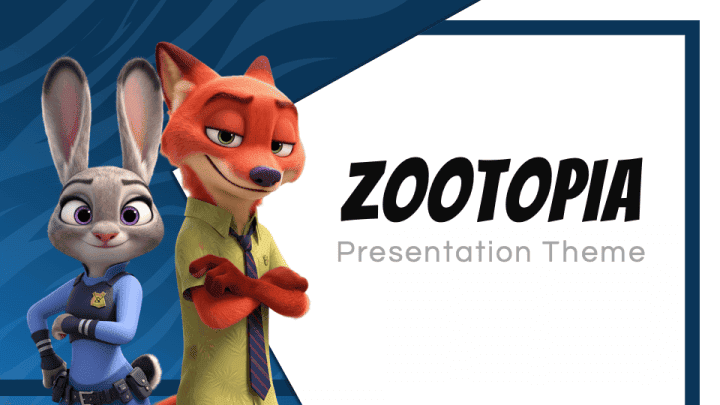
- 1. Zootopia This template features a vibrant, modern aesthetic inspired by the bustling animal metropolis, highlighting characters like Judy and Nick. It’s perfect for presentations on diversity, urban planning, or creative problem-solving.

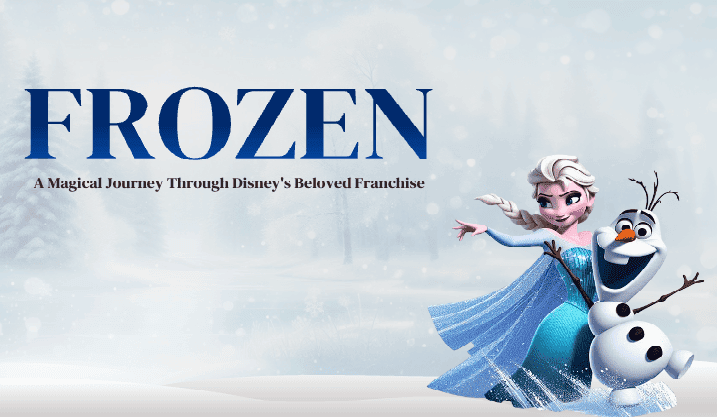
- 2. Frozen Dominated by icy blues and snowflake motifs, this theme captures the magical atmosphere of Arendelle. It is ideal for storytelling or educational content that focuses on themes of bravery, sisterhood, and transformation.
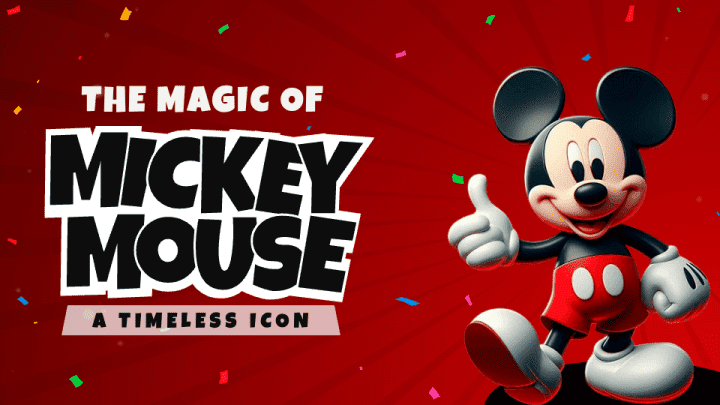
- 3. Mickey Mouse This classic design uses the iconic red, black, and yellow color palette to evoke a sense of nostalgia and fun. It is highly versatile, making it great for lighthearted team-building, brand history, or children’s activities.
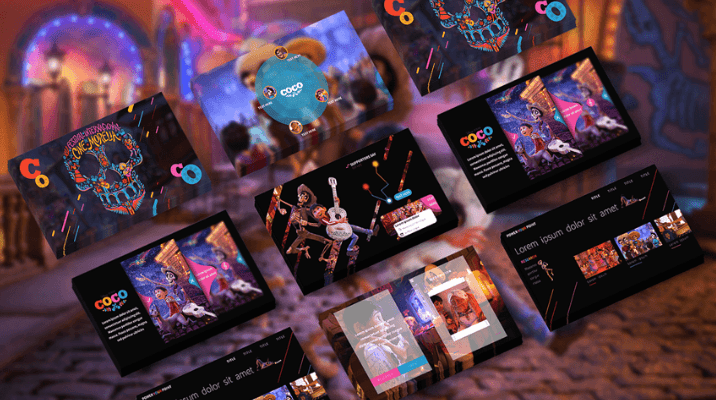
- 4. Coco Inspired by the Mexican Day of the Dead, this template is bursting with vivid colors, marigold petals, and musical elements. It is an excellent choice for presentations regarding culture, heritage, or following one’s passion.
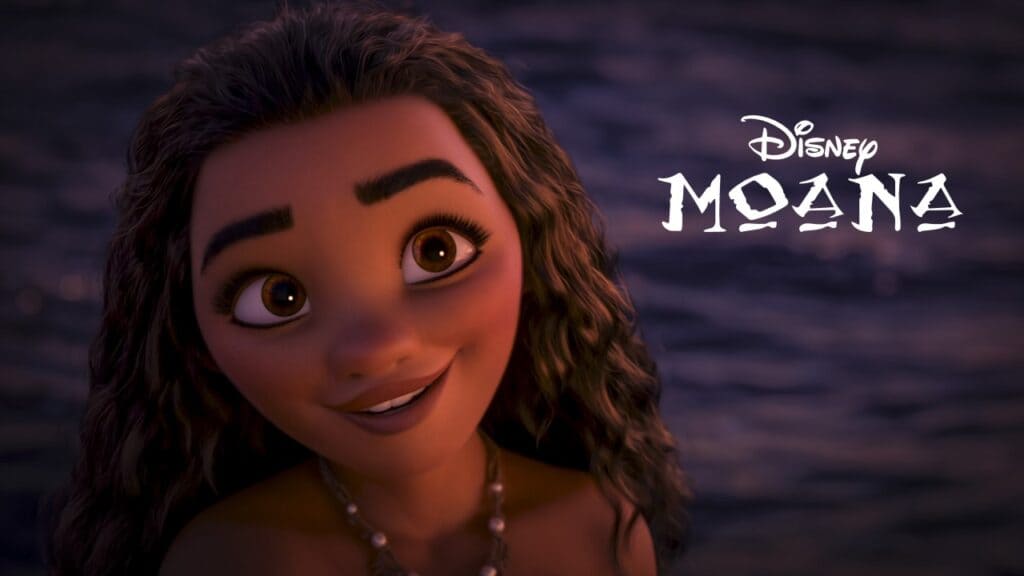
- 5. Moana With a focus on tropical islands and the vast Pacific Ocean, this theme uses earthy tones and oceanic blues. It’s designed to inspire an adventurous spirit, perfect for topics involving exploration, environment, or leadership.
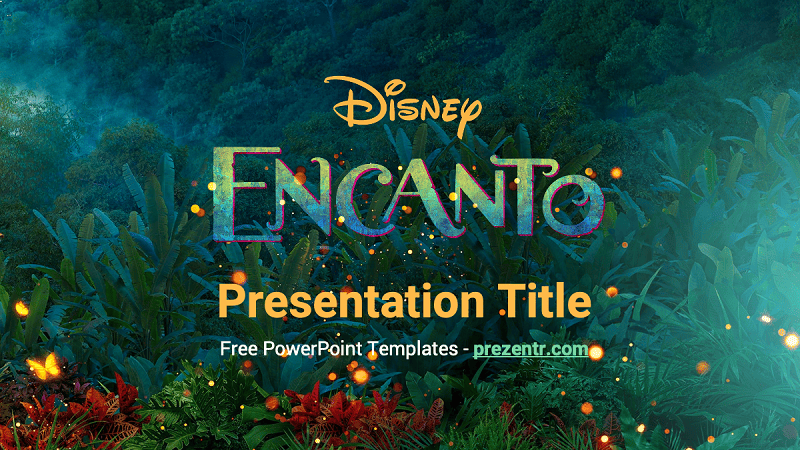
- 6. Encanto This theme captures the colorful “Casita” with floral patterns and a warm, magical Colombian vibe. It works beautifully for presentations centered around family dynamics, community, and discovering unique talents.
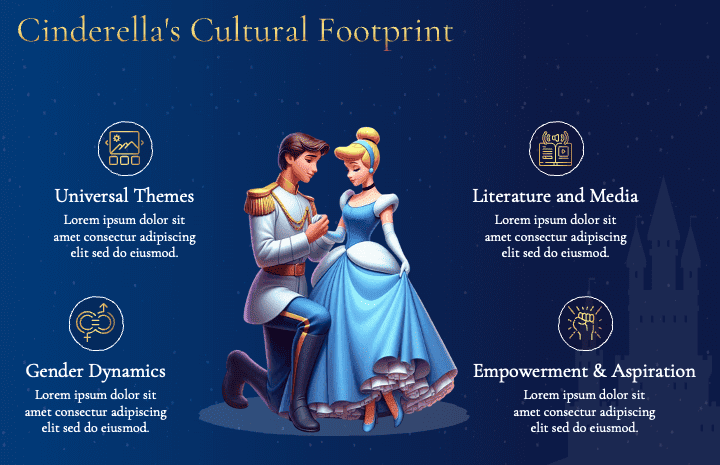
- 7. Cinderella This elegant template features a sophisticated blue and gold color scheme with a “fairytale” aesthetic. It is best suited for topics that require a touch of grace, such as fashion, dream-fulfillment, or luxury branding.
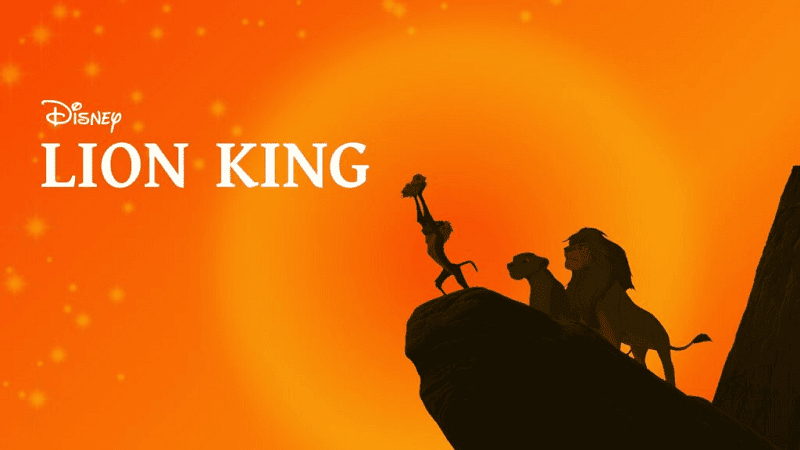
- 8. The Lion King Drawing from the African Savanna, this design uses warm sunset oranges and earthy silhouettes of the Pride Lands. It is powerful and majestic, making it a strong fit for discussions on leadership, legacy, and the “Circle of Life.”
How to Add a Disney PowerPoint Theme to PowerPoint
Adding a Disney PowerPoint theme to your slides is easy and straightforward. Here’s how:
- Download the Template: Get your Disney PowerPoint template from a trusted source, ensuring it’s in
.pptxformat. - Open PowerPoint: Launch Microsoft PowerPoint and open a new presentation.
- Import the Template: Select “Design” from the PowerPoint ribbon, then choose “Browse for Themes” and open your downloaded Disney template.
- Customize the Template: Once the template is loaded, you can start adding your content. Modify text, images, and colors as needed to match your presentation.
If you don’t have access to a pre-made Disney template, don’t worry! With the WorkPPT AI Presentation Maker, you can generate a presentation based on your content and then add a Disney theme or background manually.
AI Presentation Maker to Save Time on PPT Creation

⭐728323 presentations made
- Generate Content with WorkPPT AI: You can input text, upload files, or use AI-generated ideas to create a full presentation deck.
- Customize Your Presentation: Once you have your slides ready, add a Disney template or background by uploading your own Disney-themed images or choosing a relevant PowerPoint theme
- Save Time: WorkPPT saves you hours of manual content creation by instantly generating presentation layouts, content, and structure. Afterward, you can easily insert a Disney theme, keeping your focus on the content, not the design.
Why Use WorkPPT?
- Speed: Get a full presentation in minutes instead of hours.
- Flexibility: WorkPPT lets you add your own Disney backgrounds and customize slides with ease.
- Creativity: Combine AI-generated slides with Disney designs to create a unique and captivating presentation.
By combining WorkPPT’s AI-powered features and Disney-themed PowerPoint templates, you can create beautiful presentations with ease—without compromising creativity or professionalism.
💬 Conclusion:
In conclusion, Disney PowerPoint templates offer a fun, engaging way to elevate your presentations. Whether you’re using classic Disney characters, themes from popular films, or professional minimal designs, these templates make it easy to create visually appealing decks.
However, if you’re looking to save time and maximize creativity, WorkPPT can generate the content for your slides, which you can later enhance with your favorite Disney template.
Creat professional slides with WorkPPT AI Maker. Save time. Cut costs. Present with confidence.