

NotebookLM is Google’s AI-powered research and note-organizing tool. Many people ask if NotebookLM creates slides. Yes. It can help with this task with its new Slide Deck feature. This article will show you the simple steps and offer some effective prompts to help you get better results.
What is NotebookLM?
NotebookLM is a special tool from Google. It uses powerful AI to support your research and writing. Think of it as a personal assistant for your files. You upload your documents, like PDFs, Google Docs, or articles. NotebookLM then reads only those specific files. It will not search the whole internet.
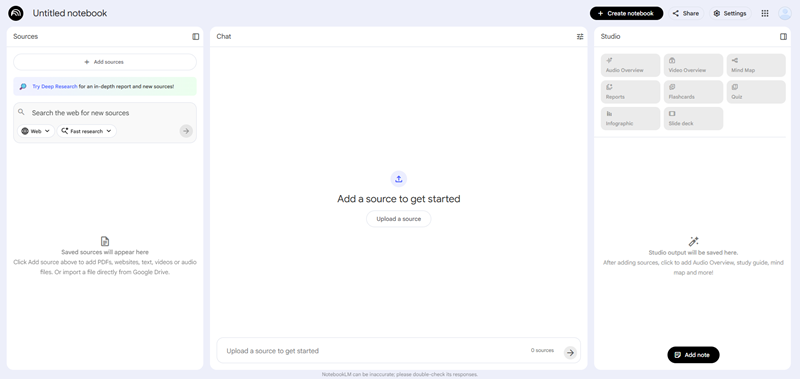
Can NotebookLM Create Slides?
Yes! Slide Deck feature was released with the “Infographics” feature around mid-to-late November 2025. Initially available to Pro users, it has now been gradually rolled out to all users.
The Slide Deck feature is still in Beta, so Google is testing and improving it. The good news is that all NotebookLM users can use it for free at this stage. (Updated on Dec. 9th, 2025)
How Does the NotebookLM Slide Deck Feature Work?
NotebookLM uses its powerful AI model (Gemini 1.5 Pro) to understand your uploaded files. It does not search the internet for answers. It only uses your information. This means the slides it makes are very accurate and reliable.
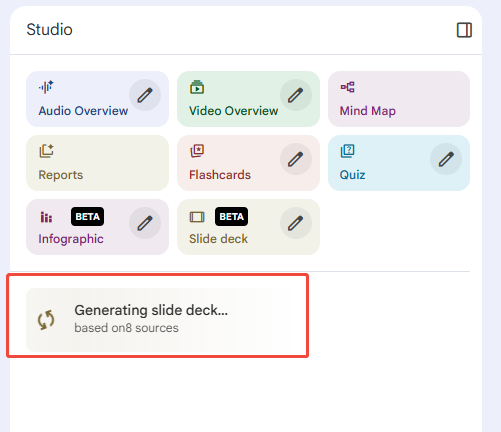
The feature is called Slide Deck, and you can find it in the Studio Panel of your Notebook. It takes the most important points from your sources and turns them into a presentation outline.
How to Use NotebookLM to Generate Slides Deck
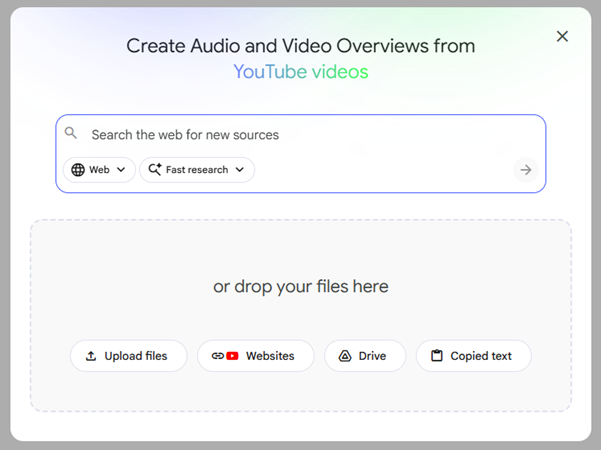
1. Upload Sources
First, add all your documents, PDFs, or website links to your Notebook.
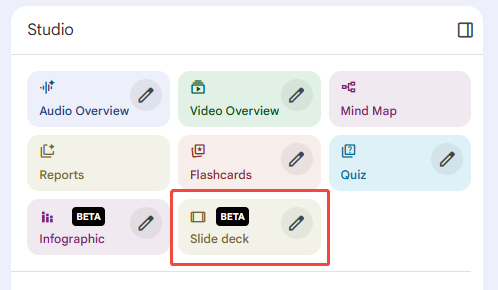
2. Choose “Slide Deck” Feature
From the Studio panel on the right, select the “Slide Show” function.
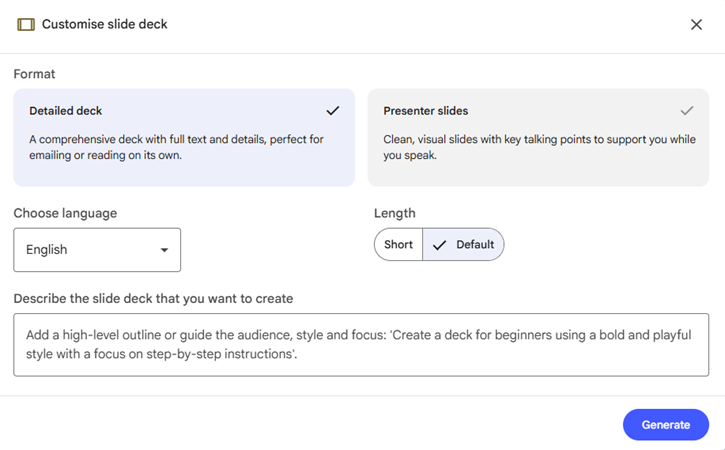
3. Slide Preference Settings
In the panel, you have important options to guide the AI before generating:
- Choose a Format: Select Detailed Deck (full text, good for reading) or Presenter Slides (clean, visual points for speaking).
- Select Language: Pick the language for the output slides.
- Set Length: Choose between short, default, or long.
- Input a Prompt: Write a detailed prompt to set the audience, style, and focus.
4. Wait for the Deck
Click “Generate”. NotebookLM then will generate slides. In our tests, this process took about ten minutes. You can continue working in your notebook in the meantime.
5. Export the File
You can download the finished presentation just as a PDF document.
A Faster Way to Create Better Slides
With WorkPPT PPT AI maker, you can turn your funny topic into a complete PPT in minutes. Try it free today!
Effective Prompts for NotebookLM Slide Deck Generation
When you ask NotebookLM to make slides, your prompt is very important. A good prompt tells the AI exactly what you need. Here are some examples of strong prompts you can use to make the best possible deck:
1. Prompts for Audience and Focus:
“Create a 15-slide deck that explains the core concepts of this source to a beginner audience.”
“Generate a 5-slide summary deck for busy managers who only need the final results and costs.”
“Make a presentation for university students that explains the five main arguments in the text.”
2. Prompts for Style and Detail:
“Create a formal presentation. Each slide must have bullet points and detailed speaker notes.”
“Generate a simple, quick deck. Use very short sentences and no more than three bullet points per slide.”
“Make a persuasive sales presentation that highlights the benefits and solutions found in the text.”
Limitations of NotebookLM Slides Deck & Best Alternative
NotebookLM create slides content very well. However, the final file is usually a static PDF. This is the main limitation for many users. NotebookLM gives you the great content, but not the best design or full editing features. Compared with other AI PPT tools, it also takes longer to complete.
NotebookLM excels at creating accurate, source-grounded content. But to get a fully editable PowerPoint file, you need a powerful AI presentation tool like WorkPPT AI Presentation Maker. WorkPPT is specifically designed to turn your ideas or files into complete, captivating slides in seconds.
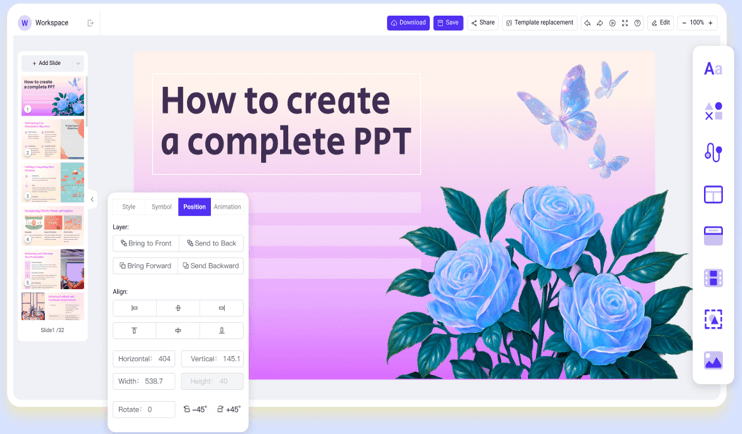
Why WorkPPT is the best alternative:
- Easily turns ideas and documents into full slide decks in under 60 seconds.
- Offers 5000+ slides templates across many fields and use cases.
- Supports export to fully editable PPTX, as well as PDF and image formats.
- Features AI Mind Map, AI Chat, and AI Summarizer and so on.
- Keep a humanized writing style and design, avoid being detected by AI.
⭐⭐⭐⭐⭐ Rated 4.8 by 1.3M Users
FAQs About Notebooklm Generate Slides
Q: Can I use NotebookLM to create sldies for free?
A: Yes. The Slide Deck feature is currently in its Beta phase and is available for free use for all NotebookLM users.
Q: Can NotebookLM generate slides with images?
A: Yes, but some images may export as non-editable elements.
Q: Can I export NotebookLM slides to PowerPoint or Google Sldies?
A: Not directly. NotebookLM currently exports the slides as a static PDF file.
Q: Is NotebookLM good for presentation design?
A: It is good for content, but not for detailed design. If you need fully editable PPTX files with flexible design, tools like WorkPPT offer more control and better editing options.
💬 Conclusion:
NotebookLM can create simple slide decks quickly, and it works well for turning notes and documents into clear presentations. While the slide feature is still in Beta and has limits in editing and design, it is useful for fast content creation. If you need fully editable and more customizable slides, WorkPPT is a best alternative.
⭐728323 presentations made
