

author image

Gemini is really a powerful AI tool for supporting work or study tasks. So, can Gemini generate presentations?In this article, we take a closer look at how Gemini Canvas handles presentation creation. How the process works in practice, and its result.

The answer is yes. It can build a presentation from scratch using the Canvas feature. This allows you to generate a full deck from a simple text prompt or an uploaded document.

What is Gemini Canvas

Google Canvas is a creative workspace inside Gemini where you can see longer and more complex results in a clear layout.

While a standard chat is great for questions, Canvas opens a side-by-side window where you can generate, edit, and refine complex projects (such as full slide decks, long documents, or computer code) without interrupting your conversation.

How to Use Gemini Canvas for Presentations

Step 1: Activate Google Gemini Canvas

Ensure you are signed in with your Google Account and access Gemini. Click on the tool button below the input box and select “Canvas”.
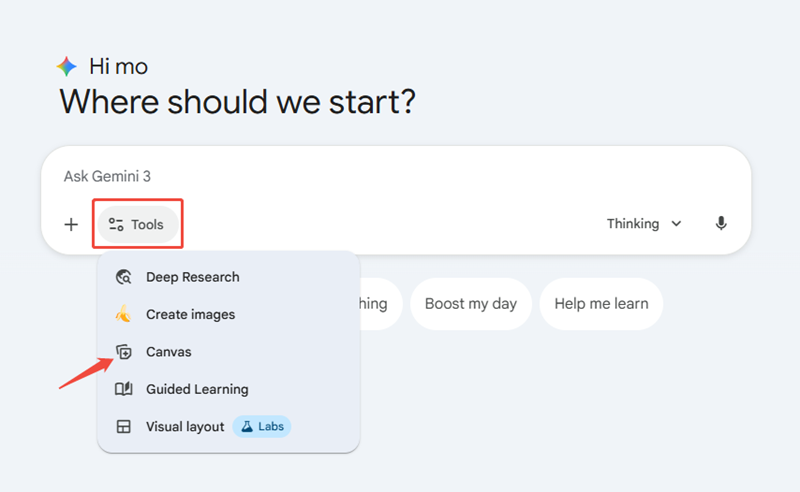
google gemini canvas

Step 2: Enter Presentation Prompt

This is the most important step. Be specific about your topic, audience, and the number of slides. Here are two ways to offer your information to Gemini:

  • Option A: Create from a Topic(Scratch)
    Prompt: “Create a 12-slide presentation outline in Canvas about [Your Topic]. Include a title slide, an executive summary, 8 content slides with data points, and a conclusion. Use a professional and forward-thinking tone.”
  • Option B: Turn an Existing Document into Slides
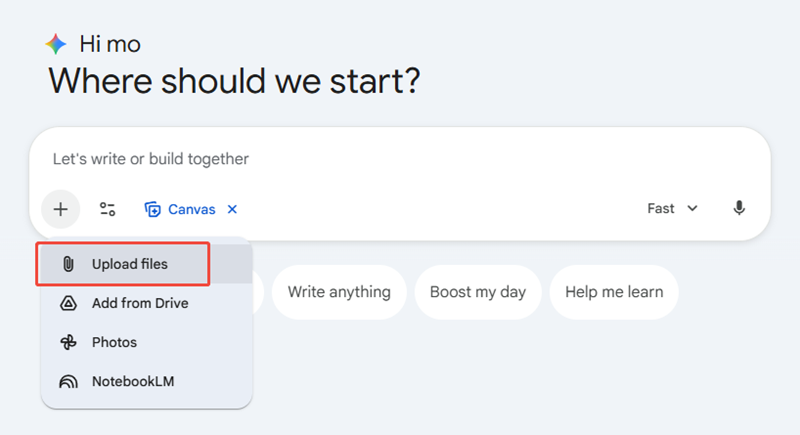
    Click the “Upload” icon (paperclip) and attach your PDF, Word, or Text file.

    upload file on gemini for generating presentationsPrompt: “Analyze the attached document and transform it into a 10-slide presentation in Canvas. Extract the key performance indicators (KPIs) and create a visual hierarchy for each slide.”
Step 3: Refine Gemini Canvas Slides

You can change the presentation by using simpler prompts. You do not need to drag and drop every element at first. Instead, you can type instructions like:

  • Change fonts, colors, and layout
  • Insert images, charts, or logos
  • Collaborate with your team

Gemini will update your Gemini Canvas slides according to your request. Therefore, it’s best for those who have any presentation design skills. All you need to do is have a conversation with Gemini.

Step 4: Export Gemini AI Presentation

After you finish it in Google Gemini Canvas, you can choose export it into Google Slides for further improvement or download it as a PDF. You can also share with a link.
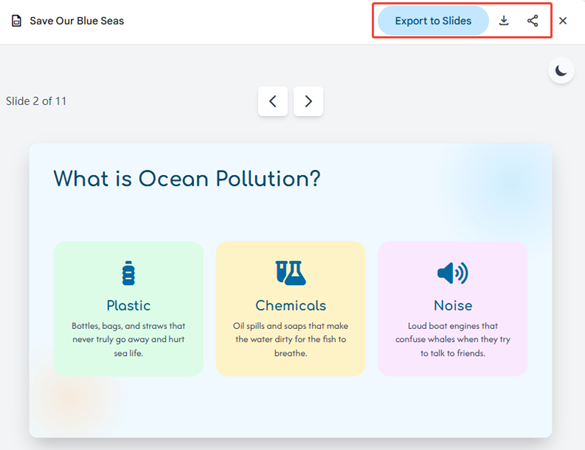
export options of gemini ai presentation

Limitations of Gemini Canvas Slides

However, there are also limits when using Gemini Canvas to create presentations:

  • You can’t manually move a text box or resize an image with your mouse.
  • Without highly specific prompts, the slides can look a bit “corporate-bland” or like older PowerPoint templates.
  • Tables and charts may not be editable after exporting to Google Slides.
  • You can not add animation inside Canvas.
  • You have to describe the visual style in your prompt, but you can not choose a specific template.
  • While Gemini can talk about video and audio, it cannot actually place them into a Canvas slide.
  • Gemini Canvas does not supports present online.

While Gemini Canvas is a massive leap forward for slide generation, it is still a “workspace” rather than a full design tool.

If you want a professional presentation in minutes without any design skills, try WorkPPT AI Presentation Maker now! It transcends all the limitations of Gemini and delivers you with a satisfactory result.

⭐728323 presentations made

Watch video about WorkPPT AI presentation:

FAQs About Gemini Generate Presentations

Q: Is Gemini Canvas free?

A: Yes, Gemini Canvas is free for anyone with a standard Google account.

Q: Can Gemini generate a full presentation?

A: Yes. Gemini can generate a full presentation outline with multiple slides, titles, and bullet points from a single prompt.

Q: What prompts work best for Gemini AI presentations?

A: Clear prompts work best. Include your topic, audience, goal, and length, for example: “Create a 10‑slide presentation on climate change for high school students with simple language.”

Q: Can Gemini turn a document into presentation slides?

A: Yes. You can give Gemini a document and ask it to turn it into a slide deck. It will extract key points and organize them into presentation slides.

Q: Does Gemini support slide formatting and layout control?

A: Canvas will add relevant images and basic visuals alongside the generated text. It also supports data visualization from uploaded content, meaning charts and graphs based on your source material can be included in slides.

💬 Conclusion

Gemini Canvas is useful for structuring presentation content, from slide outlines to key points, making it a time-saver for early planning or simple decks.

However, it still has limitations when it comes to polished, presentation-ready slides. In these cases, specialized tools like WorkPPT help turn structured content into professional presentations with strong layouts and ready-to-use templates.

WorkPPT AI Presentation- Editor’s Choice

📄 Text & documents to slides quickly
🧠 Powerful AI toolkits to save time
🎨 5,000+ education-ready templates
📤 Export to PPTX, PDF, or Google Slides