
When you need to build a slide deck, the choice often comes down to Google Slides vs. PowerPoint. Both are powerful tools, but they serve different needs. This article will break down what each tool offers, compare their key features, and help you decide which one is the best fit for your next presentation.
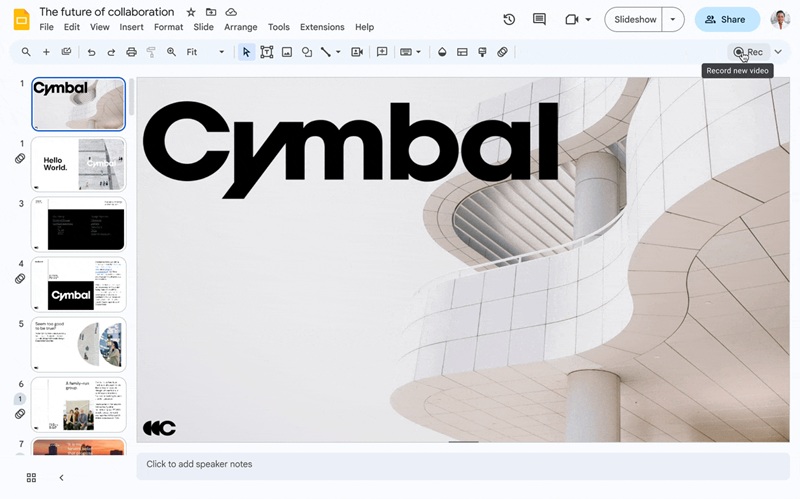
What is Google Slides?

😀 Pros:
- Free to Use: Available to anyone with a Google account.
- Best Collaboration: Many people can edit the presentation at the same time, live and easily.
- Auto-Save: You never have to click "save"—your work is always saved automatically.
- Easy Access: Works on any computer or device through a web browser.
😥 Cons:
- Simple Features: Fewer fancy animations and advanced design tools compared to PowerPoint.
- Internet Requirement: Full features require a stable internet connection.
✍ [You May Also Like]: How to Create Google Slides: Build a Perfect Deck from Scratch
What is PowerPoint?
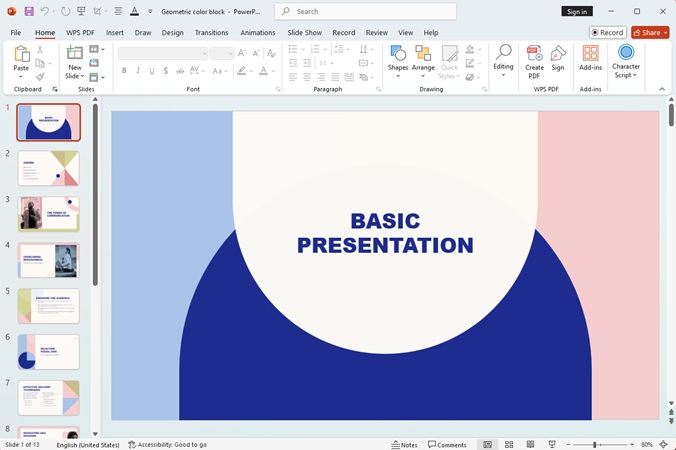
PowerPoint is a presentation tool from Microsoft. It is part of Microsoft 365 and is widely used in schools, offices, and conferences. PowerPoint is known for its strong design ability, advanced animations, and professional layout tools.
😀 Pros:
- Advanced Design: Offers the best tools for complex charts, custom animations and detailed graphics.
- Standard Format: The default file type (.pptx) can be used everywhere.
- Full Offline Use: Works perfectly even when you have no internet connection.
😥 Cons:
- Required Subscription: You need to pay for a Microsoft 365 subscription to get full features.
- Slower Collaboration: Sharing and editing with others is not as fast or simple as it is in Slides.
✍ [You May Also Like]: How to Make a PowerPoint: From Start to Formatting Tips
Direct Comparison: PowerPoint vs Google Slides
| Feature | Google Slides | PowerPoint |
|---|---|---|
| Platform | Web-based (browser, cloud) | Desktop app + Web (Microsoft 365) |
| Collaboration | Real-time, smooth multi-user editing | Supports collaboration via OneDrive |
| Offline Use | Limited (must enable offline mode) | Full offline support (desktop) |
| Design Tools | Basic templates and simple editing | Advanced layouts, animations, and graphics |
| Templates | Simple, clean templates | Large library of professional template |
| AI Tools | Light AI suggestions | Designer & Copilot (advanced features) |
| Integrations | Google Workspace (Drive, Docs, Sheets) | Microsoft 365 (Excel, Word, Teams) |
| Ease of Use | Simple and easy for beginners | Powerful but has a learning curve |
| Price | Free (premium Workspace paid) | Requires Microsoft 365 subscription |
| Best For | Teamwork, education, quick edits | Business, professional design, complex slides |
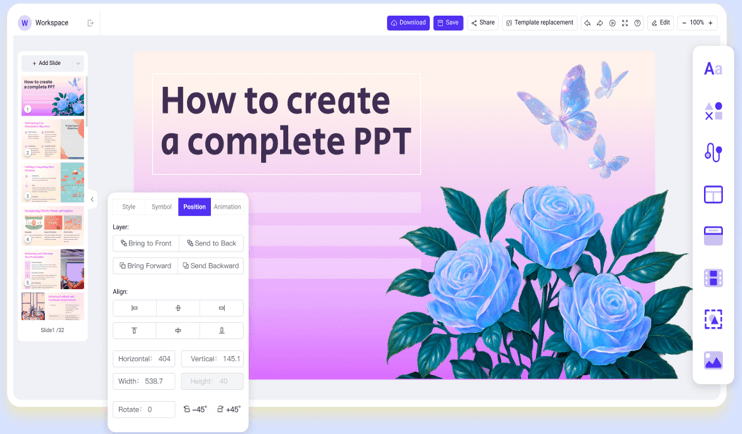
WorkPPT – AI Slides in Seconds
Enter a topic or upload a file, and WorkPPT creates ready-to-use slides instantly.
Features Comparion: Is Google Slides the same as PowerPoint
1. Collaboration
For teamwork, Google Slides is the clear leader. It allows many users to edit the slides at the exact same time, live and seamlessly. You can see your team members typing instantly.
PowerPoint also offers collaboration through OneDrive, but it often feels slower and less natural than the native, instant sharing of Slides.
2. Offline Ability
PowerPoint is the winner here. Since the best version of PowerPoint is a desktop application installed on your computer, it works perfectly without any internet connection. This makes it reliable for large events or travel. Google Slides is cloud-first, meaning it requires internet.
3. Design Tools
For professional design and powerful features, PowerPoint is superior. It offers stronger tools for animation, layout, video, and complex graphics. Google Slides is strong for clean, modern designs, but it lacks these deep, high-end customization options.
4. Templates
Both tools offer templates, but PowerPoint provides a wider and more polished options. Its template library features more complex and well-designed layouts. Google Slides has basic templates that work well for quick tasks.
5. AI Features
PowerPoint features Designer for better layouts and themes for your content, and Copilot can create or summarize whole presentations. They are more powerful than the basic AI help available in Google Slides.
6. Performance
Speed depends on what you are doing. Google Slides usually loads faster and works well for simple presentations because it runs in the browser. But for large files with many images or complex graphics, PowerPoint is smoother. A desktop app can handle heavy slides better than a browser tool.
Choosing the Right Tool: Google Slides or PowerPoint?
Choose Google Slides If...
- Your team needs to edit the deck at the same time and quickly.
- You are a student or working on a tight budget (free).
- You need to access and edit the presentation on many different devices.
- You want a clean, simple, and modern look without complex graphics.
Choose PowerPoint If...
- You are creating a very important client pitch or a major conference keynote.
- You need custom animations, 3D models, or complex data visualization.
- You must present in a location where the internet connection is unreliable or non-existent.
- You need the most control over every detail of the design.
Best AI Alternative to Google Slides and PowerPoint
If Google Slides feels too simple and PowerPoint feels too time-consuming, WorkPPT AI PPT offers a good middle choice. It is an AI presentation tool that can turn your ideas or files into full slides in seconds. You only need to enter a topic or upload a document, and the AI will build the outline, design the layout, and create the whole presentation for you.
⭐728323 presentations made

💡 Key Features:
- Turn any file or text into slides in seconds, without copy-paste work.
- 5,000+ templates for faster design with no searching required.
- Export to PPTX and PDF with full compatibility, so you can open your slides in Google Slides or PowerPoint anytime.
- WorkPPT offers more than just slides; it bundles several AI tools for summarizing and organizing.
⭐⭐⭐⭐⭐ Rated 4.8 by 1.3M Users
✍ [You May Also Like]:
FAQs: Google Slides vs PowerPoint
Q: Is PowerPoint better than Google Slides?
A: It depends on what you need. PowerPoint is better for advanced design, strong animations, and professional business slides. Google Slides is better for simple use, fast access, and teamwork. Neither tool is “better” for everyone; each one fits different users and tasks.
Q: Can I convert PowerPoint to Google Slides?
A: Yes. You can convert your PPTX file to Google Slides. Most content will stay the same, but some design elements or animations may look a little different. After editing, you can also export it again as PPTX if needed.
Q: Which tool is best for teamwork and collaboration?
A: Google Slides is the best choice for teamwork. It allows many people to edit the same slide deck at the same time, and changes appear instantly.
Q: Can Google Slides work offline?
A: Yes, but with limitations. Google Slides requires a specific setup within the Chrome browser to enable offline mode. While possible, it is not as reliable as the native desktop performance of PowerPoint for presenting or working without an internet connection.
Q: Can I use WorkPPT even if I have no design skills?
A: Yes. WorkPPT is very easy to use. The interface is simple, beginner-friendly, and has almost no learning curve. The AI creates the outline, layout, and design for you, so you can make clean slides without any design skills.
💬 Conclusion:
Choosing PowerPoint or Google Slides depends on your needs. PowerPoint is better for advanced design and complex slides, while Google Slides is great for quick access and teamwork.
If you want a faster option, WorkPPT can create full presentations in seconds with AI. It saves time, works online, and fits users who want simple, ready-to-use slides.