

AI Presentation Makers are fundamentally changing the way we draft reports, pitch ideas, and teach. These tools don’t just format your text; they structure your argument, suggest relevant visuals, and transform raw data into compelling narratives.
This definitive guide ranks the 8 best AI Presentation Makers available in 2026, evaluating them on core features, efficiency, and integration capabilities.
- Part 1: What Is an AI Presentation Maker?
- Part 2: How We Ranked the Best AI Presentation Maker
- Part 3: Top 5 Online AI Presentation Websites
- Comparison Table: 5 Best AI Presentation Websites
- 3.1 Gamma – Consistent Visuals & Strong Content
- 3.2 Canva – All‑in‑One AI Presentation & Design Platform
- 3.3 WorkPPT – Turn Ideas & Files into Ready‑to‑Present Slides
- 3.4 Presentation AI – Beautiful, Content‑Rich Online Decks
- 3.5 Prezi - Dynamic, Non-Linear Storytelling
- Part 4: Top 3 AI Presentation Makers for PowerPoint & Google Slides
- Part 5: Advantages of Using an AI Presentation Maker
- Part 6: Common Use Cases for AI Presentations
- FAQs About AI Presentation Makers
- 1. Are AI presentation makers worth using?
- 2. Are AI presentation makers free?
- 3. Which AI presentation maker is best for students?
- 4. Which AI presentation tool is best for business presentations?
- 5. How do I write a good prompt for an AI presentation maker?
- 6. Are AI‑generated presentations copyright‑free?
- 7. Can Turnitin detect AI in my slides?
- 8. How to generate slides with AI presentation maker?
Part 1: What Is an AI Presentation Maker?
- Creates an outline
- Writes headlines and bullet points
- Picks or generates images and icons
- Applies a layout, colors, and fonts using templates
Main Types of AI presentation makers
- Online AI presentation websites: stand‑alone web apps where you create, edit, and export your deck.
- Best for: Students, teachers, marketers, founders, teams who want fast, visual, shareable decks
- AI add‑ons for PowerPoint & Google Slides: Extensions that live inside PowerPoint and Google Slides and help generate or improve slides.
- Best for: Users already inside PowerPoint/Slides who want AI speed without changing their workflow
- AI‑first storytelling tools: Presentation platforms that reinvent the slide format (non‑linear, zoomable canvases, frameworks, etc.).
- Best for: Sales teams, data storytellers, executives who present frequently and need strong story
Part 2: How We Ranked the Best AI Presentation Maker
To make our list, each tool was rigorously evaluated based on these four critical factors:
- 1. Input Versatility: The ability to generate slides from various inputs: Text Prompts, File Uploads (PDF, Word, etc.), or pasted text.
- 2. Customization Depth: Access to professional editing tools, including Template Replacement, object layering, and advanced text/image editing.
- 3. Workflow Integration: Presence of native tools like AI Summarizer and PDF Editing to streamline the research-to-report process.
- 4. Value and Ease of Use: Overall pricing, learning curve, and quality of final output.
Part 3: Top 5 Online AI Presentation Websites
Comparison Table: 5 Best AI Presentation Websites
| Tool | Free Export Options | Typical Slides per AI Deck | Best For |
|---|---|---|---|
| Gamma | Yes — PDF & PPT (with watermark) | ~10 | Polished decks, strong content & visuals |
| Canva | Yes — PDF, PPT, MP4 (limits on free) | ~7 | Quick everyday decks + all-in-one design needs |
| WorkPPT | Yes — PPTX & Google Slides (depends on your plan) | Flexible (you choose) | Turning documents & data into structured slides |
| Presentation AI | No file export (share & publish only) | ~10 | High-quality visuals & content, online sharing |
| Slidesgo AI | Yes — PDF, JPG, MP4 (PPT on paid) | ~10 | Beautiful templates, infographics, PPT/PDF variants |
3.1 Gamma – Consistent Visuals & Strong Content
Gamma is frequently ranked at the top of AI presentation lists. It focuses on visual consistency and detailed, well‑structured content. It offers plenty of templates for product demos, startup pitches, and any presentation meant to impress.

Why it stands out
- AI generation with outline preview and fine‑grained controls
- Advanced settings: target audience, tone, text density, image source & style
- Extremely coherent visual themes—no “random” slides
- Supports presentations, documents, and even web‑like pages
Pros (based on real‑world use)
- Content quality is among the best: good for business & educational topics
- AI images match the color scheme of the chosen theme
- Strong customization: you can tweak structure, content, and visuals without losing consistency
- Generate slides from Docs, Sheets, Drive, and more
Cons
- Free plan AI credits are limited (credits don’t automatically refill monthly)
- Watermark remains on free exports
Who Gamma Is NOT For
- Users who need unlimited free exports without watermarks.
- Teams working primarily inside PowerPoint or Google Slides with strict file-based workflows.
- Users who want to generate very long, data-heavy decks (e.g., 30+ slides) in one pass.
- Those who require deep control over slide-by-slide layouts beyond Gamma’s design system.
For deeper content, Read to Gamma Review and How to use Gamma.
3.2 Canva – All‑in‑One AI Presentation & Design Platform
Canva is a familiar name for non‑designers. Its Magic Design and Magic Write features can now turn prompts into presentations in seconds.
Key features
- Prompt → AI‑generated slide deck
- Over 1,000 free templates plus rich media (stock photos, icons, videos)
- Magic Write for AI text generation & refinement
- Magic Media for AI image generation
- Export to PPTX, PDF, MP4 video
My experience
- On simple topics (“Marketing plan for a coffee shop”), Canva produces clear 7‑slide decks very quickly.
- Layouts are easy to customize by drag‑and‑drop.
- You can keep your brand kit (fonts, colors, logo) for consistent decks.
Limitations
- Content quality is basic—great for simple lessons, school work, and straightforward explainers, but you may need to rewrite for advanced business use.
- Very popular templates mean your decks can look generic if you don’t customize.
Who Canva Is NOT For
- Users who expect advanced business logic, storytelling depth, or strategic narratives from AI-generated content.
- Professionals who need highly original slide designs without heavy manual customization.
- Teams producing formal investor decks or consulting-style presentations with strict structure standards.
3.3 WorkPPT – Turn Ideas & Files into Ready‑to‑Present Slides
WorkPPT AI presentation maker is designed to convert your raw content—texts, documents, and data—into polished slides in seconds. It’s also comes with 10+ AI productivity tools like AI summarizer, PDF editor and mind map generator to boost your efficiency.

Core strengths
- Multi‑format input: text, images, PDF, Excel, Word
- Converts files into clean, structured decks with sections and bullet points
- Export to PowerPoint or Google Slides
- 5,000+ templates for reports, proposals, lessons, marketing decks, infographics, etc.
Beyond slide creation
WorkPPT is not just a generator; it’s an all‑in‑one productivity hub:
- AI Chat – rewrite content, simplify language, generate speaker notes
- Summarizer – condense long docs into slide‑ready key points
- Mind Map Generator – visualize ideas before turning them into a deck
- PDF tools – convert, merge, compress, and extract PDFs
- Other workflow utilities for research, content creation, and document handling
Who it’s best for
- Students & teachers: convert notes, PDFs, and readings into lesson slides
- Marketers & founders: turn strategy docs into pitch/marketing decks
- Teams: collaborate on reports and business presentations without spending hours on formatting
Who WorkPPT Is NOT For
- Designers looking for free-form, pixel-level visual experimentation.
- Users who never work with documents, data files, or long-form content.
My experience
- Uploading a dense PDF report and letting WorkPPT summarize & structure it into a deck saves enormous time versus manual copy‑paste.
- Combining Mind Map → AI deck is very effective for courses and workshops.
- AI Chat inside the same workspace reduces friction: you don’t need to jump between tools.
⭐⭐⭐⭐⭐ Rated 4.8 by 1.3M Users
✍ [You May Also Like]:
3.4 Presentation AI – Beautiful, Content‑Rich Online Decks
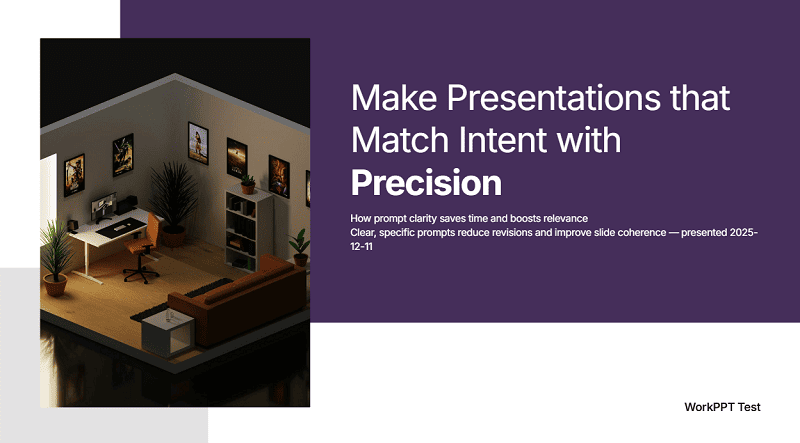
Presentation AI is a high‑quality AI presentation maker praised for its visual design and data visualization. It automatically generates professional presentations from text, documents, or outlines. Its Brand Sync feature keeps your company colors and logos consistent across slides.
Highlights
- ~10‑slide decks with strong visuals and charts
- 1,000+ templates across business, education, sales, and marketing
- Flexible content length: can choose shorter or longer text
- Integrates with Google Slides and PowerPoint for further tweaking
- Audience engagement analytics
Pros
- Content depth: often more detailed than other AI tools
- Data visualization elements (charts, timelines, etc.) are nicely designed
- More editing features and controls over text length than many competitors
Cons
- No direct file export (PDF, PPT, etc.) at the time of writing; you rely on sharing & publishing links
- Free credits are limited
Who Presentation AI Is NOT For
- Users who require direct file downloads (PPTX or PDF) without relying on share links.
- Offline presenters or teams with limited internet access.
- Users who want full ownership and local editing of presentation files from day one.
Read Presentation AI review for detailed how‑to and deep review.
3.5 Prezi - Dynamic, Non-Linear Storytelling
Prezi is a dynamic presentation maker known for its distinctive zooming interface, which allows users to create non-linear, visual narratives that emphasize relationships between topics rather than a static slide-by-slide flow. Its AI features assist in content structuring and template application.

Highlights:
- Unique zooming canvas for nonlinear presentations (vs. traditional slides).
- AI content generation helps structure initial ideas and text inputs.
- Large library of visually engaging templates designed for the “Prezi look.”
- Excellent collaboration and remote presenting features.
- Audience engagement tracking and analytics.
Pros:
- High Engagement: The zooming feature captures and holds audience attention better than traditional decks.
- Intuitive Structuring: The mind-map-like canvas makes it easy to organize complex ideas visually.
- Strong focus on interactivity and virtual presentations (Prezi Video).
Cons:
- Steep Learning Curve: It takes time to master the non-linear structure and navigation, which can feel dizzying if not used correctly.
- Limited Offline Use: Requires an internet connection for core editing and presentation features (depending on the plan).
- Final export options (like PPTX) often lose the unique Prezi dynamic.
Who Prezi Is NOT For
- Users who prefer traditional, linear slide-by-slide presentations.
- Beginners who want instant results without learning a new presentation paradigm.
- Teams that rely heavily on PowerPoint-compatible exports for final delivery.
Click to read review of Prezi: Features, Pricing and Alternatives >>
Part 4: Top 3 AI Presentation Makers for PowerPoint & Google Slides
Comparison Table: AI Add‑Ons for PowerPoint & Google Slides
| Tool | Platform Support | Main Strengths | Best For |
|---|---|---|---|
| Microsoft Copilot | PowerPoint (Microsoft 365) | Deep integration, document‑aware slide creation | Teams already on Microsoft 365 |
| Plus AI | Google Slides & PowerPoint | Prompt‑to‑deck, slide rewriting, templating | General users who want AI inside their slides |
| Slides AI | Google Slides & PowerPoint | Quick deck generation from text or Docs | Google‑centric users needing speed & basics |
4.1 Microsoft Copilot for PowerPoint
Copilot for PowerPoint lets you create and refine slide decks using plain English commands.
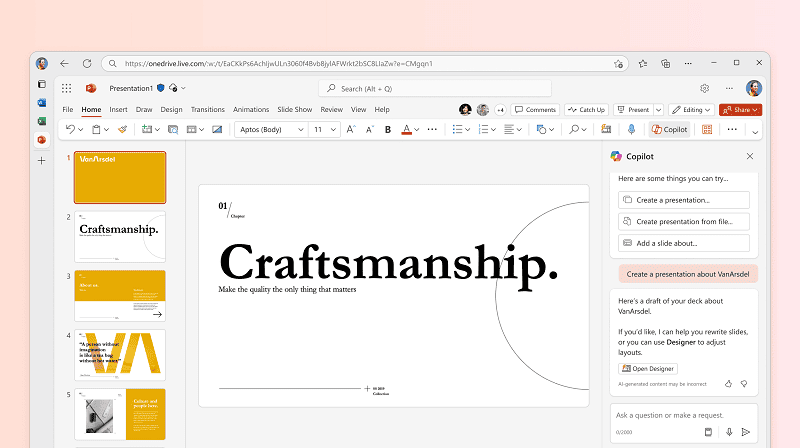
- Turn a Word document into a draft presentation
- Suggest structure, headlines, bullets, and speaker notes
- Rewrite or shorten text on a specific slide
- Generate simple visuals (SmartArt, charts suggestions)
- Deep integration: uses content in your Microsoft 365 environment (OneDrive, Word, Outlook)
- Perfect for enterprises already heavily invested in Microsoft
- You need an eligible Microsoft 365 plan (not truly “free”)
- User experience and output quality can lag behind some dedicated AI presentation websites
Who Copilot Is NOT For
- Users without an eligible Microsoft 365 subscription.
- Individuals looking for advanced visual creativity beyond standard PowerPoint layouts.
- Users who want a standalone AI presentation platform independent of Microsoft apps.
4.2 Plus AI – Flexible AI Assistant for Slides
Plus AI brings many prompt‑to‑deck capabilities directly into your existing slide editor.
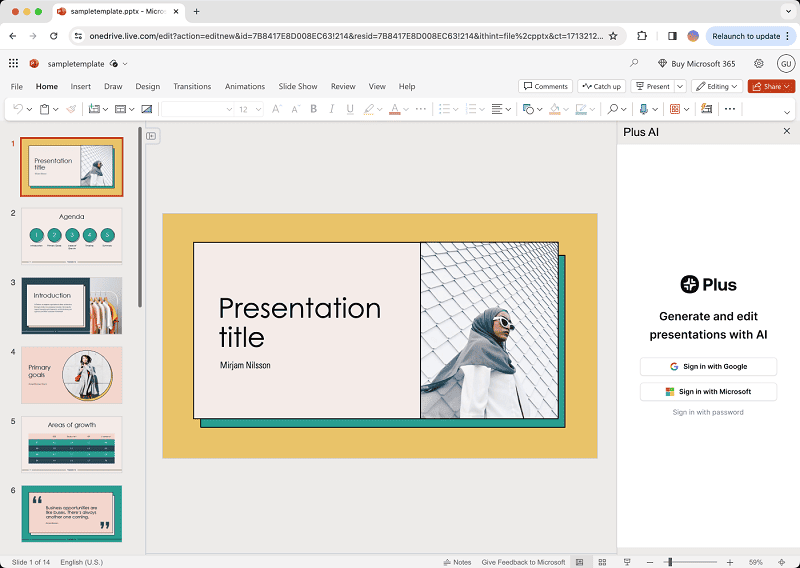
- Generate a full deck from a prompt inside Slides/PowerPoint
- Rewrite and restructure existing slides (tone, length, clarity)
- Apply templates and visual themes automatically
- Insert AI‑generated outlines and talking points
- Works in both Google Slides and PowerPoint
- Great for users who want to stay in one app and don’t need a separate website
- You need to enter credit card to get free trial.
- Feature set depends on the host platform (Slides vs PowerPoint)
Who Plus AI Is NOT For
- Users who prefer a completely free tool without credit card requirements.
- Teams seeking advanced document-to-slide automation outside Slides or PowerPoint.
- Designers who want full control over layouts beyond what add-ons allow.
4.3 Slides AI – AI for Google Slides and PowerPoint
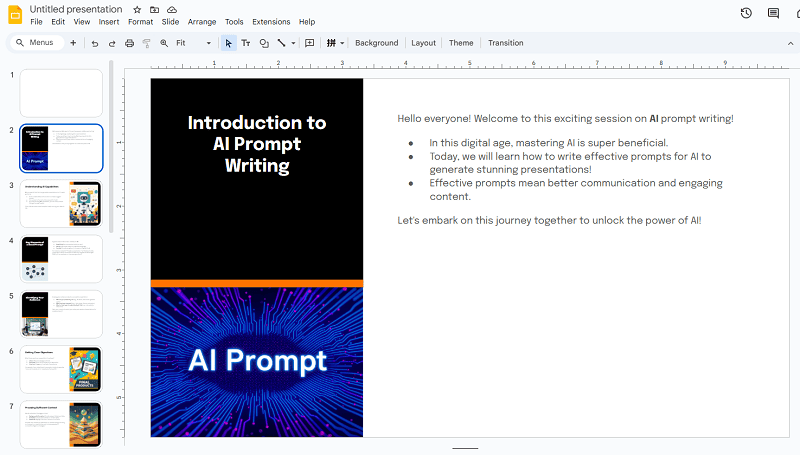
Slides AI converts raw text into Google Slides decks in a couple of clicks.
Features
- Simple sidebar: paste your text, choose presentation length, and generate
- Light editing tools to tweak content and layout
- Good for quick, basic decks for internal use or classroom contexts
Pros
- Very fast for turning a blog post or lesson plan into a deck
- Low learning curve for Google Workspace users
Cons
- The generation time is a lot longer than online AI presentations.
- Limited design control compared to full platforms like WorkPPT or Canva
- More suitable for “good enough” slides than flagship client presentations
Who This Tool Is NOT For
- Users who need fast generation for long or complex documents.
- Professionals producing high-stakes client or investor presentations.
- Users who want advanced visual design or deep customization options.
Part 5: Advantages of Using an AI Presentation Maker
- Time-Saving: Reduces creation time from hours to minutes.
- Design Consistency: Ensures a professional and unified look (via features like Template Replacement).
- Content Structuring: Excels at taking unstructured text and giving it a logical flow.
- Feature Integration: Access to tools like PDF Editor and AI Summarizer streamlines the workflow.
Part 6: Common Use Cases for AI Presentations
- Sales Pitches: Rapidly customizing decks for different clients.
- Academic Reports: Turning lengthy research papers into concise, visual summaries.
- Internal Training: Creating training modules from existing documentation.
- Event Summaries: Converting meeting notes or transcripts into shareable reports.
FAQs About AI Presentation Makers
1. Are AI presentation makers worth using?
Yes. If you make presentations regularly, an AI tool can save hours per deck by automating:
- Outlining
- First‑draft copy
- Basic design and layout
- In some cases, even speaker notes
You still need to add your expertise and final polish, but AI dramatically reduces the “blank slide” problem.
2. Are AI presentation makers free?
Most tools offer a free plan with:
- Limited AI credits (e.g., Gamma, Presentation AI, Prezi)
- Limited export options or watermarks (e.g., Gamma, Pitch)
- Limited number of generations (e.g., WorkPPT, Canva, AiPPT)
Check each tool’s pricing page for the latest limits. For serious, recurring use, a paid plan is usually cost‑effective compared to the time saved.
3. Which AI presentation maker is best for students?
For students and educators:
- WorkPPT – It avoids the overly polished look of typical AI presentations, making its slides resemble human-made work, which is ideal for students attending schools with AI usage restrictions.
- Canva – Easy for basic school presentations, posters, and assignments
- Prezi – Engaging, zoomable presentations for class talks
- AiPPT, Slidesgo – Longer decks & template variety (with some export limits)
4. Which AI presentation tool is best for business presentations?
For business, sales, and marketing:
- WorkPPT – Report decks, strategy presentations, data‑rich slides
- Gamma – Polished storytelling and consistent visual identity
- Pitch – Sales‑oriented decks with data integrations
- StoryD – Frameworks for venture pitches, quarterly reviews, and sales stories
- Microsoft Copilot / Plus AI – If your company standard is PowerPoint/Slides
5. How do I write a good prompt for an AI presentation maker?
Who + What + Why + Audience + Length + StyleExample:
“Create a 12‑slide presentation on ‘AI presentation makers in 2026’ for non‑technical business managers.Tips:
- Goal: explain what they are, key benefits, and how to choose a tool.
- Include: definitions, comparison of website tools vs PowerPoint add‑ons, 3 use‑case examples.
- Tone: clear, professional, not too technical.
- Region: global, but examples in English.”
- Specify audience (students, executives, technical team)
- Set a slide range (e.g., 8–12 slides)
- Mention structure (intro, 3–4 main sections, conclusion, CTA)
- Tell the AI what to exclude (e.g., “avoid US‑only statistics”)
6. Are AI‑generated presentations copyright‑free?
Not always. Consider:
- Some tools add watermarks to free exports.
- Stock images and icons may have license terms.
- If you use brand assets or proprietary data, your organization’s policies apply.
Always check the terms of use of your chosen tool and, when needed, upgrade to paid plans to remove watermarks and secure commercial rights.
7. Can Turnitin detect AI in my slides?
8. How to generate slides with AI presentation maker?
Here are the steps about how to use AI presentation maker:
How to Use an Online AI Presentation Maker:
Applicable Tools: WorkPPT, Gamma, Canva, Slidesgo, etc.
| Step | Action | Description |
|---|---|---|
| Step 1: Log In & Select | Log into the platform and select the “AI Generation” or “Design for me” function. | These tools run entirely in your browser and require no installation. |
| Step 2: Provide Input | Paste text, upload a file (PDF, Word, TXT), or enter a concise Prompt. | A clear prompt (topic, audience, goal) is crucial for a high-quality draft. |
| Step 3: Adjust Settings | Choose the number of slides, theme style, or target audience. | The AI uses these parameters to generate content and visual design. |
| Step 4: Generate & Edit | Click “Generate” or “Begin.” Once the AI completes the draft, use the platform’s built-in editing tools (like Template Replacement) for refinement. | |
| Step 5: Export | Download the final file as PPTX (PowerPoint/Google Slides compatible), PDF, or other image/video formats. |
How to Use PowerPoint/Google Slides Add-ons:
Applicable Tools: Microsoft Copilot, Plus AI, Slides AI, etc.
| Step | Action | Description |
|---|---|---|
| Step 1: Install & Launch | Install the add-on/extension from the Google Workspace Marketplace or Microsoft Store. | Ensure you are logged into the corresponding account (Google or Microsoft 365). |
| Step 2: Start the Add-on | In PowerPoint/Google Slides, launch the AI tool sidebar via the “Extensions” or “Add-ins” menu. | The add-on runs within your familiar editing environment. |
| Step 3: Provide Command | Input a prompt into the sidebar, paste text, or reference an existing file (e.g., Copilot referencing a OneDrive file). | The add-on uses AI to generate content within your current presentation theme. |
| Step 4: Insert Slides | Click “Generate” or “Insert.” | The AI will insert new, formatted slides directly into your open presentation. |
| Step 5: Refine | Use all the native features of PowerPoint or Google Slides to make fine-tuned adjustments to the AI-generated content. |
💬 Conclusion:
In the article, we cover what AI presentation makers are and how they work, their advantages, use cases. Which is the best AI presentation maker for you?
Tired of spending hours designing your Google Slides? Try WorkPPT for free today and transform plain slides into eye-catching presentations!
