

author image

A well-designed presentation is not just about visuals or content. It starts with a title. When slide title layouts are clear and consistent, your audience can instantly understand what each slide is about. In this article, we’ll break down best practices and show how to adjust title layouts in PowerPoint for clearer, more impactful presentations.

A slide title layout defines where the title appears on a slide and how it relates to the main content. It sets the visual hierarchy, guiding the audience’s eyes from the title to the supporting information.

In most presentation tools, including PowerPoint, slide layouts are pre-built structures that control the placement of titles, text, images, and other elements. A properly chosen layout title slide helps your message feel organized and professional, even before the audience reads a single word.

workppt banner

Clear Slide Titles with AI

WorkPPT uses AI to generate clear slide title layouts and structured slides, fully compatible with PowerPoint and Google Slides.

Common Types of Slide Title Layouts

Different presentations require different title placements. Here are some of the most commonly used slide title layouts and when to use them.

  • Split Layout
    This layout divides the slide into two distinct sections, typically placing a high-quality image on one side and your title text on a solid background on the other. It creates a perfect visual balance without compromising the readability of your text.
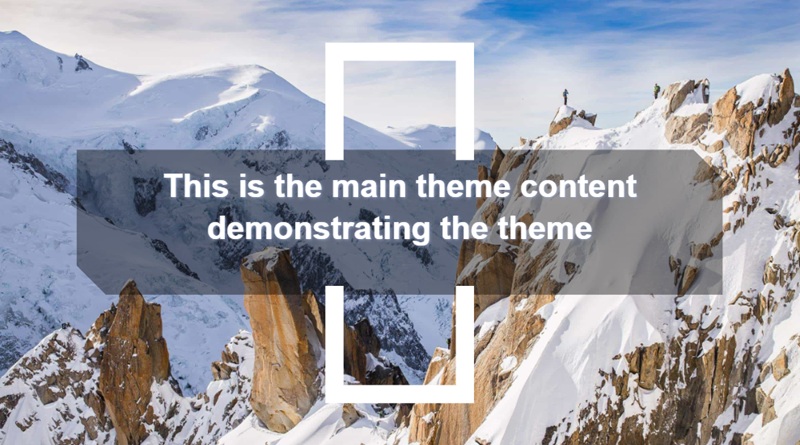
  • Image Cover
    This layout uses a single, stunning image that covers the entire slide, with text placed directly on top. To ensure the text remains legible, a semi-transparent dark or light layer (the overlay) is placed between the photo and the font.

[You May Also Like]: How to Make an Image Transparent

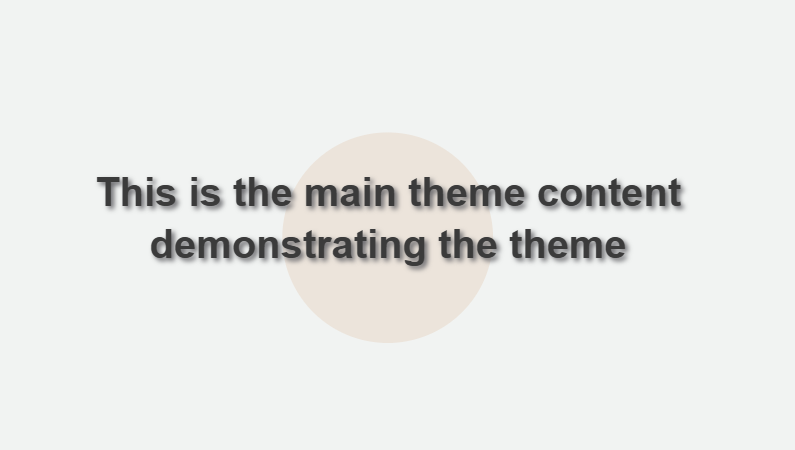
  • The Minimalist
    Sometimes, the best layout is the simplest one. This layout relies on generous white space and bold, high-quality typography. There are no distracting images or complex shapes. Just a clean background and a centered or well-aligned title.
  • Color Block
    Sometimes, the best layout is the simplest one. This layout relies on generous white space and bold, high-quality typography. There are no distracting images or complex shapes. Just a clean background and a centered or well-aligned title.

Best Practices for Desining Slide Title Layout

To create clear and impactful presentations, keep these best practices in mind:

First, keep slide titles concise and meaningful. A good title summarizes the main idea instead of repeating generic labels like “Overview” or “Details.”

Second, use a consistent title position throughout your deck. Constantly moving the title from top to center or side to side can distract your audience and break visual flow.

Third, match the title layout to the content density. Slides with charts or long explanations benefit from a stable top-aligned title, while transition slides can use centered or minimal layouts.

Finally, make sure the title does not compete with visuals. Adequate spacing, contrast, and font size ensure the title remains readable even when the slide includes images or data.

How to Change Slide Layout to Title and Content

Using the Title and Content layout is one of the simplest ways to improve slide clarity. Both PowerPoint and Google Slides allow you to change slide layouts at any stage of your presentation, helping you restore a clear title hierarchy and content structure.

Change Slide Layout to Title and Content in PowerPoint

To change slide layout to title and content in PowerPoint, follow these steps:
1. Select the slide you want to modify.
2. Go to the Home tab in the ribbon.
3. Click Layout.
4. Choose Title and Content from the layout menu.
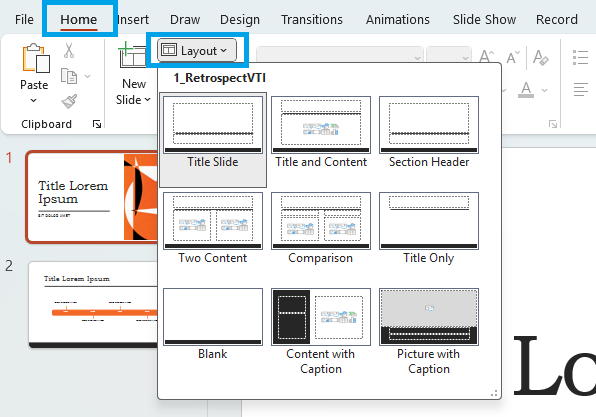
change slide layout in powerpoint

Change Slide Layout to Title and Content in Google Slides

Google Slides offers a similar approach, with a slightly simpler interface. Follow these steps:
1. Select the slide you want to edit.
2. Click Layout in the top toolbar.
3. Choose Title and body from the available layouts.

change google slides layout

Creating Better Slide Title Layouts with WorkPPT AI PPT

While PowerPoint and Google Slides allow you to adjust slide layouts manually, maintaining a consistent slide title layout across an entire presentation can still take time. WorkPPT AI Presentation Maker help simplify this process by generating structured slides automatically.

WorkPPT is an AI-powered presentation tool that turns prompts, documents, or PDFs into complete slide decks with a clear title hierarchy and well-balanced title and content layouts.
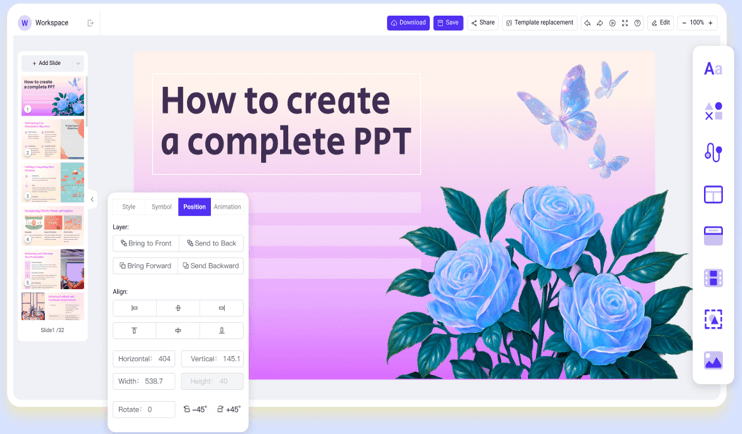
screenshot of workppt workspace

⭐⭐⭐⭐⭐ Rated 4.8 by 1.3M Users

Key advantages of using WorkPPT for slide title layout:

  • Automatically applies consistent title placement and spacing
  • Generates clear Title and Content layouts from unstructured text
  • Builds logical slide structure based on your content
  • Offers 5000+ templates for business and education
  • Fully compatible with PowerPoint and Google Slides (PPTX export)

Here is a video tutorial:

FAQs: How to Begin a Presentation

Q1: Why slide title layout matters?

A: A clear slide title layout helps viewers quickly scan the presentation and understand the flow, especially in meetings or online presentations where attention spans are short.

Q2: Should slide titles be full sentences?

A: In most cases, slide titles should be short and scannable. Clear phrases or key ideas work better than long sentences, especially for business or teaching presentations.

Q3: How to format slide title?

A: To format a slide title effectively, keep it short and clear, use a larger font size than body text, and place it consistently across slides. Use strong contrast between the title and background, and avoid overcrowding the title with too much text.

💬 Conclusion:

A strong presentation starts with a clear structure, and that structure depends heavily on your slide title layout. By choosing the right layout, keeping titles consistent.

While tools like PowerPoint and Google Slides offer flexible layout options, creating consistent title formatting across multiple slides can still take time. AI presentation tools such as WorkPPT help streamline this process by generating structured slides with clear title hierarchy from the beginning.