
author image

When I first started creating presentations for marketing reviews and internal meetings, I spent more time choosing backgrounds than writing content—and most of the results still looked unprofessional.

After years of trial and error, I’ve learned that choosing the right presentation background is less about design skills and more about knowing what to look for. This guide is written for beginners who want clean, usable results—fast.

A PPT background is the visual foundation of your slides—colors, shapes, images, or gradients that sit behind your content. It is not the same as a full presentation template:

  • A PPT background focuses on visual style
  • A PPT template includes layouts, typography, and slide structure

If your content is already clear and you just need your slides to look better, starting with a free PPT background is often the smartest choice.

presentation template

From my experience, a background works best when:

  • You already have an outline or draft slides
  • You’re updating an old presentation
  • You need a quick visual refresh for a meeting
  • You want visual consistency without redesigning everything

For strategy decks, reports, or internal reviews, a clean presentation background often performs better than complex templates.

Step-by-Step: How I Download and Use Free PPT Backgrounds

This is the exact workflow I still use today.

Step 1: Choose the Right Site

Not all “free” sites are beginner-friendly. I prioritize:
  • Editable PowerPoint or Google Slides formats
  • Clear licensing
  • Minimal design styles

Step 2: Download the Background

I usually look for:
  • Neutral colors
  • High contrast for text
  • Multiple slide background variations

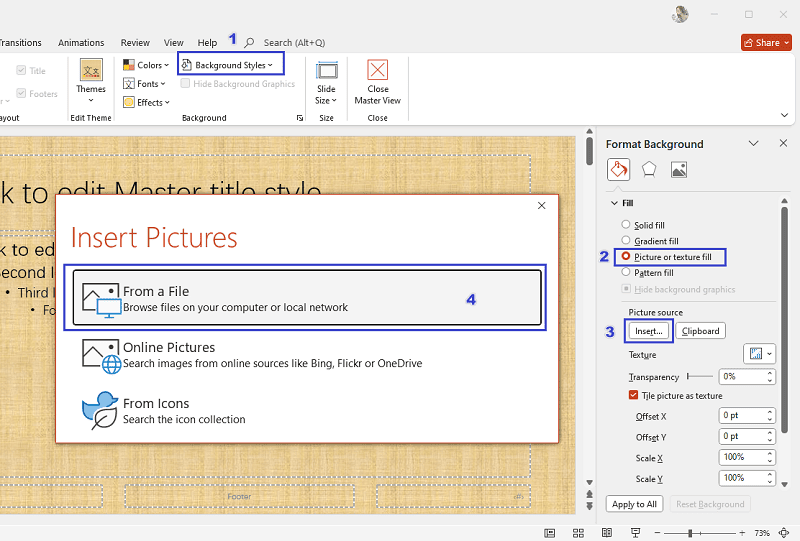
Step 3: Apply It Correctly

Insert Background in PowerPoint:
    • Use Design → Format Background
    • Apply to all slides
    • Adjust transparency if needed

insert background in powerpoint

A good PPT background should support content, not compete with it.

Want to Save Time on Presentation Creation?

After testing 20+ AI PPT makers, I currently recommend WorkPPT AI for create presentations. It supports:

  • Text to PPT
  • File to PPT
  • Structured business slide layouts
  • 5000+ business AI template library including marketing, business template.

⭐728323 presentations made

5 Free PPT Background Download Sites (Beginner-Friendly)

Here are five sites I’ve personally used or tested. All are suitable if you’re searching for free PPT background download options:

  • 1. SlideCarnival – Clean, business-friendly backgrounds
  • 2. Slidemodel – Easy to customize, beginner-focused
  • 3. Canva – Fashion and modern images
  • 4. Freepik – Creative backgrounds (check attribution rules)
  • 5. Slidesgo.com – Illustrated and modern styles

If you’re new, start with SlidesCarnival or Microsoft Templates—they’re the hardest to misuse.

How to Avoid “Cheap-Looking” Slides (Common Beginner Mistakes)

Most bad presentations don’t fail because of content—they fail because of background misuse. Here’s what I actively avoid:

  • Over-designed backgrounds: If the background grabs more attention than your headline, it’s too much.
  • Low contrast colors: Light text on light backgrounds is the fastest way to lose your audience.
  • Inconsistent backgrounds: Switching styles mid-deck breaks professionalism instantly.

Simple Rules I Follow When Choosing a PPT Background

These rules saved me hours:

  • One background style per presentation
  • Neutral colors for data-heavy slides
  • Visual backgrounds only for title or section slides
  • White space is not empty—it’s clarity

A good presentation background should feel invisible during delivery.

💬 Conclusion:

If you’re searching for PPT backgrounds, your goal is probably simple: make your slides look professional without becoming a designer. I’ve learned that the best backgrounds are:

  • Clean
  • Flexible
  • Easy to edit
  • Designed to disappear behind good content
  • Start simple, choose wisely, and let your message do the talking.

If you want to create a beautiful presentation without searching for backgrounds, templates, or dragging elements, try WorkPPT.